
How to Upload Product Reviews to Google Shopping (for Shopify Stores)
You've got your product reviews. Now you need to get them onto Google Shopping as star ratings. This guide walks through it, whether you auto-sync in one click or add a feed to Google Merchant Center yourself.
On Shopify? The Review2XML app is Built for Shopify, Shopify's top quality status for apps, and does everything below in three clicks.
Time required: about 2 minutes with one-click auto-sync, and after that new reviews sync to Google automatically.
What You Need Before You Start
- 50+ total product reviews across all your products (Google's minimum for the Product Ratings program)
- A Google Merchant Center account with a synced product feed
- Approval in the Google Product Ratings program (apply via the interest form)
- A review app you can auto-sync or export as CSV (Judge.me, Loox, Yotpo, Okendo, Stamped, Junip, Reviews.io, or Trustpilot Premium)
Don't have Merchant Center set up yet? See our full how to add reviews to Google Shopping guide that covers the end-to-end process from account creation.
Step 1: Connect Your Reviews
If you use Judge.me or Yotpo, skip exporting and one-click auto-sync them in the Review2XML wizard. For any other app, export a CSV (or connect a Google Sheet). Here's the quick version for each app:
| Platform | Where to find export |
|---|---|
| Judge.me | Apps > Judge.me > Reviews > Export > Export published reviews |
| Loox | Apps > Loox > Manage Reviews > Product reviews > Export to CSV |
| Yotpo | reviews.yotpo.com > Reviews > Moderation > Date Range: All Time > Export to CSV |
| Okendo | Settings > Import/Export > Reviews > Export > All Time > Request Export |
| Stamped | Reviews > All Reviews > Filter > Date Range > Download All Reviews |
| Junip | Reviews > Product Reviews > Export all reviews |
| Reviews.io | Settings > Export Reviews > Product Reviews > CSV > Export |
| Trustpilot | Manage reviews > Product reviews > Inbox > Export |
For full step-by-step instructions with screenshots for each app, see our complete review export guide.
Step 2: Turn Your Reviews into a Google Product Ratings Feed
Google won't accept a raw CSV. It requires a specific XML format defined in the Google Product Ratings Feed Specification, and Review2XML builds it for you.
Go to review2xml.com, enter your store URL, and connect your reviews (one-click auto-sync for Judge.me and Yotpo, a Google Sheets link, or your CSV). Review2XML auto-detects your columns, including the product identifier (SKU, GTIN, or MPN), and maps every field to Google's schema automatically. Preview your product cards with their star ratings, then your first 50 reviews go live free.
Step 3: Connect Your Feed to Google Merchant Center
Through Google's official Merchant API, Review2XML can push your feed straight into Merchant Center in one click. To add it yourself instead:
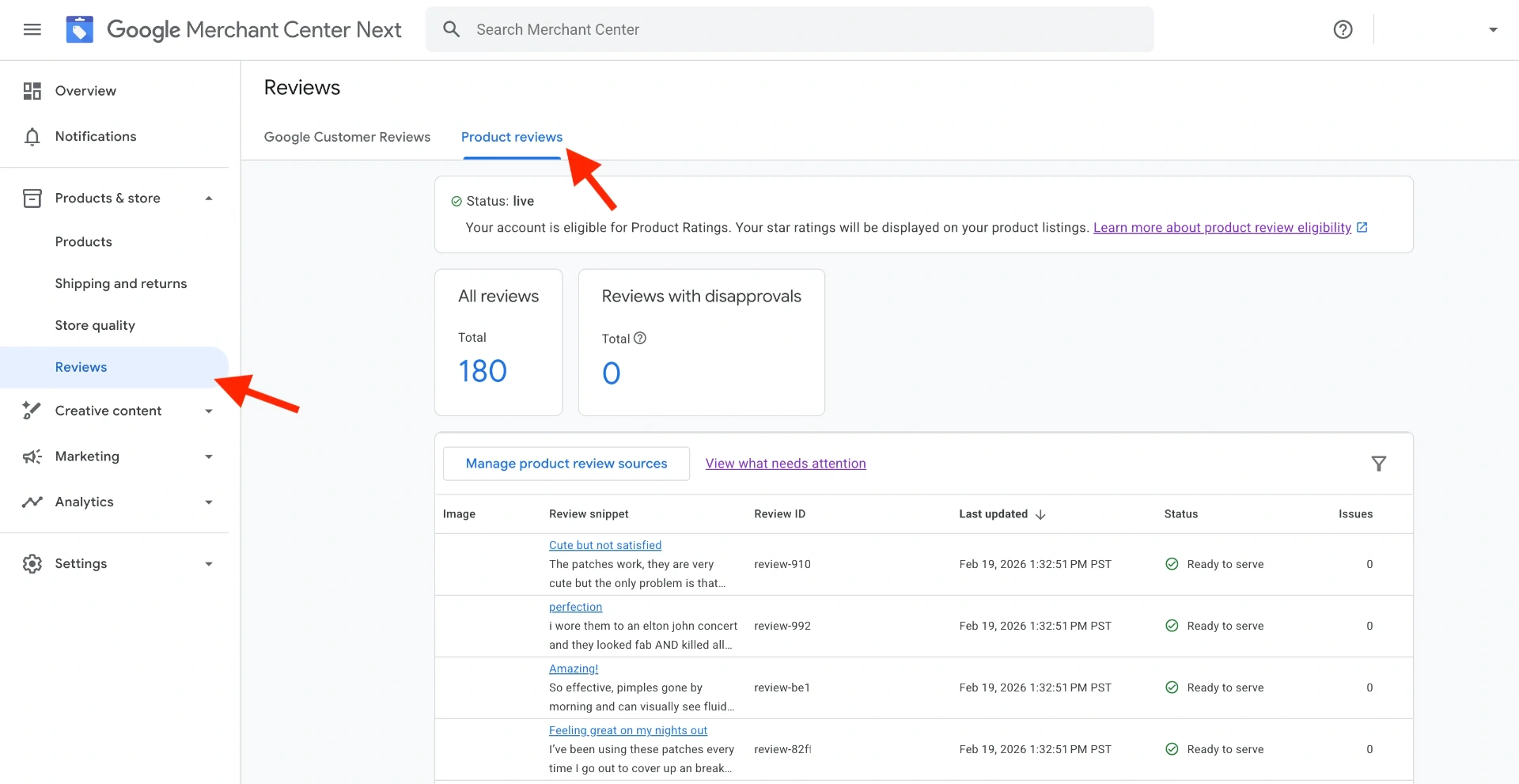
1. Navigate to Products & store > Reviews > Product reviews
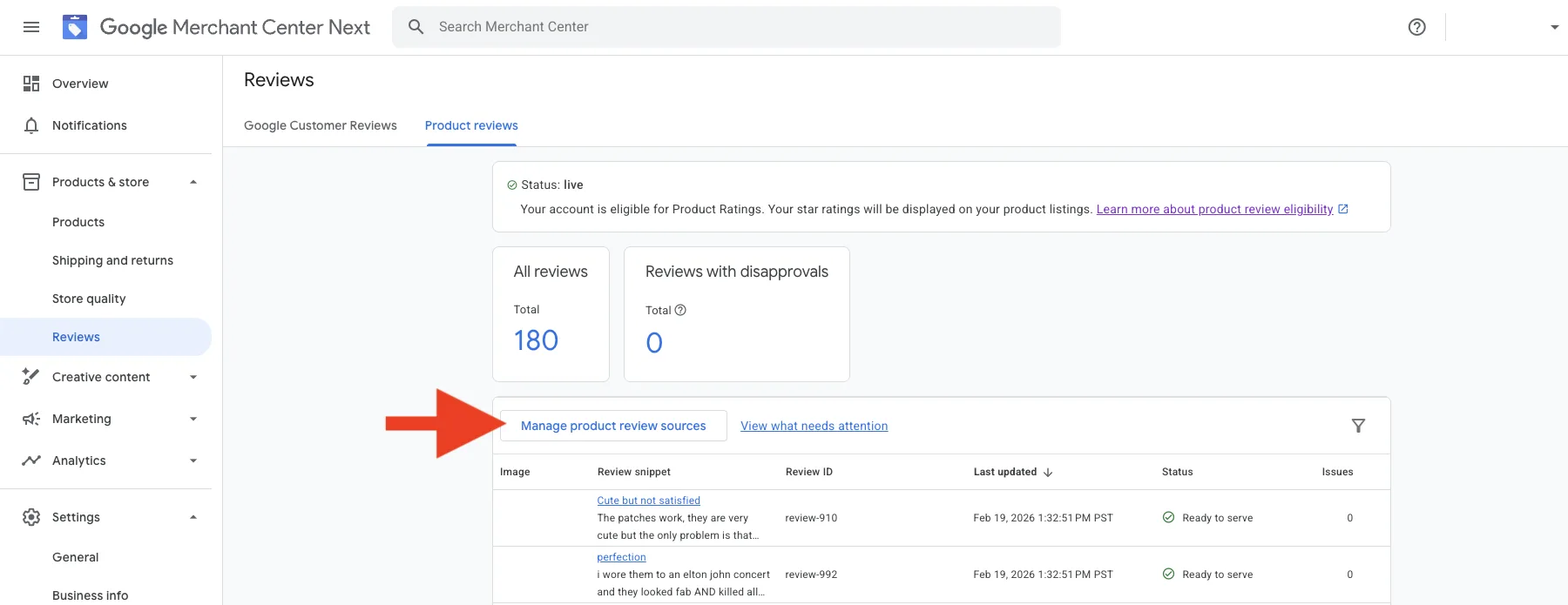
2. Click Manage product review sources, then Add product review source
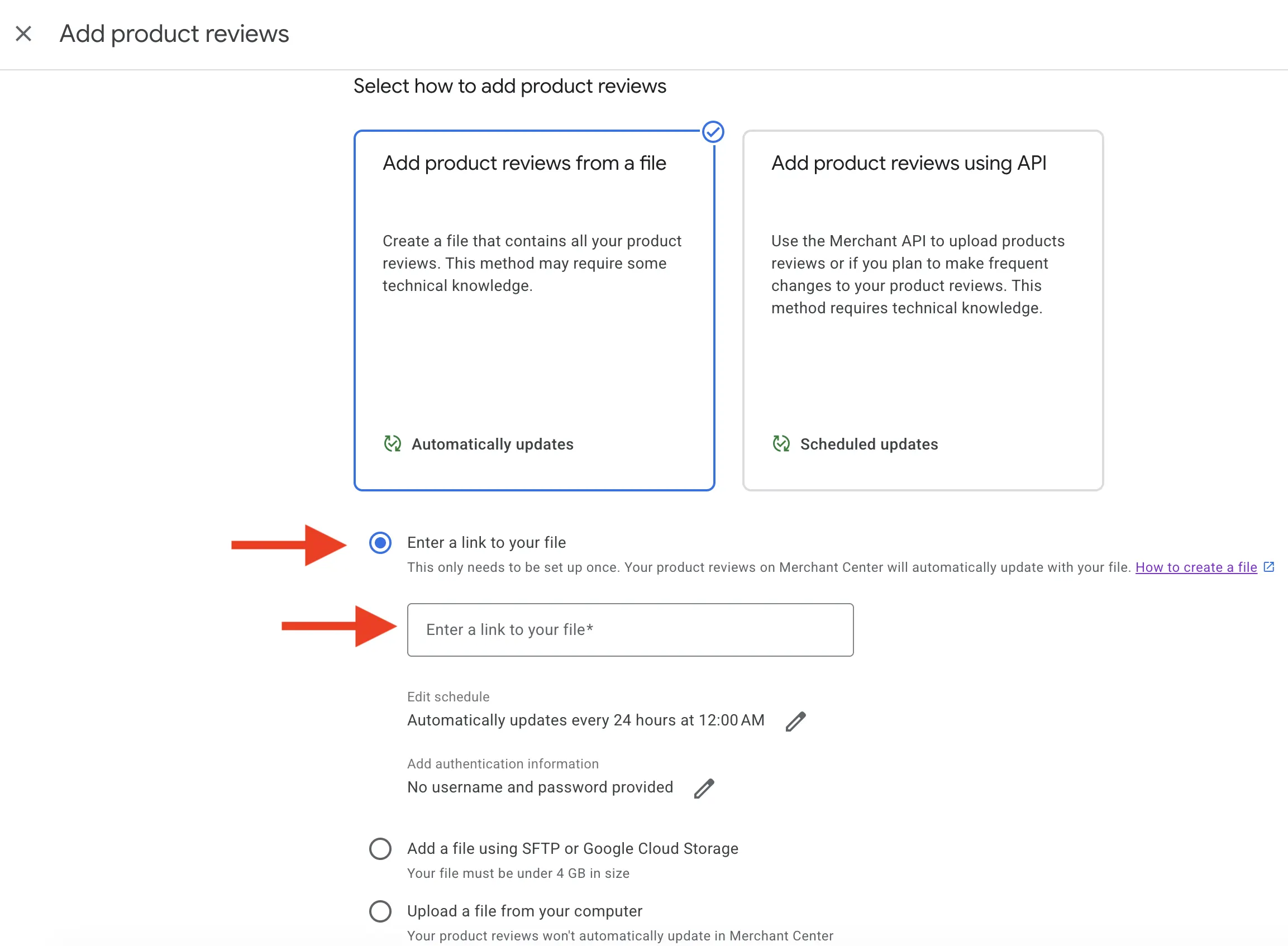
3. Choose Enter a link to your file and paste your Review2XML feed URL. Because it's a hosted URL, Google re-fetches it automatically, so you never have to re-upload.
After you connect it, your feed status shows as "Inactive" while Google validates and processes it. This is completely normal.
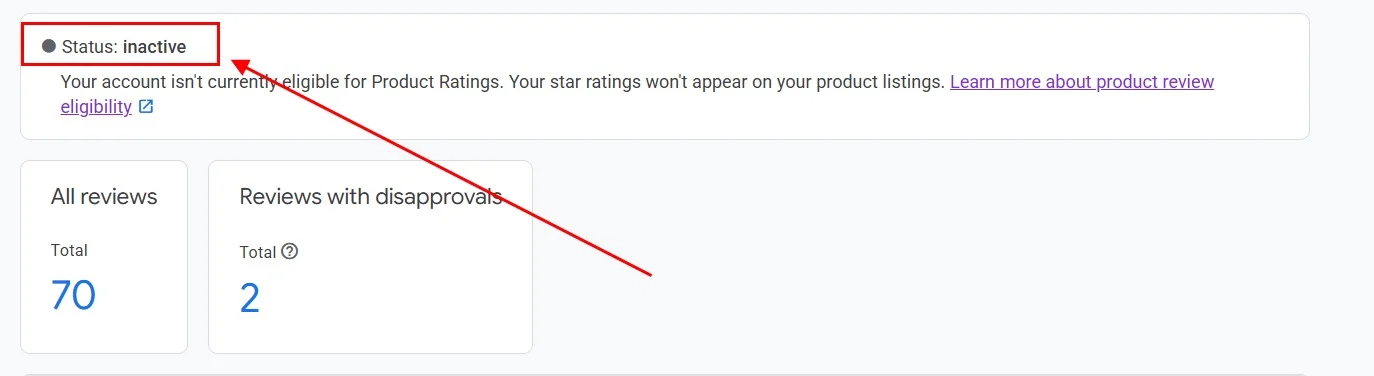
Once Google has processed the feed, the status changes to "Live":

Step 4: Wait for Stars to Appear
After your feed goes Live:
- Star ratings appear on Google Shopping within 2 to 6 weeks
- Stars show on both free listings and paid Shopping ads
- Products with more reviews tend to get stars sooner
Common reason stars don't appear: SKU mismatch. Your review feed uses the SKU (or GTIN/MPN) from your review app, and this must match exactly what's in your product feed in Merchant Center. See our feed error troubleshooting guide if stars aren't showing.
Keeping Your Feed Up to Date
New reviews sync automatically. If you auto-synced Judge.me or Yotpo, Google receives your new reviews every day with nothing to do on your end. If you used a CSV, upload a fresh one from your Review2XML dashboard and your hosted feed updates in place, so Google fetches the change on its own. There are no monthly manual re-uploads.
Frequently Asked Questions
How long does it take for stars to appear on Google Shopping?
Typically 2 to 6 weeks after your feed shows "Live" status. The feed itself usually processes within a few days. Stars appear gradually, with products that have more reviews tending to get them first.
My feed shows "Inactive" after I connect it: is something wrong?
No. "Inactive" is the normal state right after you add the feed. Google is validating it, and it usually moves to "Live" within a few days. If it stays Inactive for more than a week, check for feed errors in the Diagnostics section of Merchant Center.
Do I need to re-upload the feed every time I get new reviews?
No. Review2XML gives you a hosted feed that Google re-fetches automatically, and if you auto-synced Judge.me or Yotpo, new reviews flow to Google every day. There's nothing to re-upload.
Which product identifier should I use: SKU, GTIN, or MPN?
Use whichever identifier your product feed uses. GTIN (barcode) gives the most reliable matching. If you use SKUs, make sure they match exactly between your review app and your Merchant Center product feed.
Can I have multiple review feeds in Merchant Center?
Yes. If you switch review apps or want to combine reviews from multiple platforms, you can add multiple feeds as separate review sources and Google merges them.
Found this helpful? See more of our guides on Google.
Add as preferred source on Google