
How to Add Reviews to Google Shopping (Complete 2026 Guide)
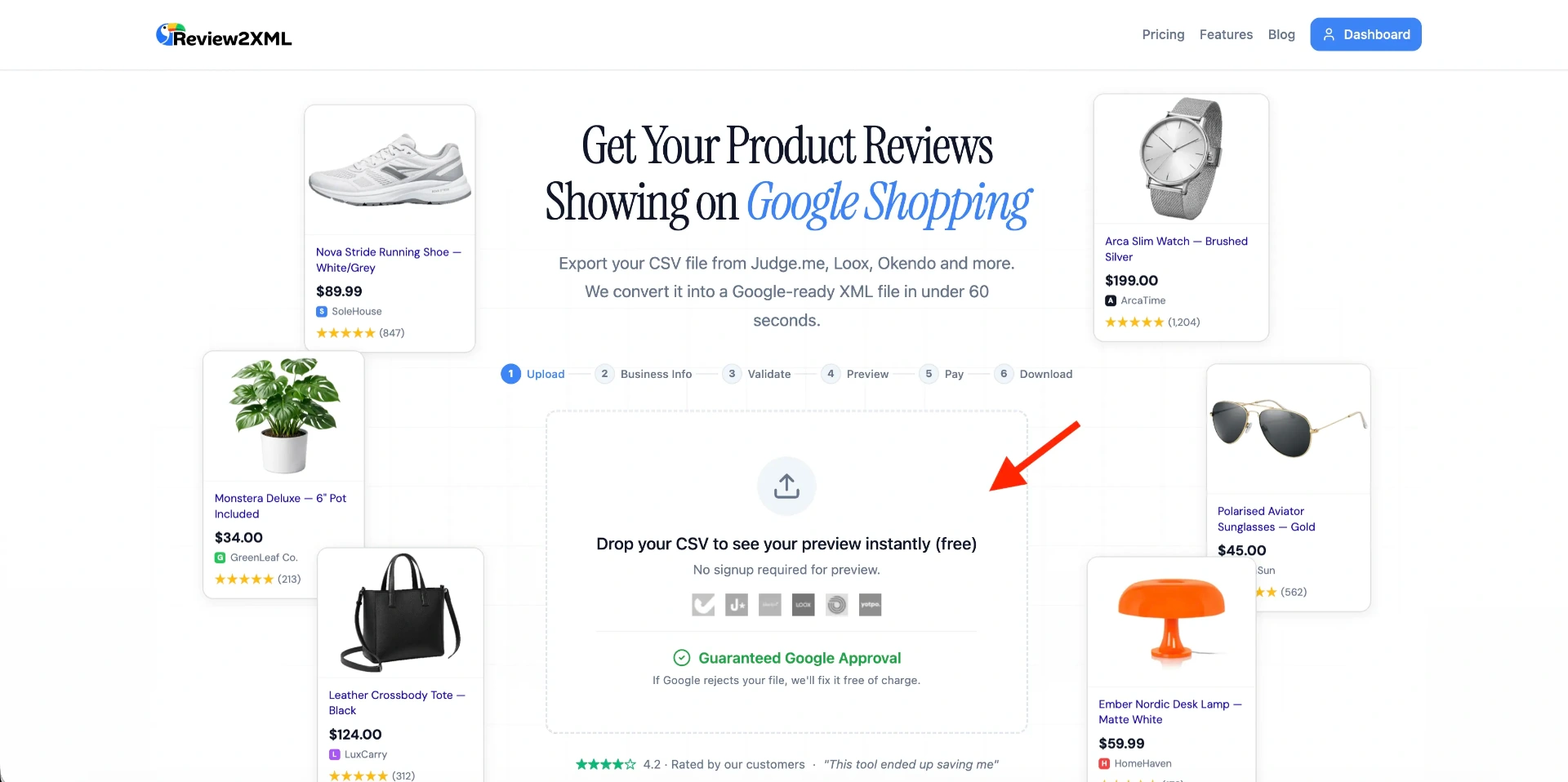
Getting star ratings on your Google Shopping listings is one of the highest-ROI things you can do for your e-commerce store. Products with star ratings get 17 to 24% higher click-through rates, and you don't need to pay for ads to get them.
The fastest way is the Review2XML wizard: enter your store URL, connect your reviews (one-click auto-sync for Judge.me and Yotpo, a Google Sheets link, or a CSV), and, through Google's official Merchant API, connect the feed to Google Merchant Center in one click. Your first 50 reviews are free. This guide covers that flow and the full manual process, from setting up Google Merchant Center to seeing your stars go live.
What You Need Before You Start
Before diving in, make sure you have:
- 50 or more product reviews across all your products (not per product)
- A Google Merchant Center account (free at merchants.google.com)
- A live product feed synced in Merchant Center
- A review platform you can auto-sync or export as CSV (Judge.me, Loox, Yotpo, Okendo, Stamped, Junip, Reviews.io, or Trustpilot Premium). On a custom store or a platform not listed? You can connect a published Google Sheet instead.
If you have all four, you're ready to go.
Step 1: Create a Google Merchant Center Account
If you don't have one yet, go to merchants.google.com and create a free account. You'll need to verify your website ownership (usually via a meta tag or DNS record) and provide your business details.
Once your account is active, move to Step 2.
Step 2: Sync Your Products to Google Merchant Center
Google needs to know what products you sell before it can match reviews to them. The easiest way to sync your Shopify catalogue:
- Install the Google & YouTube app from the Shopify App Store
- Connect it to your Merchant Center account
- Your product feed will sync automatically
For WooCommerce, use the Google for WooCommerce plugin instead.
Make sure your products have GTINs (barcodes), MPNs, or SKUs set. These are how Google matches reviews to the right listing.
Step 3: Apply for the Google Product Ratings Program
Star ratings don't appear automatically. You need to apply:
- Fill out the Google Product Ratings Interest Form
- For the feed submission question, select "Yes, but I'd like to submit the feed myself" (this is the option that works with Review2XML)
You need at least 50 product reviews before applying. This is 50 reviews total across all products, not 50 on a single product. For example: 5 reviews on one product + 10 on another + 35 on another = 50. These must be product reviews (star ratings on specific products), not store reviews or overall site ratings. If you don't have 50 yet, keep collecting and come back once you do.
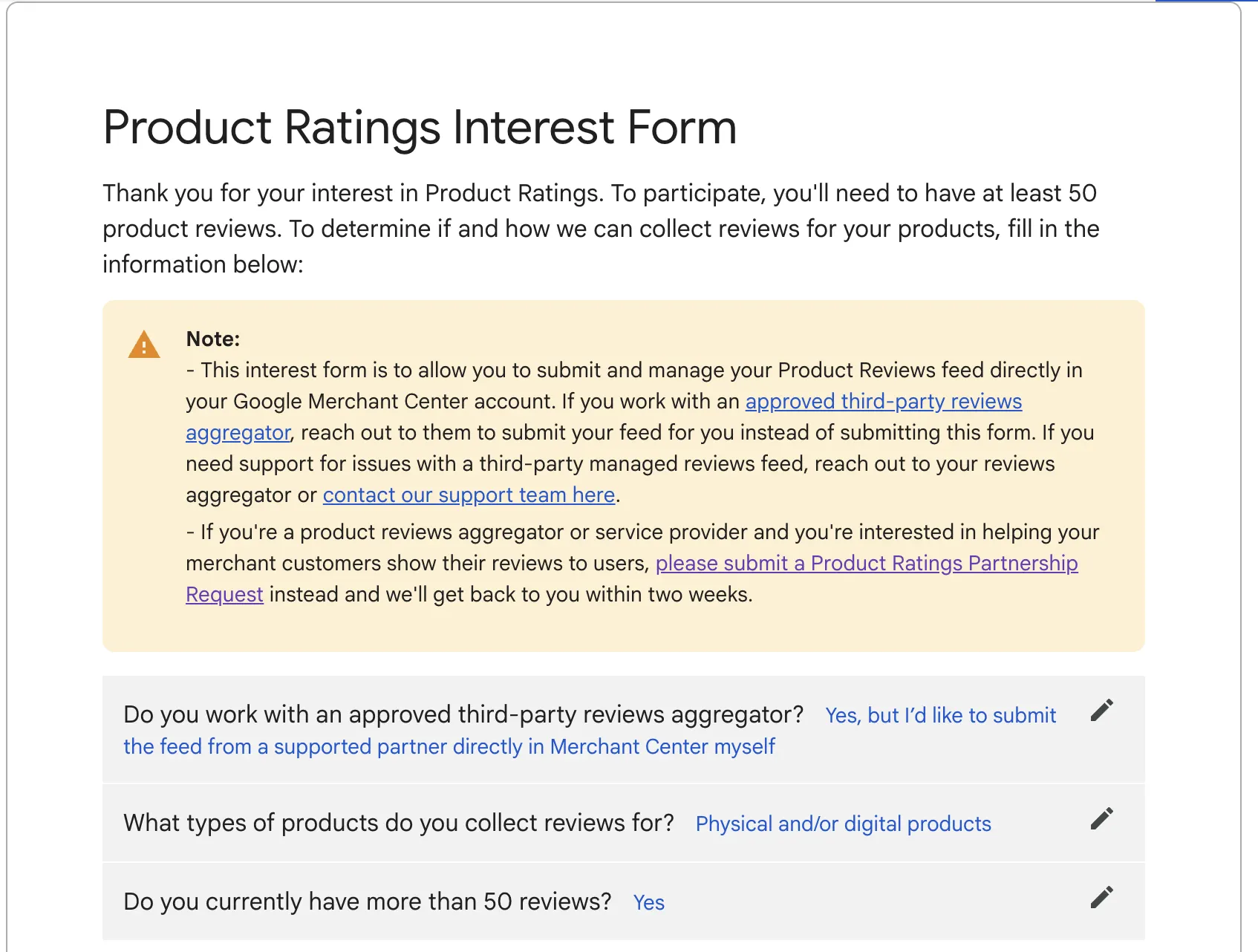
After submitting, Google can approve your application within minutes on the same day, or it may take a few business days. You'll receive an email confirmation from Google, and a "Product Reviews" option will appear in your Merchant Center once approved.
Step 4: Connect Your Reviews
If you use Judge.me or Yotpo, you can skip exporting entirely and one-click auto-sync them in the Review2XML wizard. For every other app, export a CSV (or connect a Google Sheet) using the steps for your platform below.
Judge.me
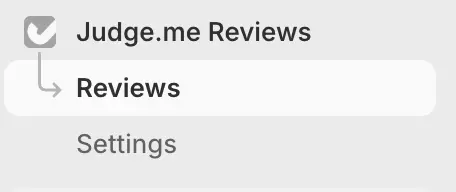
Step 1. In your Shopify Admin, click Apps in the left sidebar, then open Judge.me.
Step 2. Inside Judge.me, go to Reviews > Export > Export published reviews. Click the export button to request your file.
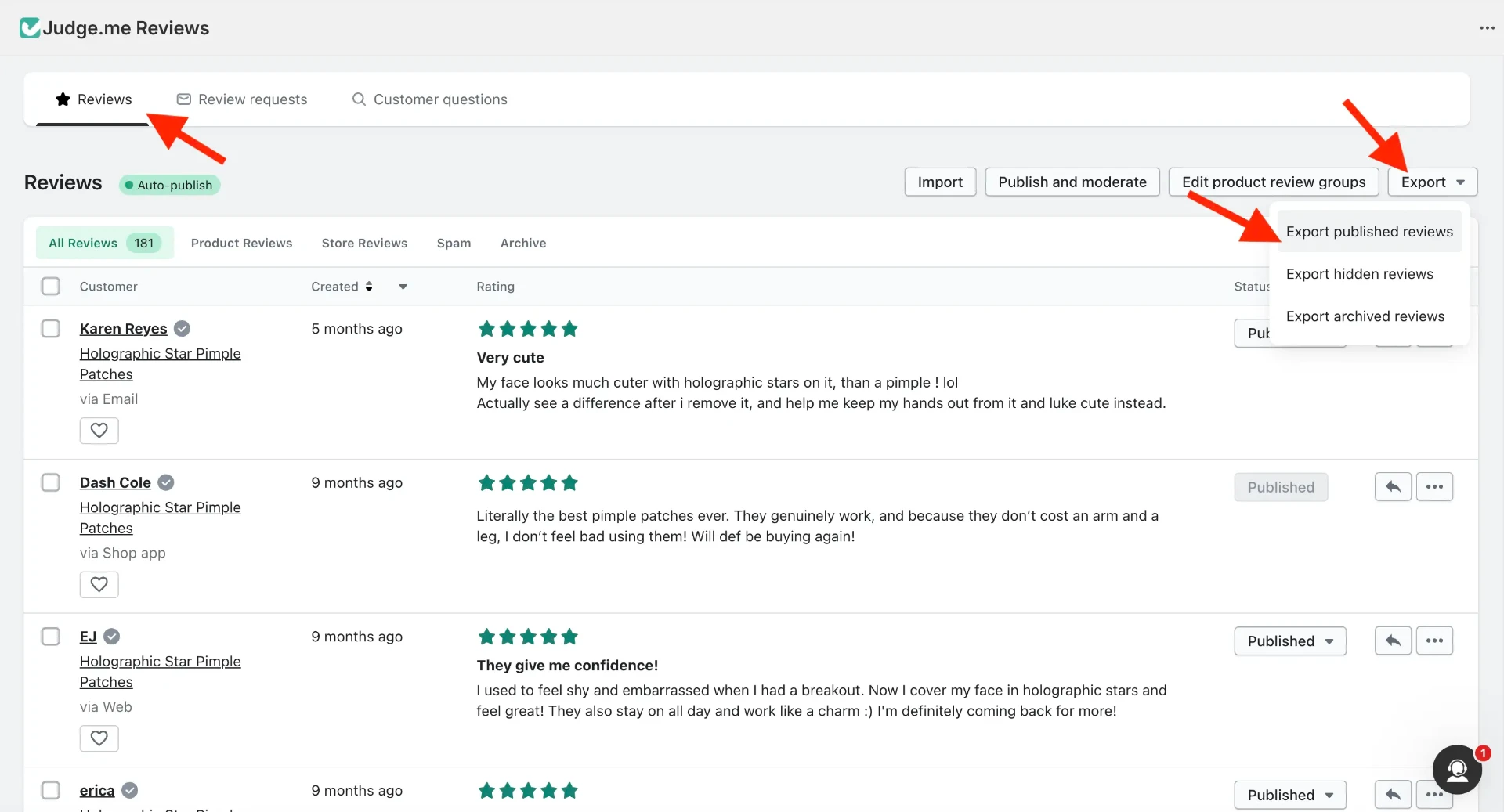
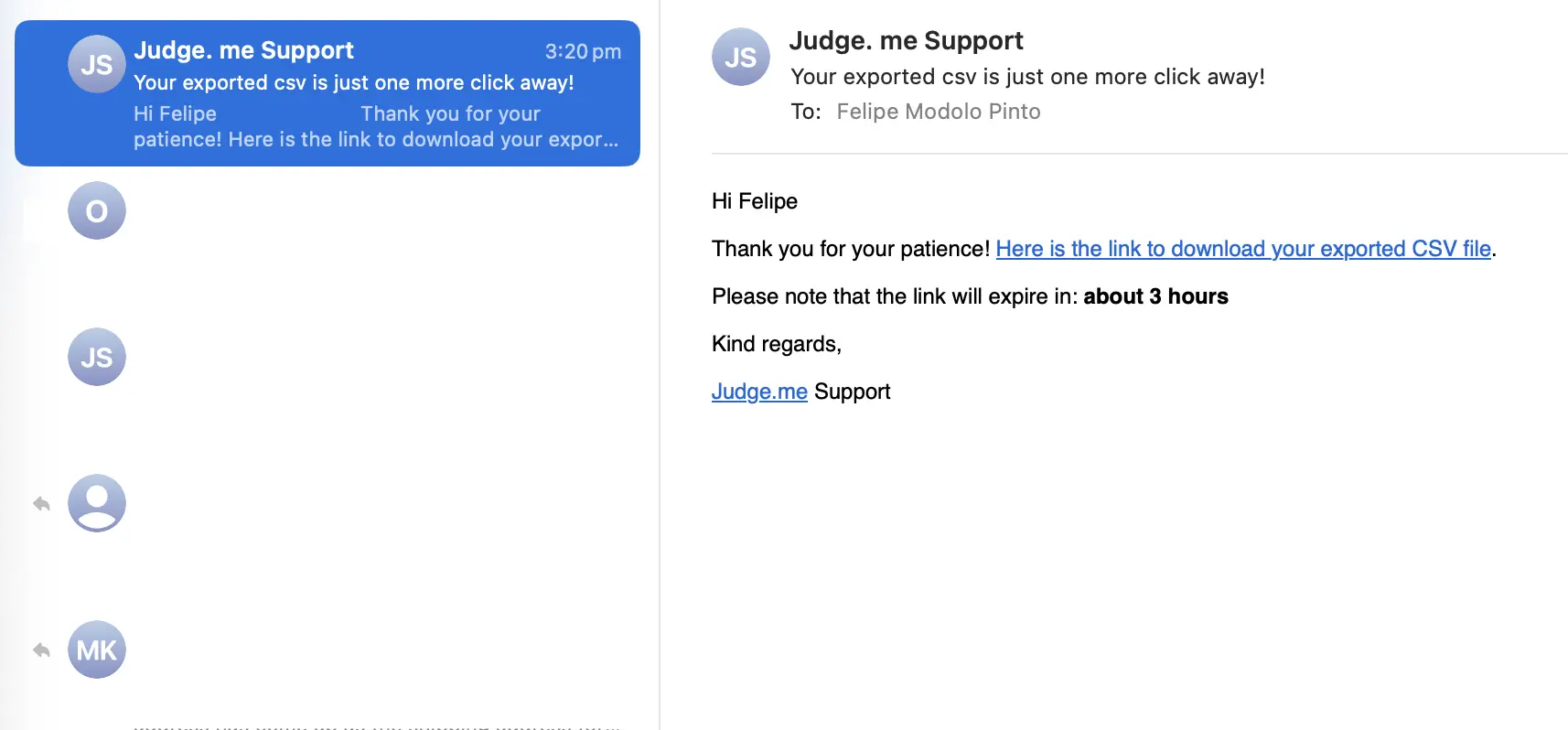
Step 3. Judge.me will email you a CSV file. Check your inbox, it usually arrives within a few minutes.
Loox
Step 1. In your Shopify Admin, click Apps in the left sidebar, then open Loox.
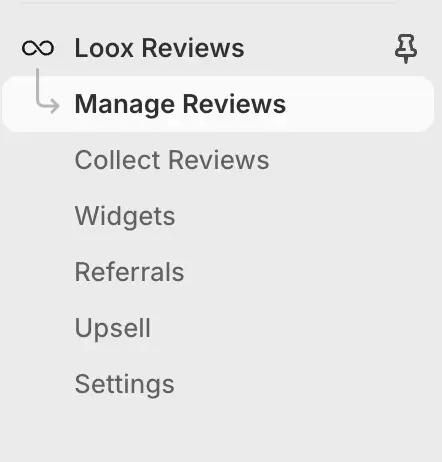
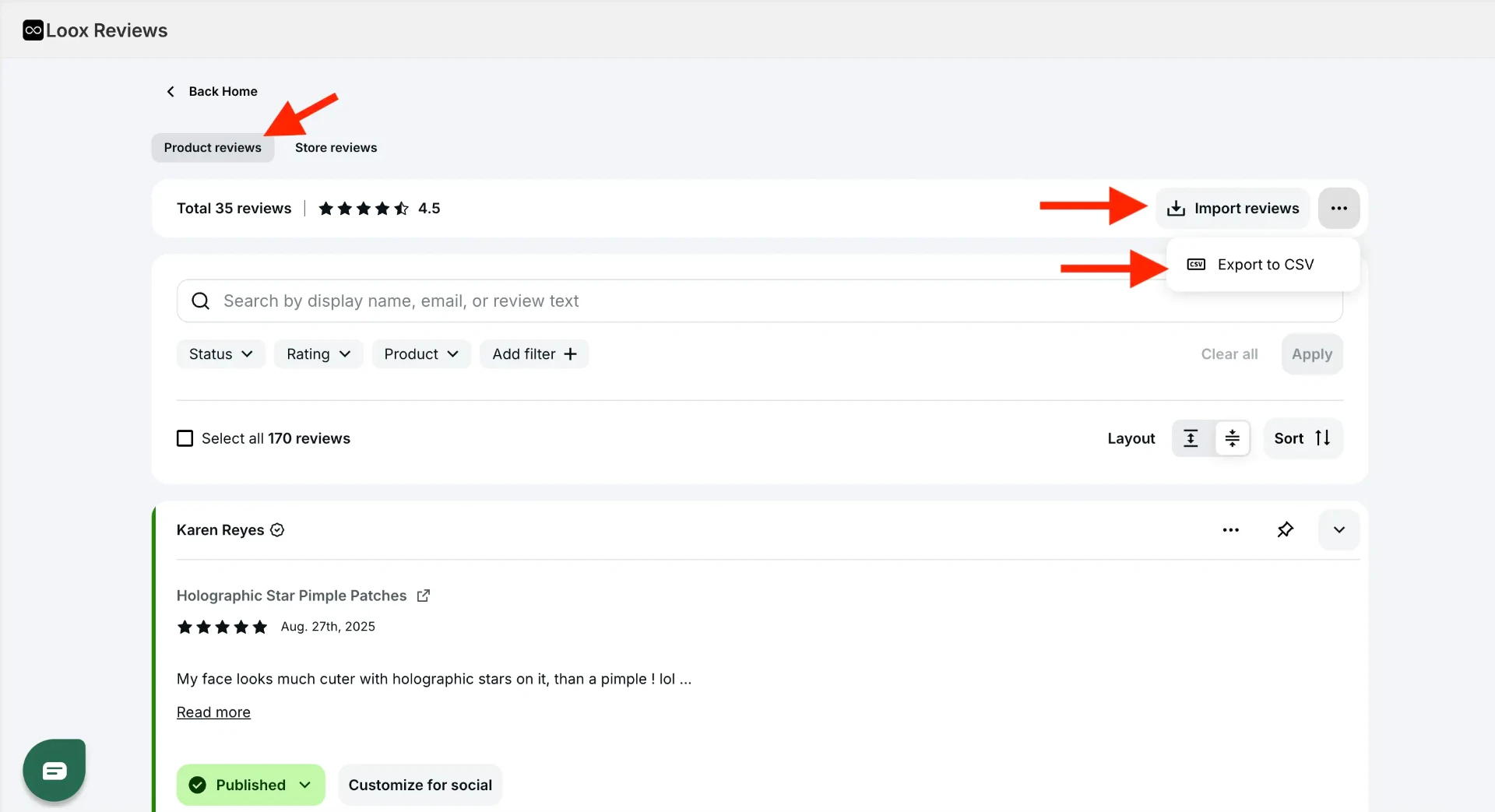
Step 2. Go to Manage Reviews > Product reviews > Export to CSV. Loox downloads the file immediately, no email needed.
Yotpo
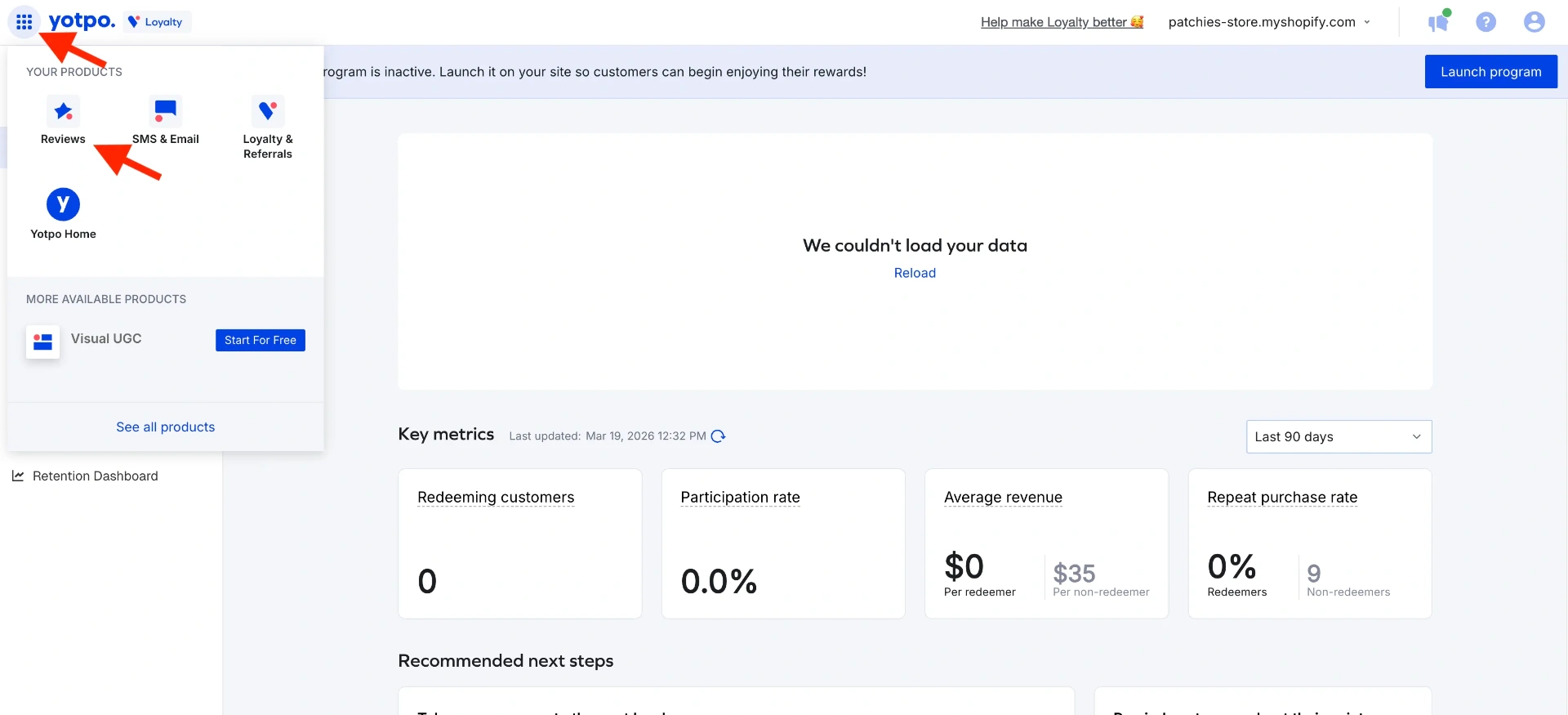
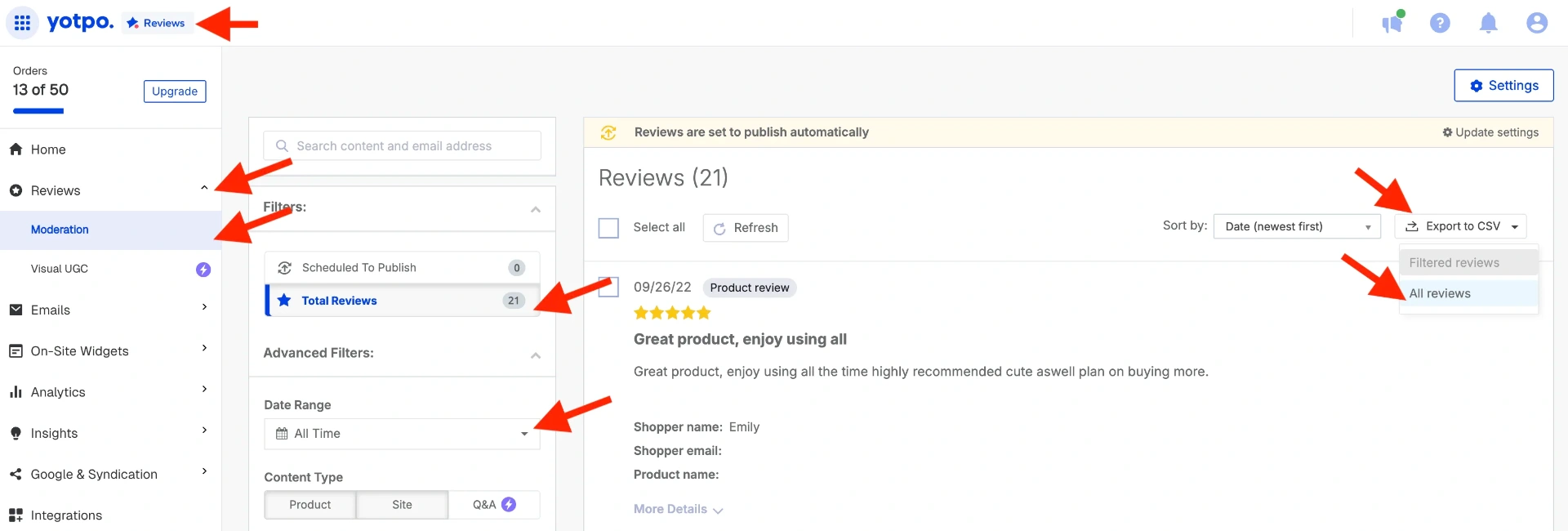
Step 1. Log in to reviews.yotpo.com. If you land on the Loyalty app, use the app switcher icon to navigate to the Reviews app.
Step 2. Go to Reviews > Moderation. Set the Date Range to All Time, then click Export to CSV.
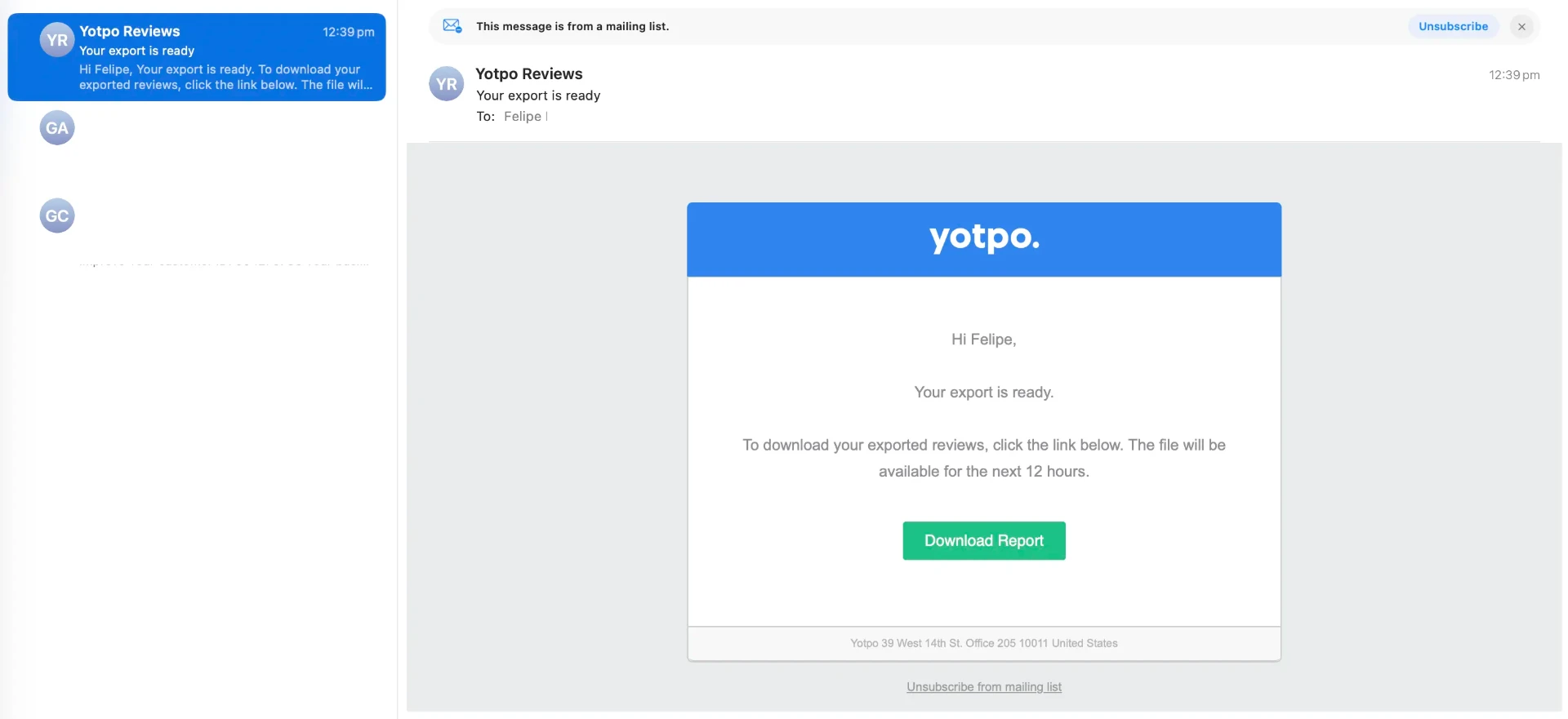
Step 3. Yotpo will email the CSV to your registered account email. Check your inbox.
Okendo
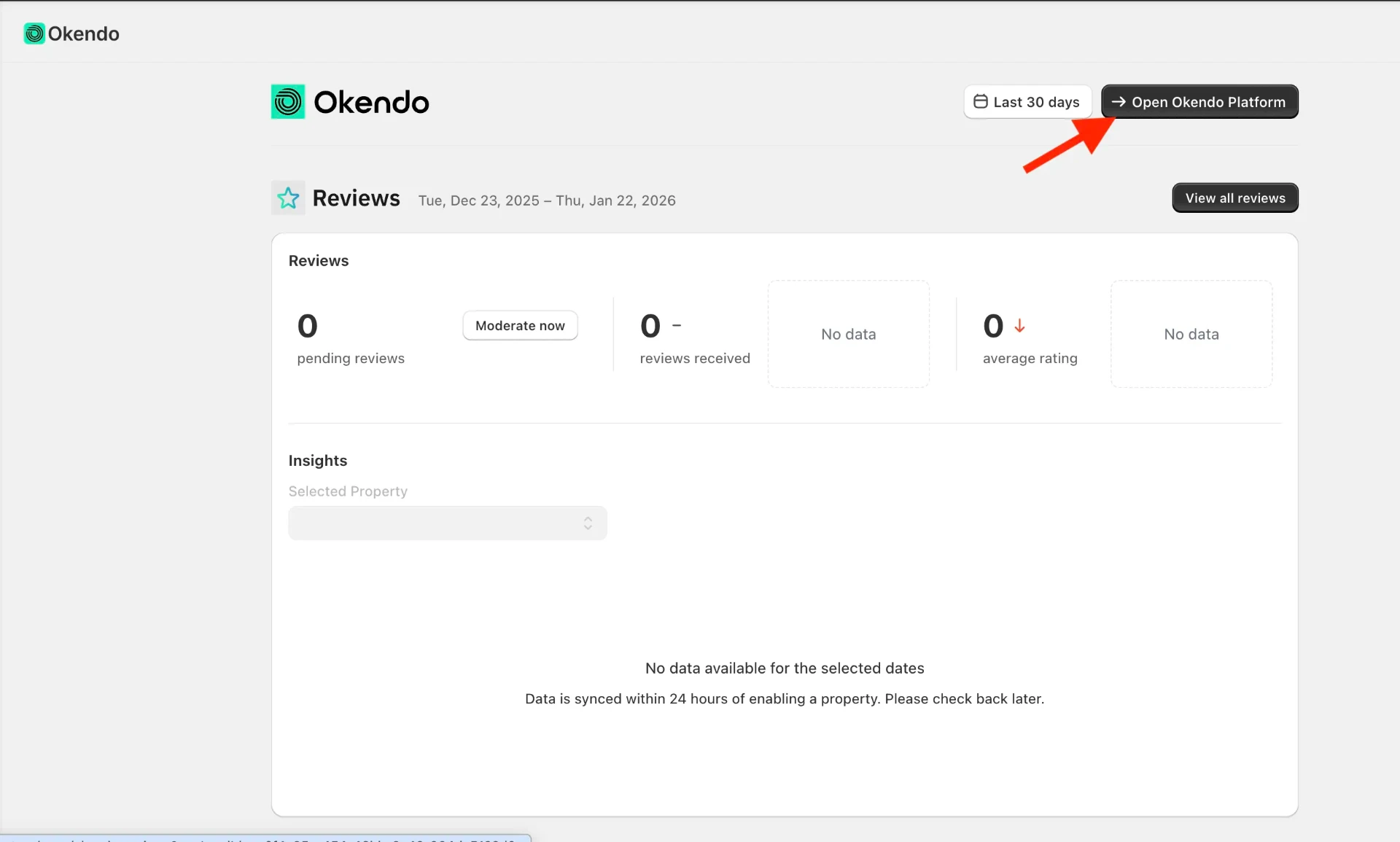
Step 1. In your Shopify Admin, click Apps in the left sidebar, then open Okendo.
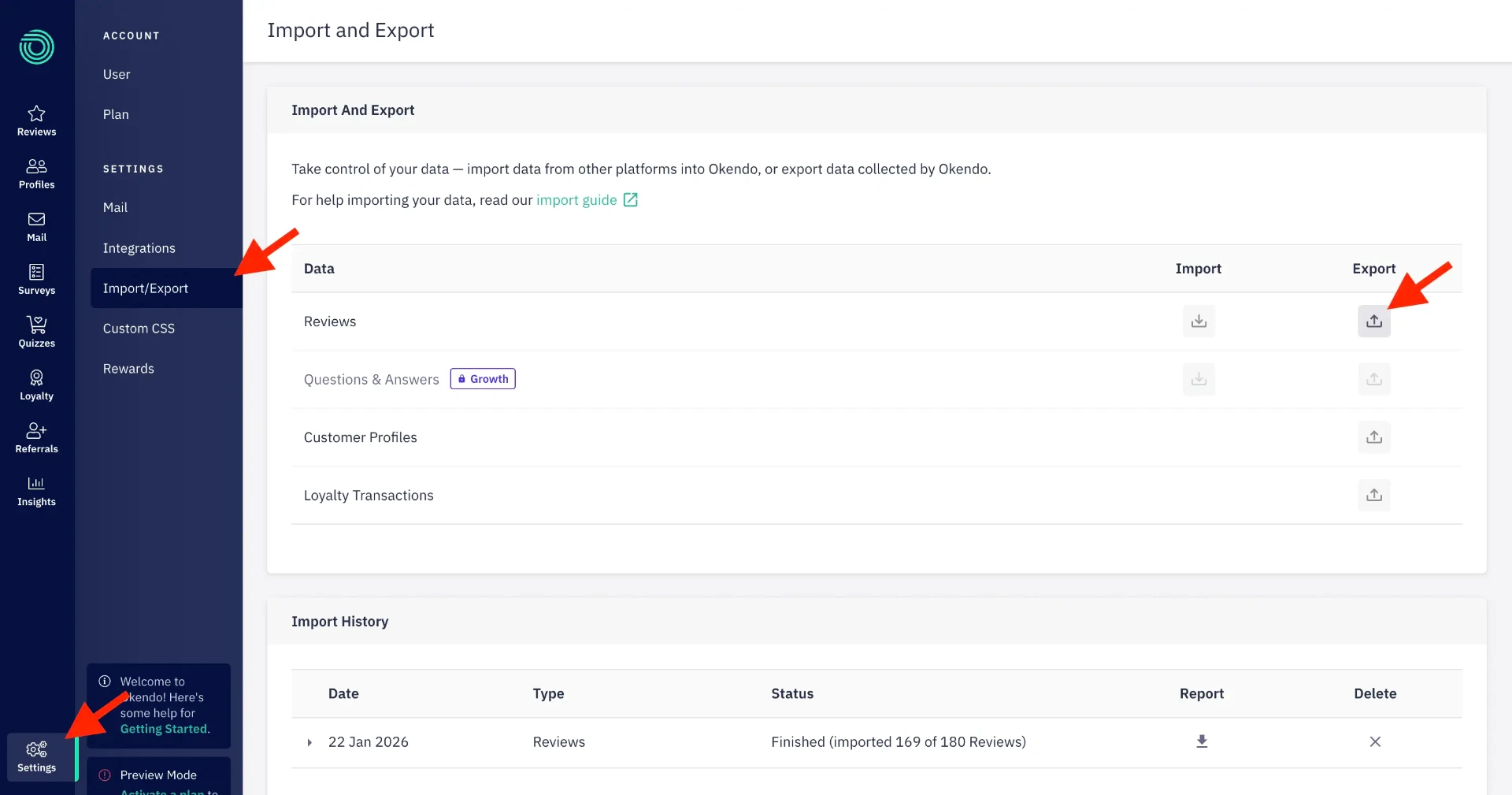
Step 2. Inside the Okendo platform, navigate to Settings > Import/Export.
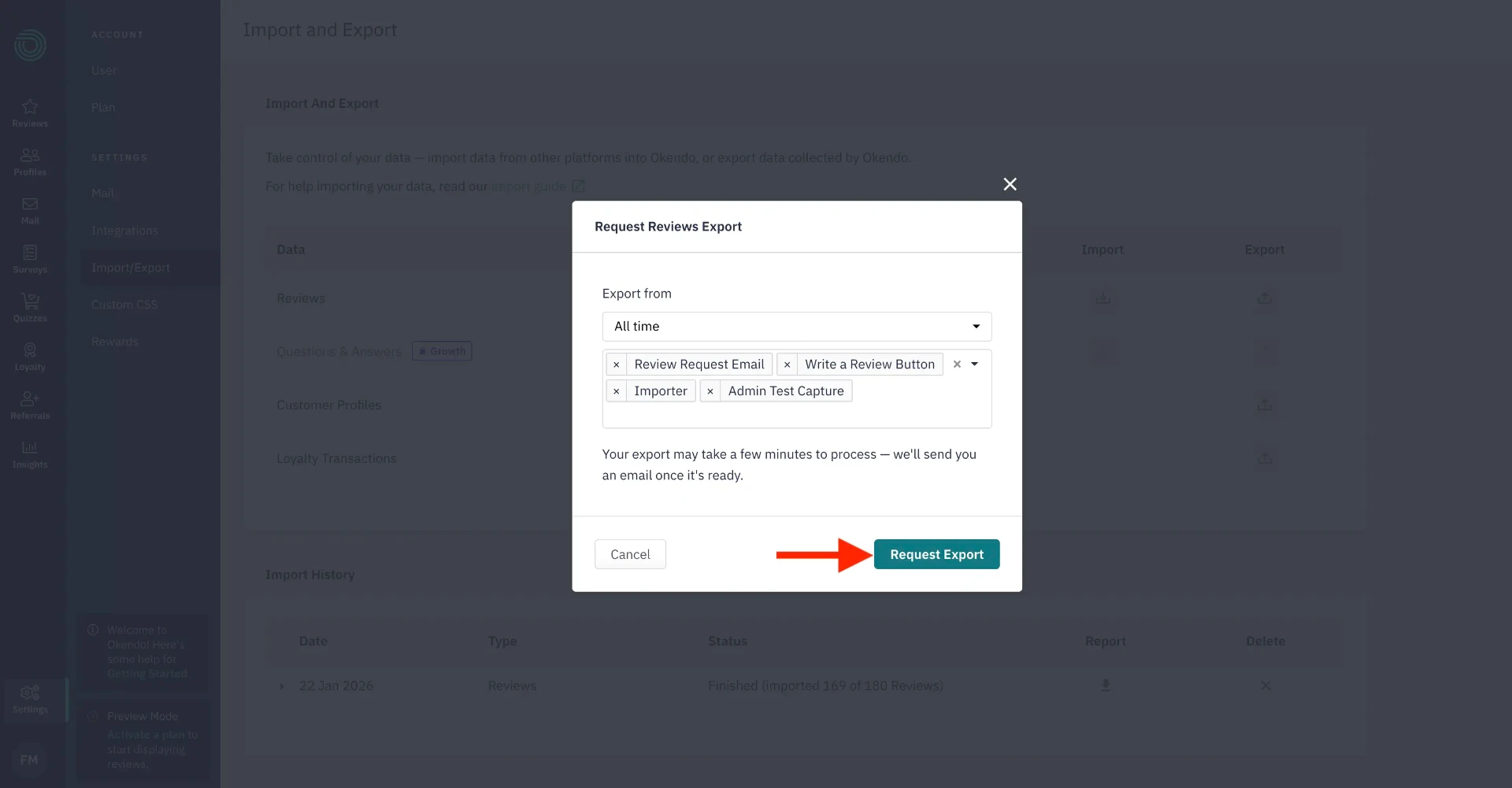
Step 3. Select Reviews > Export > All Time, then click Request Export.
Step 4. A confirmation popup will appear. Click Confirm to start the export.
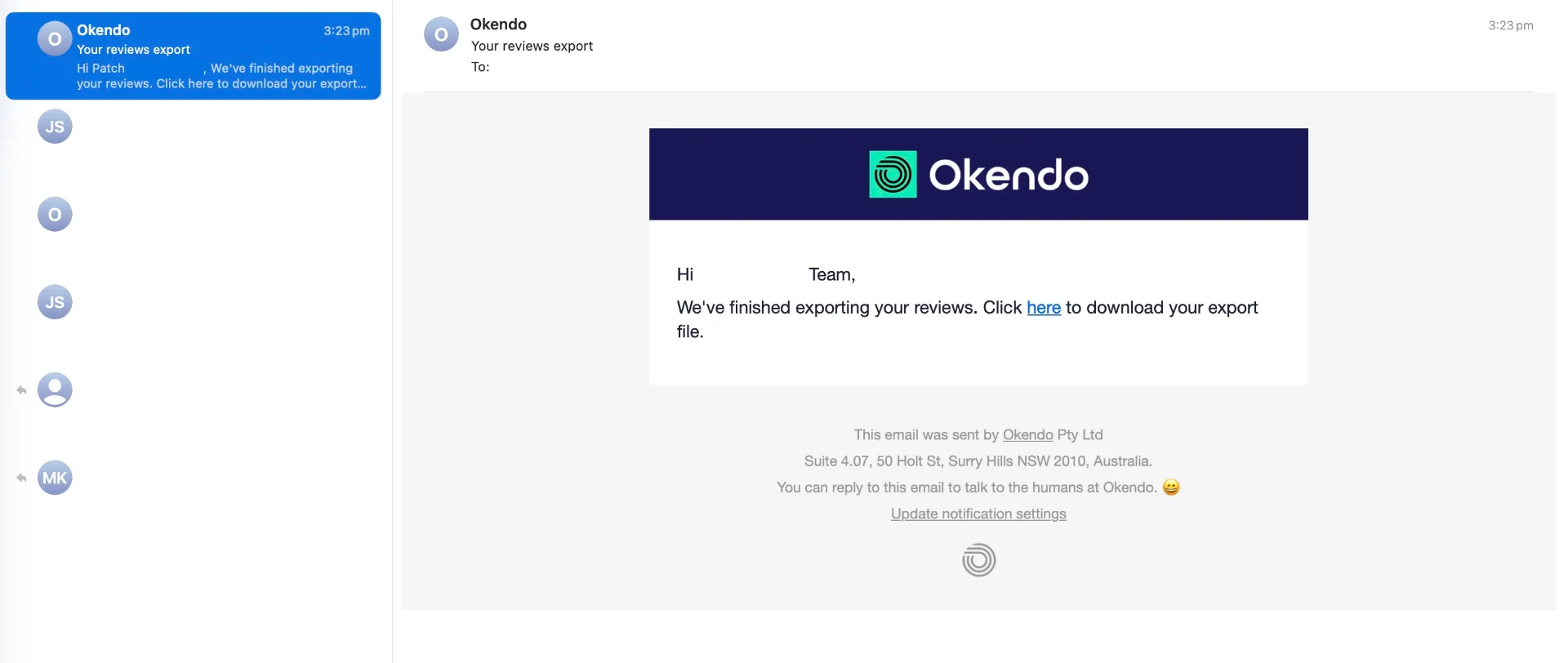
Step 5. Okendo will email the CSV to you. Check your inbox, it usually arrives within a few minutes.
Stamped
Step 1. Log in to your Stamped dashboard at stampedhq.com.
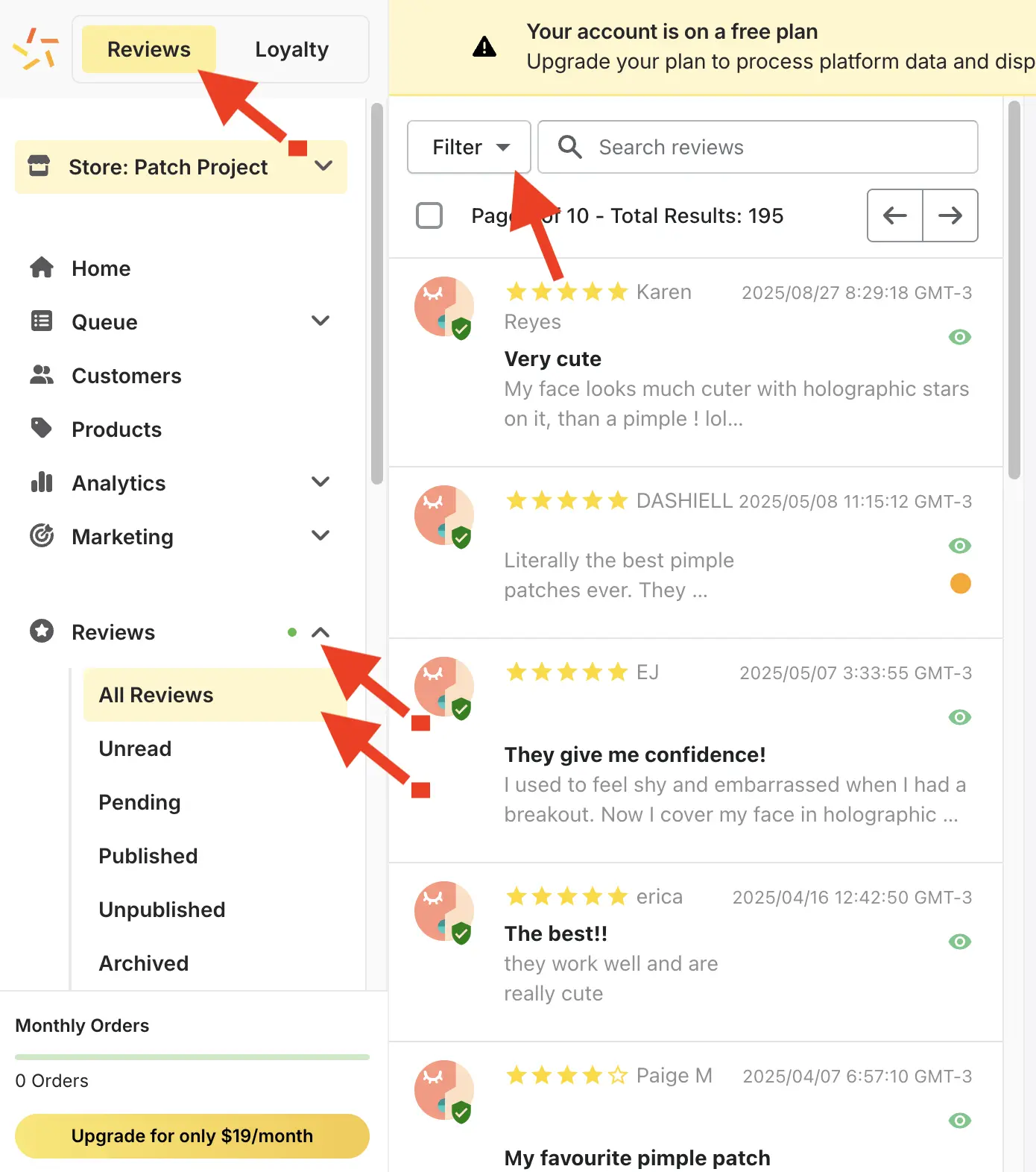
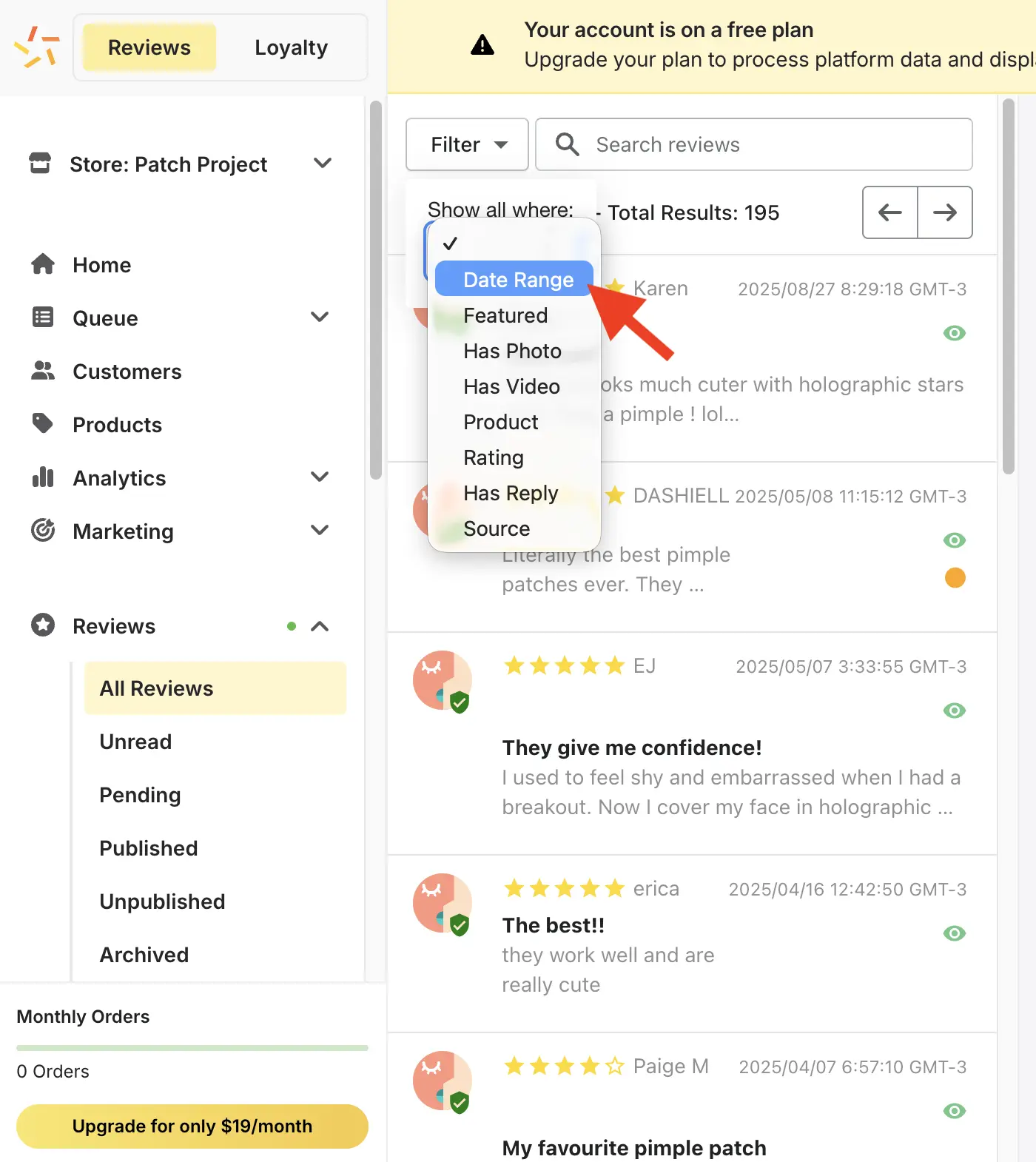
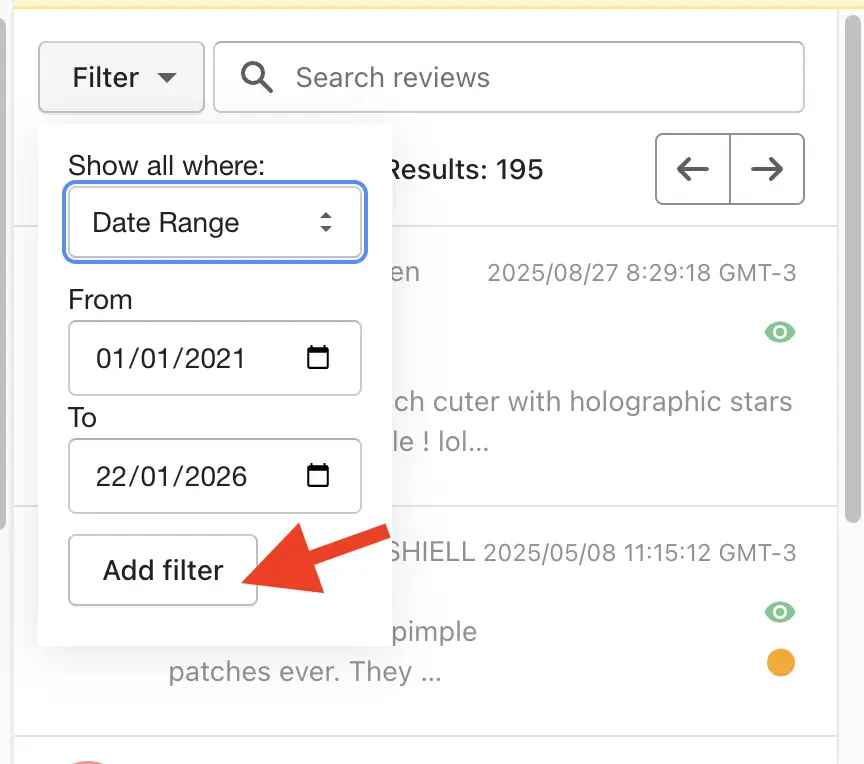
Step 2. Go to Reviews > All Reviews > Filter and click Date Range > Add Filter.
Step 3. Set the date range to cover all of your reviews (select the earliest possible start date).
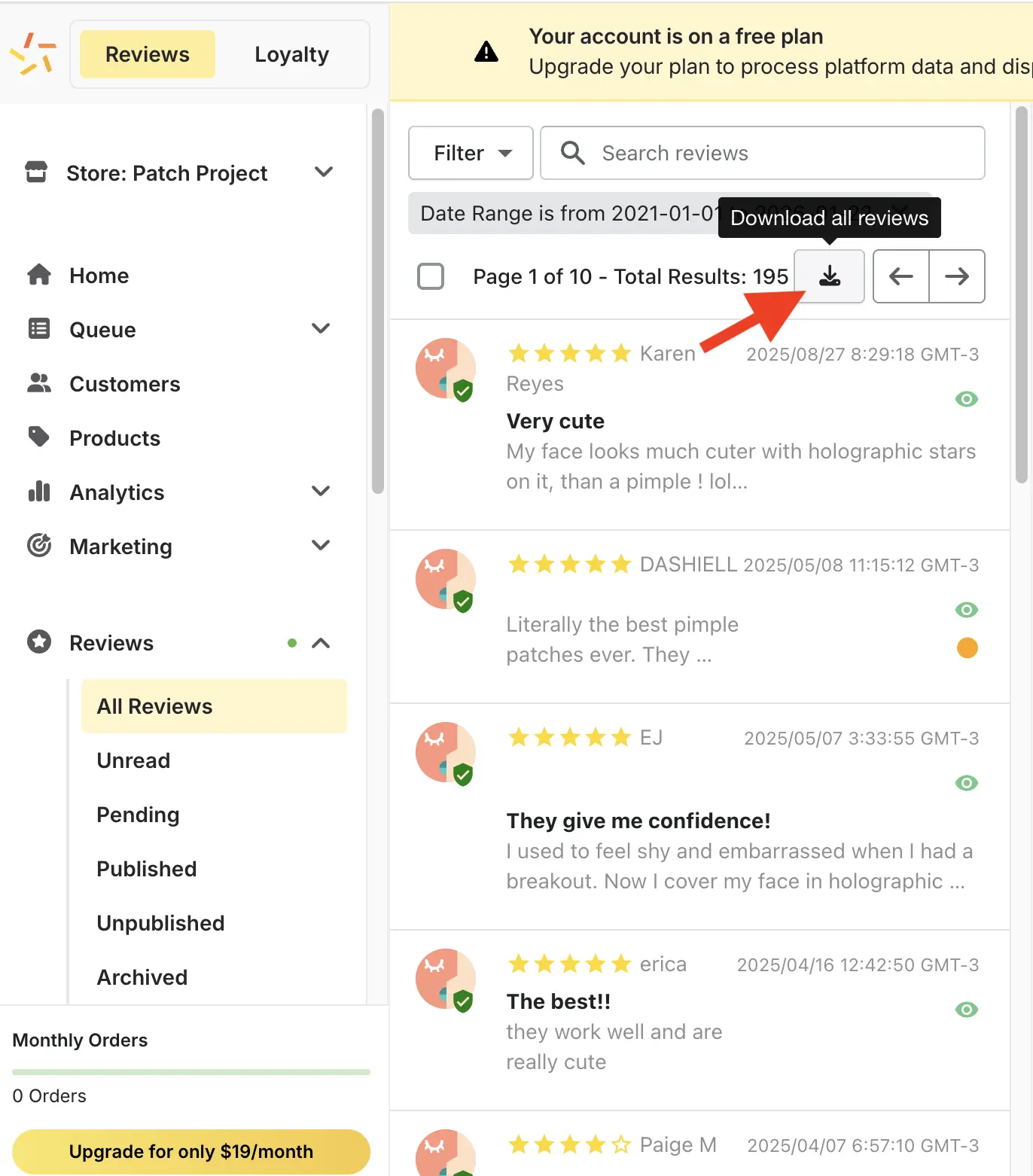
Step 4. Click Download All Reviews. Stamped downloads the CSV immediately.
Junip
Step 1. Open the Junip app from your Shopify Admin and navigate to Reviews > Product Reviews.
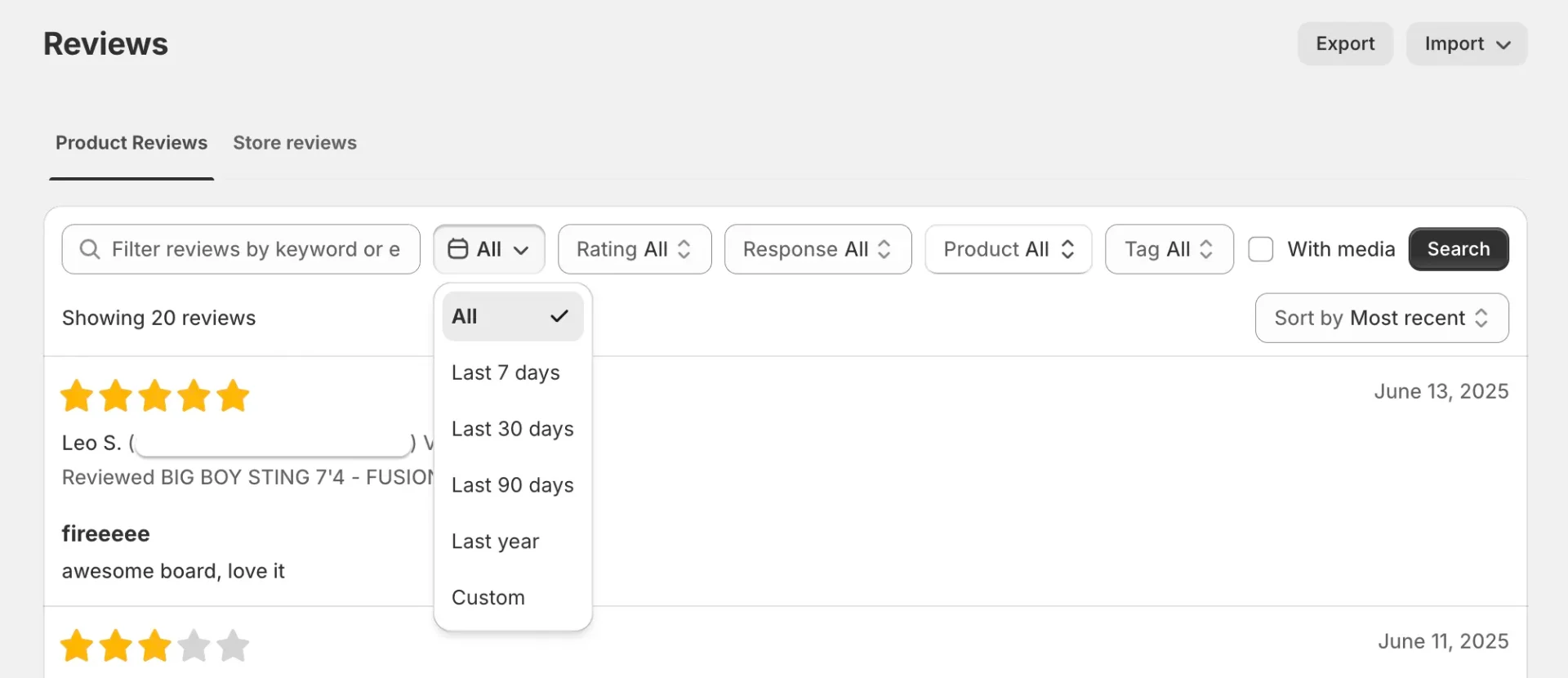
Step 2. Click Export to open the export options.
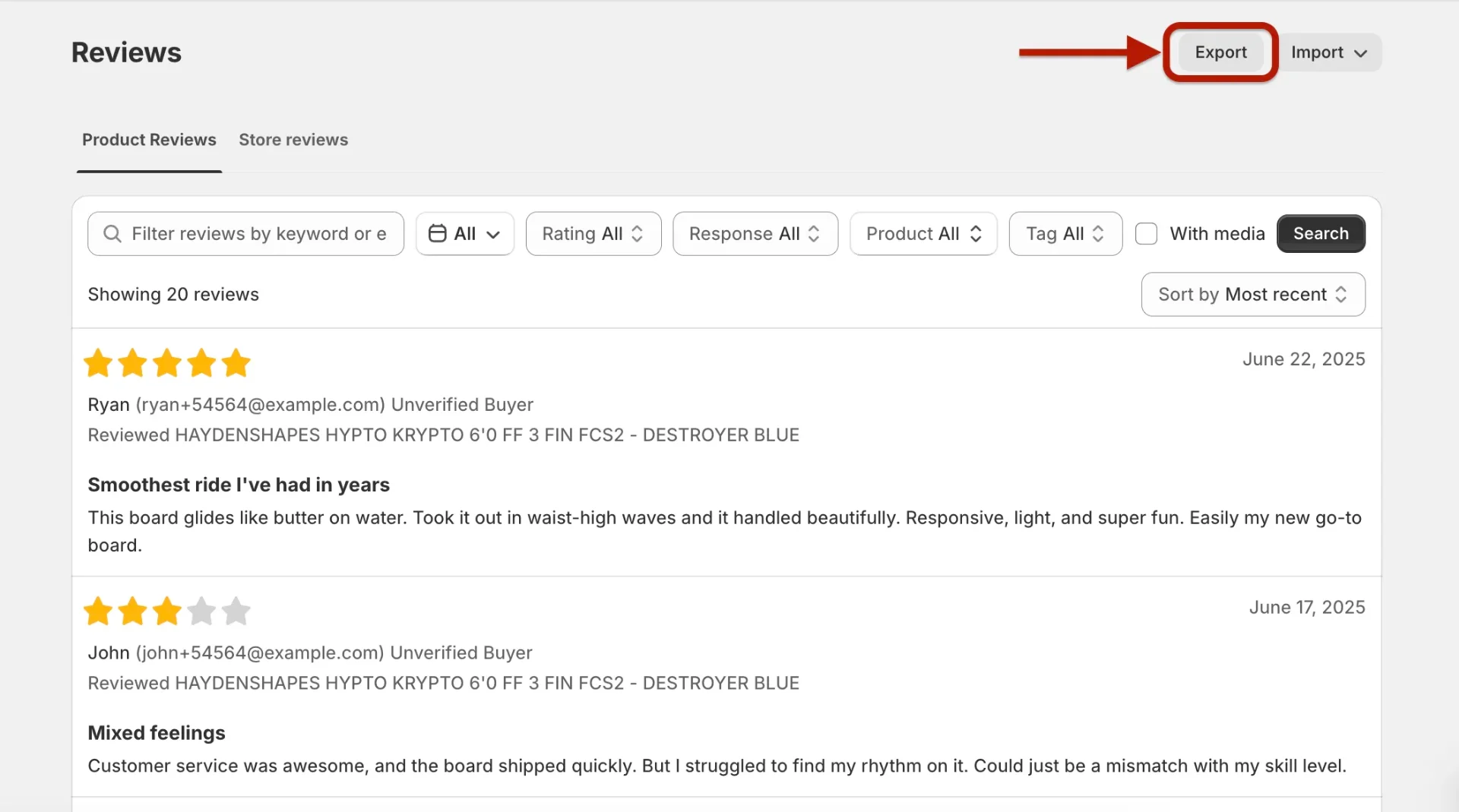
Step 3. Select Export all reviews and check Include review tags, then confirm.
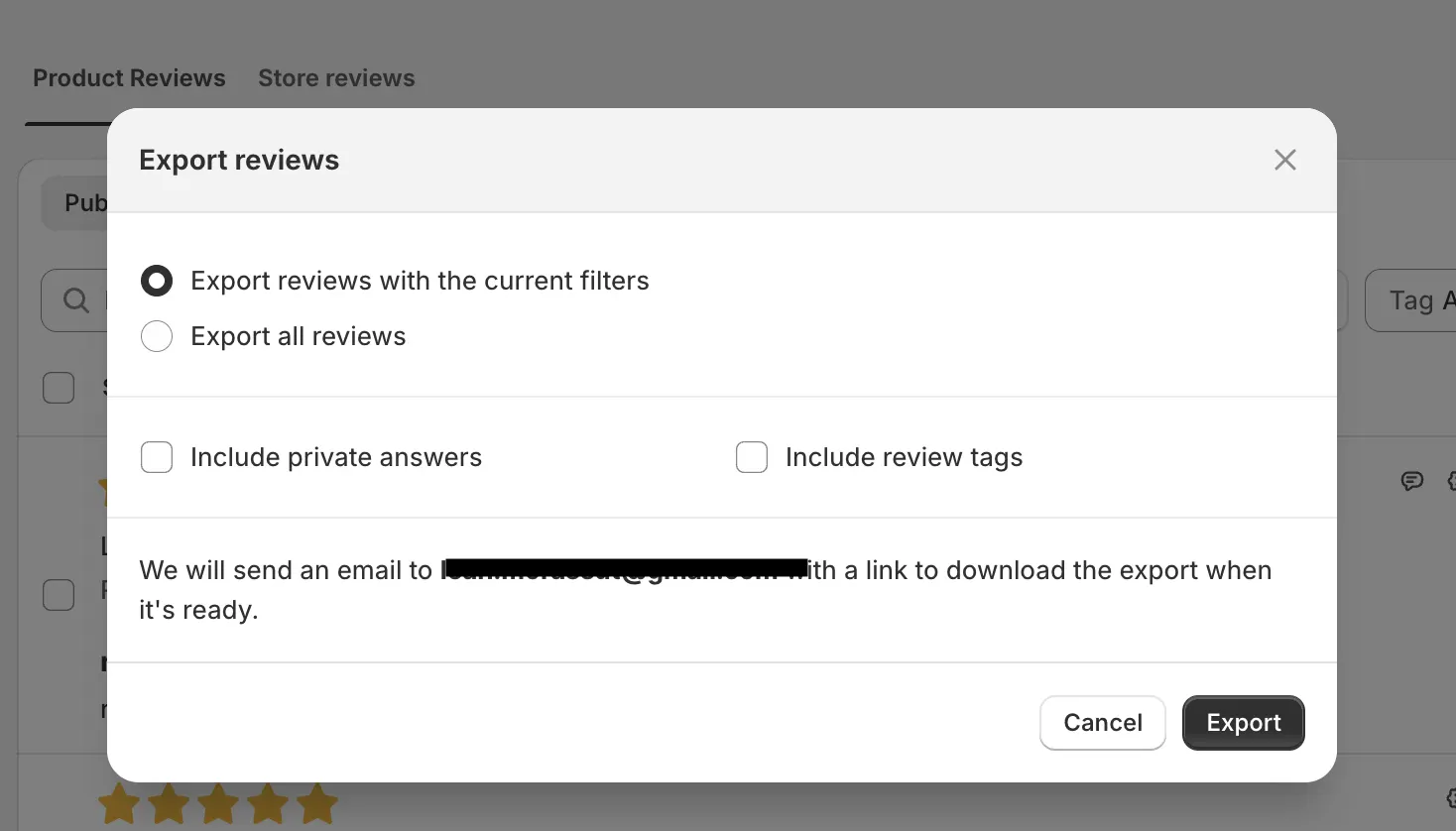
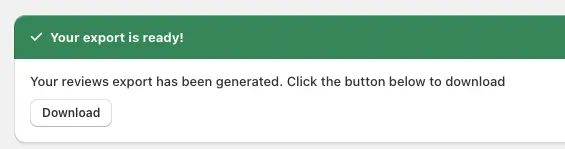
Step 4. Junip will process the export and email you the CSV file.
Reviews.io
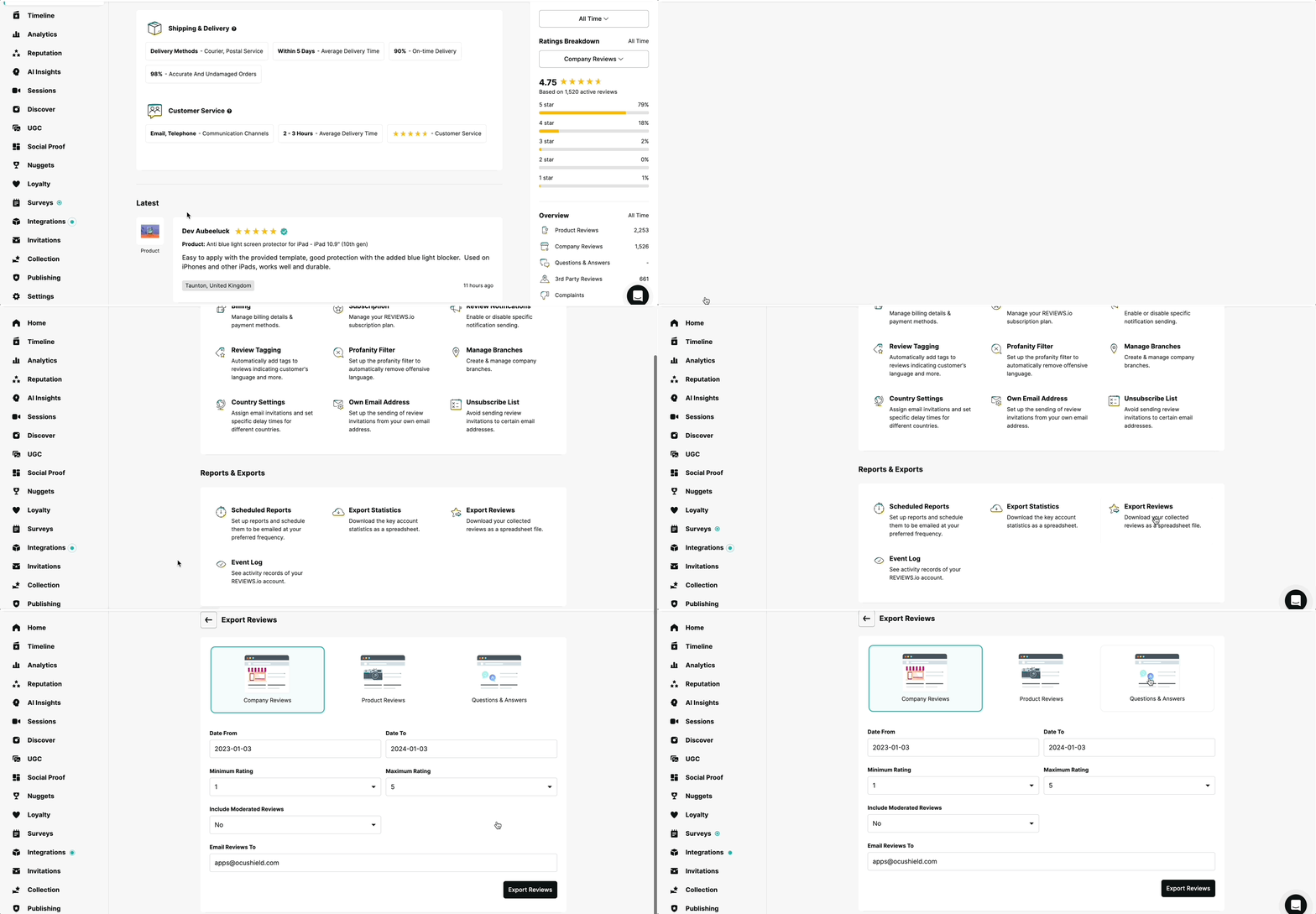
Reviews.io requires a Start Up plan or above to export reviews.
Go to Settings > Export Reviews > Product Reviews > CSV > Export. Your CSV will download immediately.
Trustpilot (Premium)
Trustpilot product review export requires a Premium plan.
Go to Manage reviews > Product reviews > Inbox > Export. Trustpilot sends the file to your registered email address.
Note: Trustpilot works best for stores selling branded products with GTINs, as it relies on product identifiers for matching reviews to listings.
Step 5: Turn Your Reviews into a Google Product Ratings Feed
Google requires reviews in a specific XML format and won't accept a plain CSV. Review2XML builds that feed for you. Go to review2xml.com, enter your store URL, and connect your reviews (one-click auto-sync for Judge.me and Yotpo, a Google Sheets link, or your CSV). Review2XML auto-detects your columns and maps every field to Google's required schema, so there's no manual mapping. Preview your product cards with their star ratings before anything goes live, and your first 50 reviews are free.
Step 6: Connect Your Feed to Google Merchant Center
Through Google's official Merchant API, Review2XML can push your feed straight into Merchant Center in one click. To add it yourself instead:
Go to Products & store > Reviews > Product reviews > Manage product review sources > Add product review source.
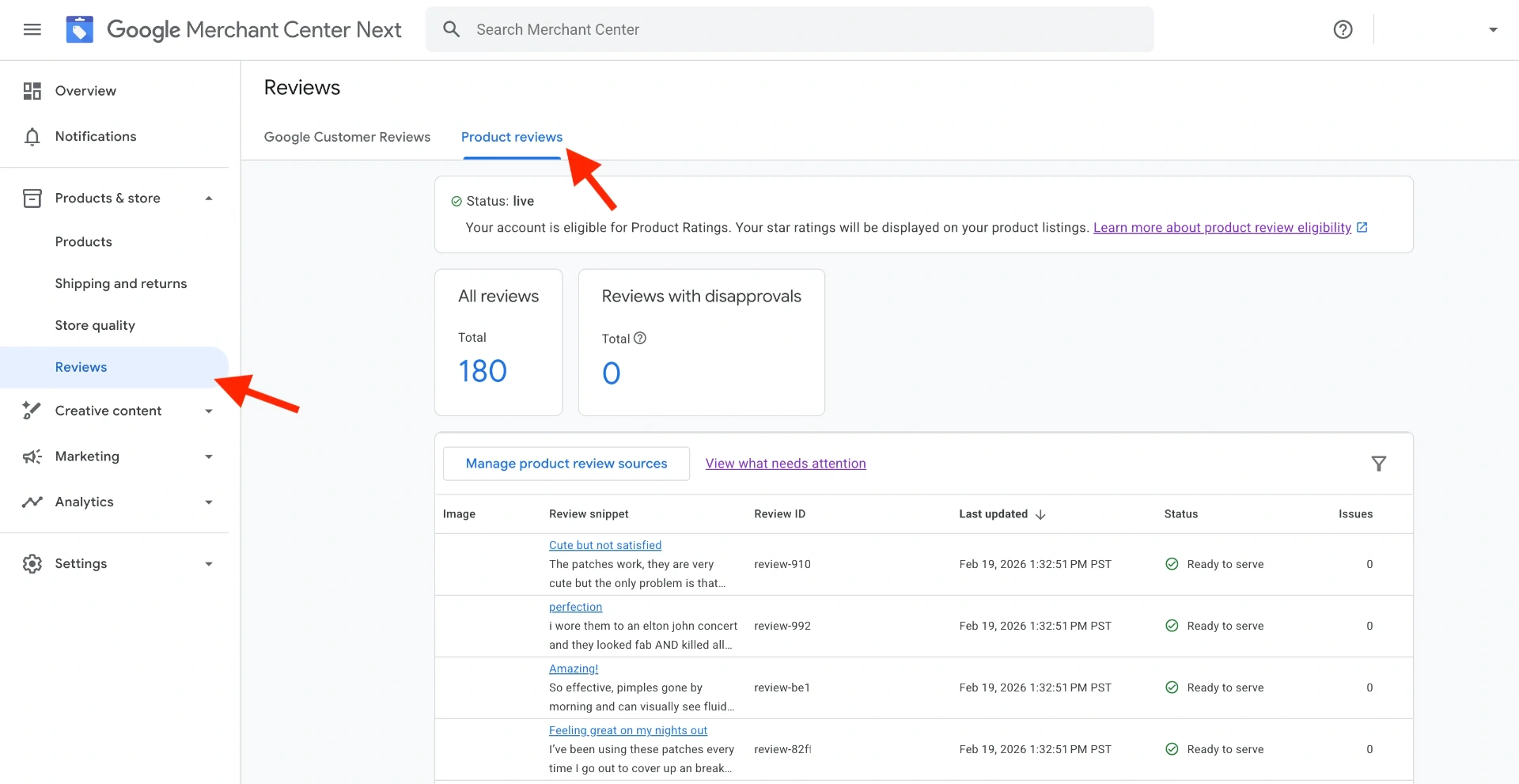
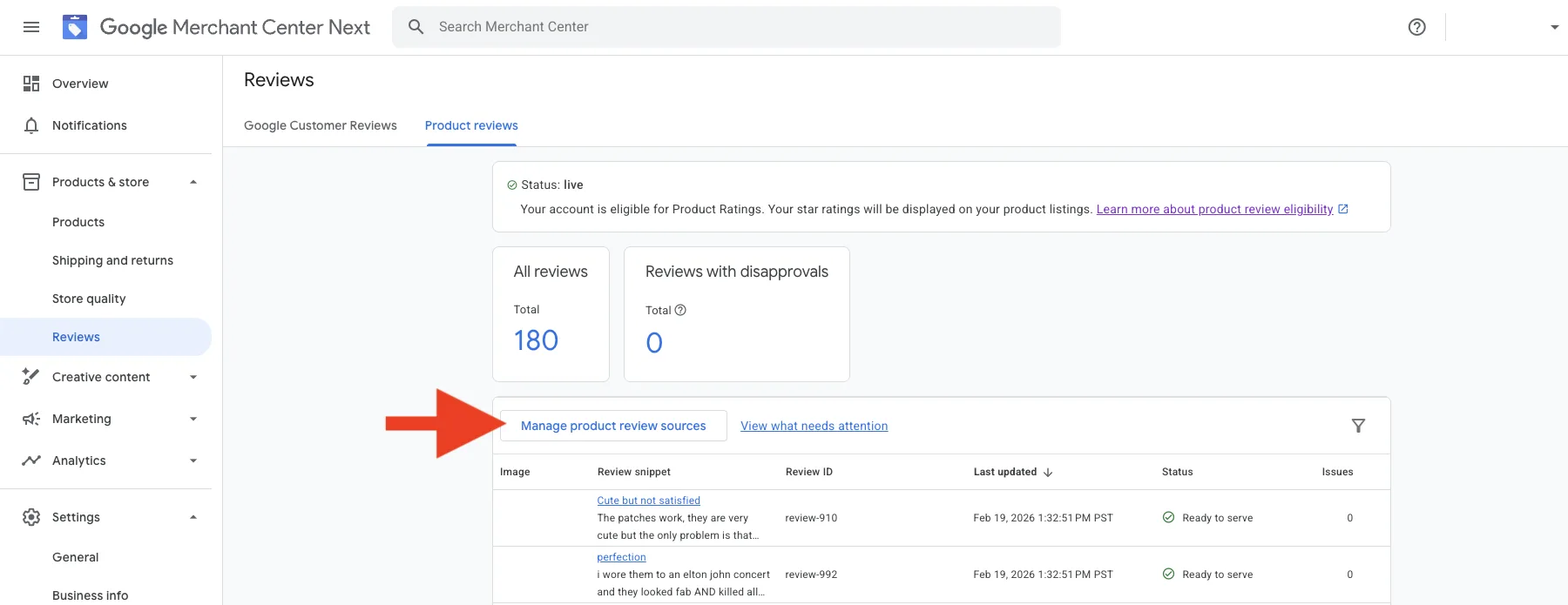
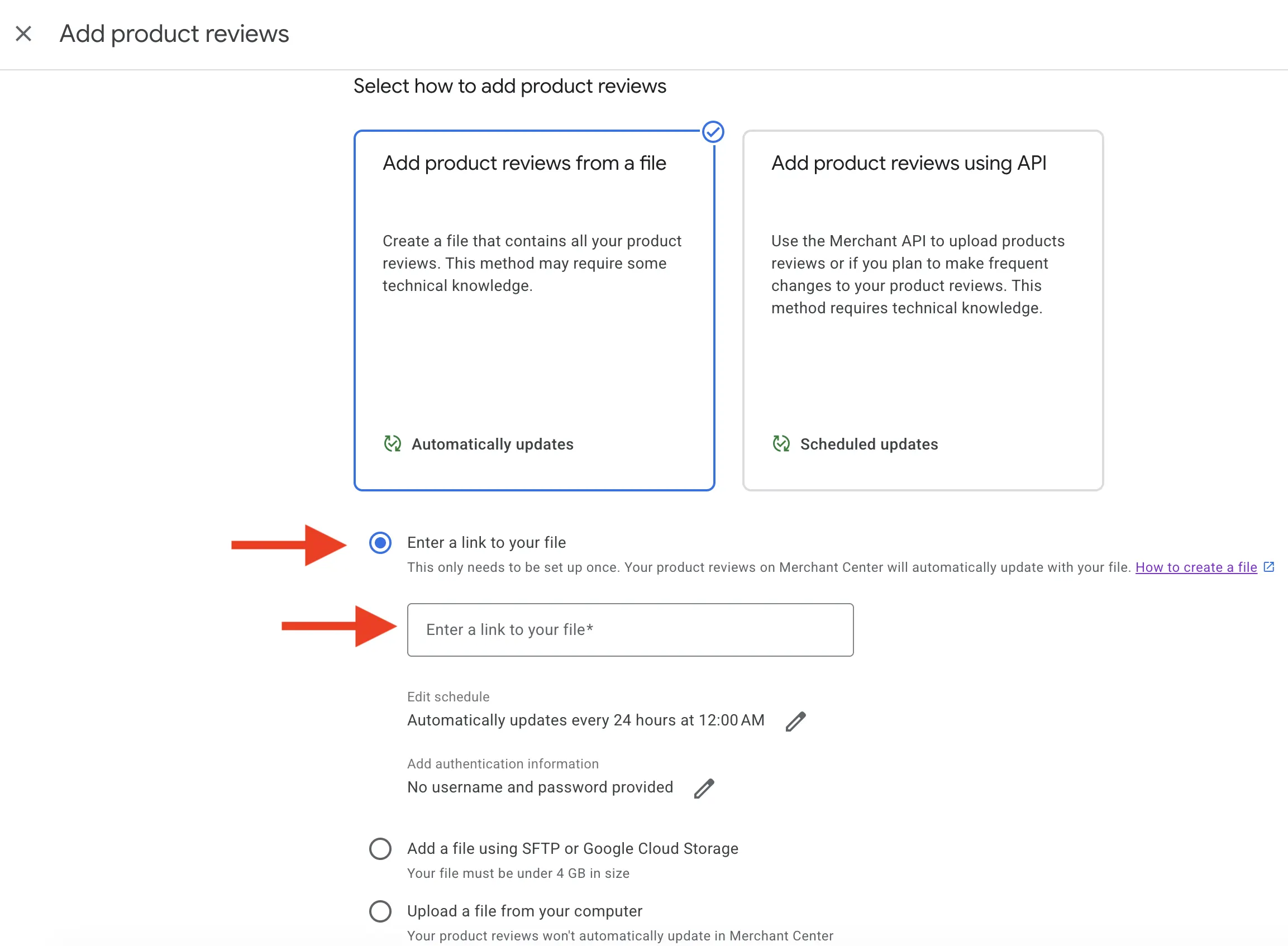
Choose Enter a link to your file and paste your Review2XML feed URL. Because it's a hosted URL, Google re-fetches it automatically, so you never have to re-upload.
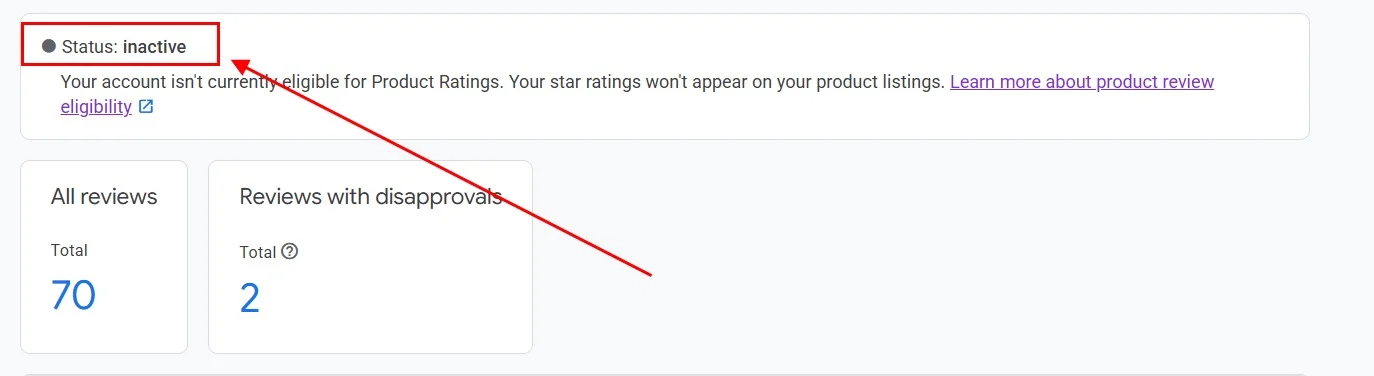
After you connect it, your feed shows as "Inactive" while Google processes and validates it. This is completely normal.
When it's ready, the status changes to "Live":

Keeping Your Feed Up to Date
New reviews sync automatically. If you auto-synced Judge.me or Yotpo, Google receives your new reviews every day with nothing to do on your end. If you used a CSV, upload a fresh one from your Review2XML dashboard and your hosted feed updates in place. There are no monthly manual re-uploads.
Step 7: Wait for Star Ratings to Appear
Stars don't appear overnight. Here's the typical timeline:
- Feed goes Live: within a few days to a week after you connect it
- Stars appear on Google Shopping: 2 to 6 weeks after the feed is live
While you're waiting, make sure your product feed and review feed use the same SKUs (or GTINs/MPNs). If Google can't match a review to a product, the star won't show. See our guide on matching reviews to SKUs and GTINs if you run into issues.
Frequently Asked Questions
How many reviews do I need to get stars on Google Shopping?
You need a minimum of 50 total product reviews across all your products. This is a Google requirement to qualify for the Product Ratings program. Individual products don't need 50 each.
How long does it take for stars to appear after connecting the feed?
Typically 2 to 6 weeks after your feed status changes to "Live" in Google Merchant Center. The feed itself usually goes live within a few days. Stars appear gradually, starting with products that have the most reviews.
Is it free to get star ratings on Google Shopping?
The Google Product Ratings program is completely free. Review2XML gives you a free sync for your first 50 reviews. Paid plans start at $6/month for unlimited reviews and daily auto-sync.
Which Shopify review apps work with this process?
All major Shopify review apps work with Review2XML: Judge.me, Loox, Yotpo, Okendo, Stamped, Junip, and Reviews.io, plus Trustpilot Premium. Judge.me and Yotpo can auto-sync directly; the rest connect via a Google Sheet or a CSV export.
Do I need a GTIN (barcode) for my products?
No. GTINs give the best matching accuracy, but Google also accepts Brand + SKU or Brand + MPN combinations. Review2XML supports all three product identifier types.
What if my feed shows errors in Google Merchant Center?
The most common errors are: invalid timestamps (must be YYYY-MM-DDThh:mm:ss), missing required fields, and SKU mismatches between your product feed and review feed. See our full troubleshooting guide for step-by-step fixes. If your feed is valid but stars still are not appearing, see why your Google Shopping stars are not showing.
Can I switch review apps and keep my existing star ratings?
Yes. Bring your reviews from the old app into your new one, then reconnect your feed in Review2XML. See our guide on switching review apps without losing reviews.
Found this helpful? See more of our guides on Google.
Add as preferred source on Google