
Why Your Google Shopping Stars Are Not Showing (and How to Fix It)
You have a Google Merchant Center account, a product feed, and plenty of customer reviews. But when you search for your products on Google Shopping, there are no star ratings. No review count. Nothing.
This is one of the most common frustrations for Shopify store owners running Google Shopping. The fix is almost always one of five specific issues, and most of them can be resolved in under an hour.
Why Google Shopping Stars Matter
Before the fix, a quick word on why this is worth solving. Listings with star ratings consistently get higher click-through rates than listings without them. For a store running Shopping ads, even a small improvement in CTR means more traffic from the same budget. For free listings, it means organic visibility without extra spend.
Star ratings are also a trust signal that works before the shopper even reaches your website. They answer "is this product any good?" at the exact moment the shopper is deciding whether to click.
If your stars are not showing, you are leaving that trust signal on the table every single day.
Get your star ratings showing on Google Shopping today.
Export your reviews, convert with Review2XML, and submit your live feed URL to Google Merchant Center. Free for up to 50 reviews, no credit card needed.
Reason 1: You Have Not Submitted a Product Ratings Feed
This is the most common reason, and it catches out a lot of Shopify store owners.
Your star ratings do not appear automatically just because you have a review app. Google does not pull your reviews from Judge.me, Loox, Yotpo, or anywhere else on its own. You need to actively submit a Product Ratings feed to Google Merchant Center.
A Product Ratings feed is a structured data file that contains your review data in the specific format Google requires. Until that feed is submitted and approved in Merchant Center, your stars will never show, no matter how many reviews you have.
How to fix it: Export your reviews from your review app as a CSV, convert them to the required format using Review2XML, and submit your live feed URL in Merchant Center under Products, then Product Reviews, then Manage Review Sources. Choose "Enter a link to your file" and paste your Review2XML live feed URL.
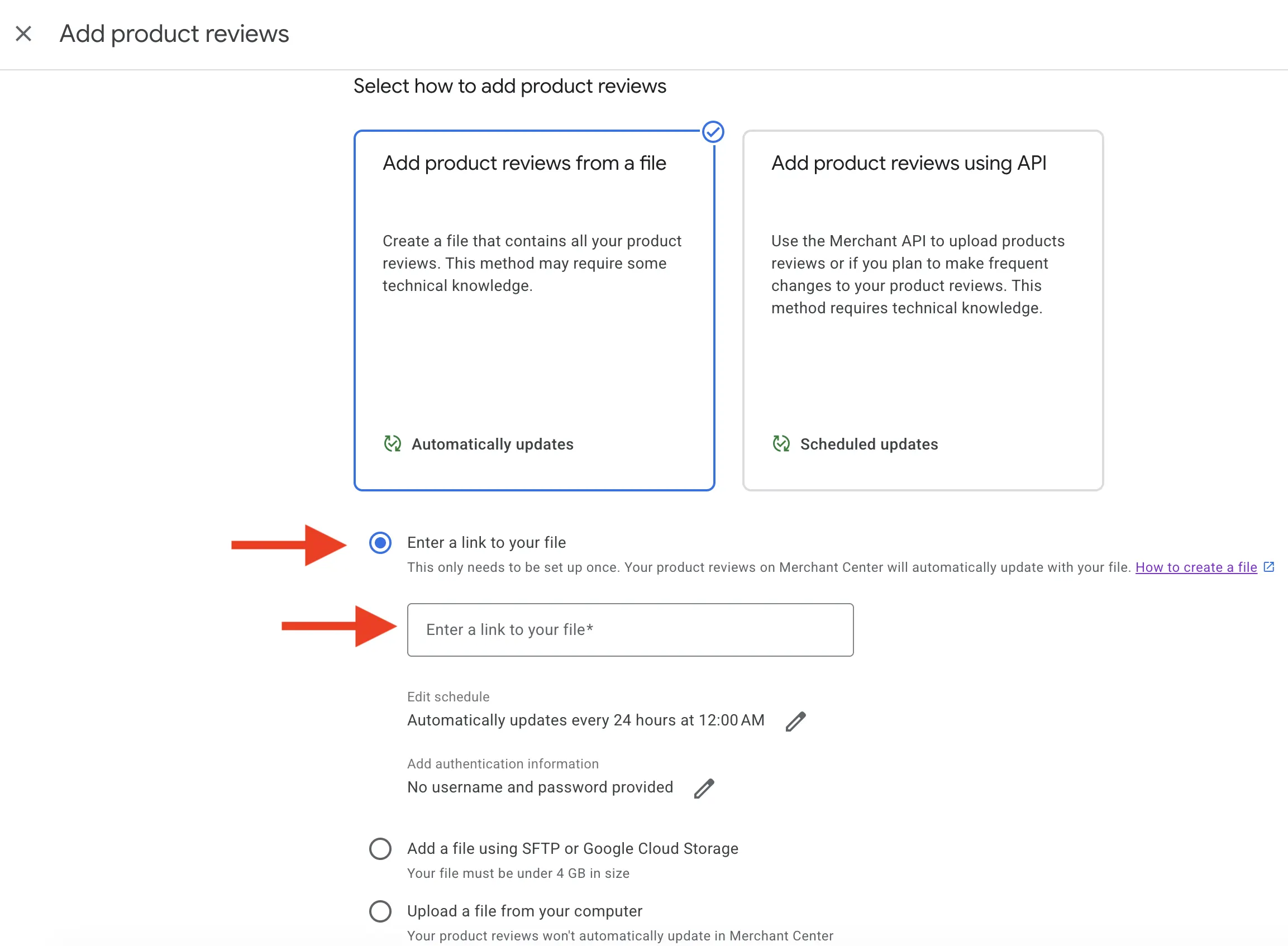
This single step fixes the issue for the majority of stores that are missing stars.
Reason 2: Your Feed Has Not Been Approved Yet
If you have submitted a feed but stars are still not showing, check the status of your feed in Merchant Center.
A newly submitted feed goes through a processing and approval stage. During this time the status shows as Inactive or Processing.
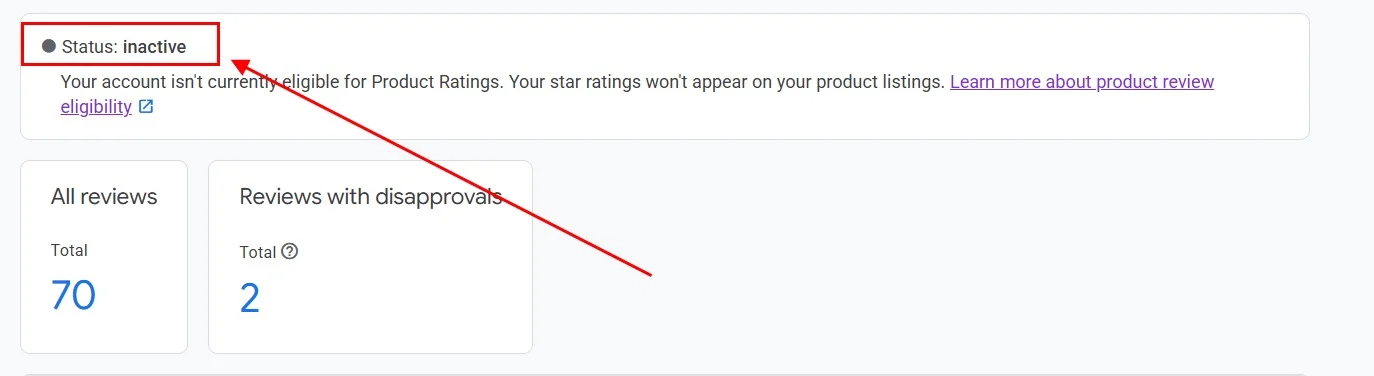
Google typically takes a few days to process and approve a new feed. Some stores wait up to two weeks, particularly if it is their first submission.
How to fix it: Check the feed status in Merchant Center. If it shows Inactive or Processing, you need to wait. If it shows an error, there is a problem with the feed format that needs to be resolved before approval.
Once approved, the status changes to Active.

After approval, most stores see ratings appear within 5 to 7 days. Allow up to 2 to 4 weeks in total.
Reason 3: Your Products Do Not Have Enough Reviews
Even with an approved feed, individual product listings need at least 1 review before Google will display a rating. If a product has no reviews in your feed, no rating will show for it.
For store-wide aggregate ratings, Google typically wants 50 or more reviews across your catalogue before ratings appear broadly.
How to fix it: Identify which products have no reviews yet. Prioritise your best-selling or highest-margin products and focus on collecting reviews there first. Review request emails (available in most review apps) are the fastest way to close the gap.
In the meantime, your feed submission is still worth doing now. As you collect more reviews and your live feed updates, those products will start qualifying automatically.
Reason 4: Product Identifier Mismatch
This is a more technical issue, but it is worth checking if your feed is approved and you still do not see stars on specific products.
Google links the reviews in your Product Ratings feed to the products in your Shopping product feed using identifiers: GTINs, brand plus SKU, or brand plus MPN. If the identifiers in your reviews feed do not match the identifiers in your product feed, Google cannot make the connection and the stars do not appear.
Common causes of this mismatch:
- Your review export contains a SKU but your product feed uses a GTIN (or vice versa)
- Your brand name in the review feed differs slightly from the brand in the product feed (for example "Nike" vs "Nike, Inc.")
- Products in your store are missing GTINs entirely, so Google cannot match on the most reliable identifier
How to fix it: Open your feed and your product feed side by side. Check that the identifiers match for a product that should have ratings but does not. If your products are missing GTINs, add them via your Shopify product settings (under the Inventory section, there is a Barcode/GTIN field).
Review2XML shows you which identifier fields were mapped from your review CSV so you can confirm what was submitted.
Reason 5: Your Merchant Center Account or Product Feed Has Issues
Star ratings can also fail to show if there is a broader problem with your Merchant Center account that is preventing your products from appearing on Google Shopping at all.
If your products are disapproved, your account is suspended, or your Merchant Center and Google Ads accounts are not properly linked, stars will not appear even with a valid Product Ratings feed.
How to fix it: In Merchant Center, go to Diagnostics and check for any account-level warnings or product disapprovals. Common issues include:
- Misrepresentation policy violations
- Landing page issues (the URL in your product feed leads to a 404 or redirects)
- Missing required product attributes (price, availability, image)
- Website not verified or claimed in Merchant Center
Resolve any account-level issues first, then check whether stars appear after the next feed processing cycle.
How to Check Everything in One Go
Here is a quick checklist to work through:
- Go to Merchant Center, then Products, then Product Reviews
- Check that a Product Ratings feed exists and its status is Active
- If no feed exists: export reviews from your app, convert with Review2XML, submit your live feed URL via "Enter a link to your file"
- If feed exists but shows errors: look at the error details — common issues are invalid format, missing required fields, or identifier problems
- If feed is Active but stars are not showing: check individual product review counts and verify identifier matching
- Check Diagnostics for any account-level issues affecting your products
Still not seeing stars? Review2XML can help.
Generate a valid Product Ratings feed from your review CSV in minutes and submit it to Google Merchant Center. Free for up to 50 reviews.
FAQ
How long does it take for Google Shopping stars to appear after I submit my feed? After submitting your feed, Google typically takes a few days to approve it. Once approved, most stores see star ratings appear within 5 to 7 days. Allow up to 2 to 4 weeks in total. If you are still not seeing them after that, work through the checklist above.
I have hundreds of reviews but still no stars. Why? The most likely reason is that you have not submitted a Product Ratings feed. Your reviews being live on your store or review app is not enough. Google needs you to submit the data in its specific format. Export your reviews, convert them with Review2XML, and submit your live feed URL to Merchant Center.
Do I need to resubmit my feed after getting new reviews? No. With the Review2XML live feed URL, your feed updates automatically as you collect new reviews. Submit the URL once to Merchant Center and it stays current.
Why do some of my products have stars but others do not? Products need at least 1 review each to display a rating. Products with no reviews in the feed will not show stars even if other products in your catalogue do. Check the review count per product and prioritise collecting reviews on products that have none.
Can I use this with any Shopify review app? Yes. Review2XML works with exports from Judge.me, Loox, Yotpo, Okendo, Stamped, Junip, Reviews.io, and Trustpilot. Export your reviews as a CSV from your review app, then upload to Review2XML to get your live feed URL. Review2XML is free for up to 50 reviews.
My feed shows Active in Merchant Center but stars still do not show. What next? Check two things: (1) do your individual products have at least 1 review in the feed? (2) do the product identifiers (GTIN, SKU, brand) in your ratings feed match those in your Shopping product feed? A mismatch in identifiers is the most common cause of stars not appearing even with an active feed.
Found this helpful? See more of our guides on Google.
Add as preferred source on Google