
How to Export Reviews from Judge.me, Loox, Okendo & Stamped (Complete Guide)
If you want star ratings on your Google Shopping listings, you need your customer reviews in the format Google accepts. The fastest route is to let Review2XML auto-sync your reviews (one click for Judge.me and Yotpo) or pull them from a Google Sheet, then connect the feed to Google Merchant Center in one click. But a CSV export works for every review app, and this guide shows you exactly how to export from each one: Judge.me, Loox, Yotpo, Okendo, Stamped, Junip, Reviews.io and Trustpilot.
Once you have your CSV, Review2XML turns it into a Google Product Ratings feed automatically, and your first 50 reviews are free.
Why Exporting Your Reviews Matters
Google Merchant Center won't accept reviews directly from your review app. It requires a standardised XML feed that follows the Google Product Ratings specification. Review2XML builds that feed for you: some apps (like Judge.me and Yotpo) can auto-sync directly, and every app can take the CSV route covered below. Either way you connect your reviews once, and Review2XML connects the feed to Merchant Center for you.
Exporting Reviews From Judge.me
Step 1. From your Shopify Admin, click Apps in the left sidebar and open Judge.me.
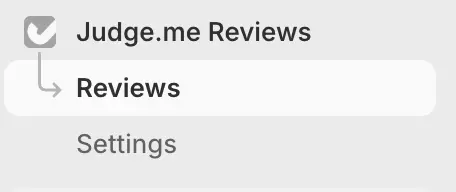
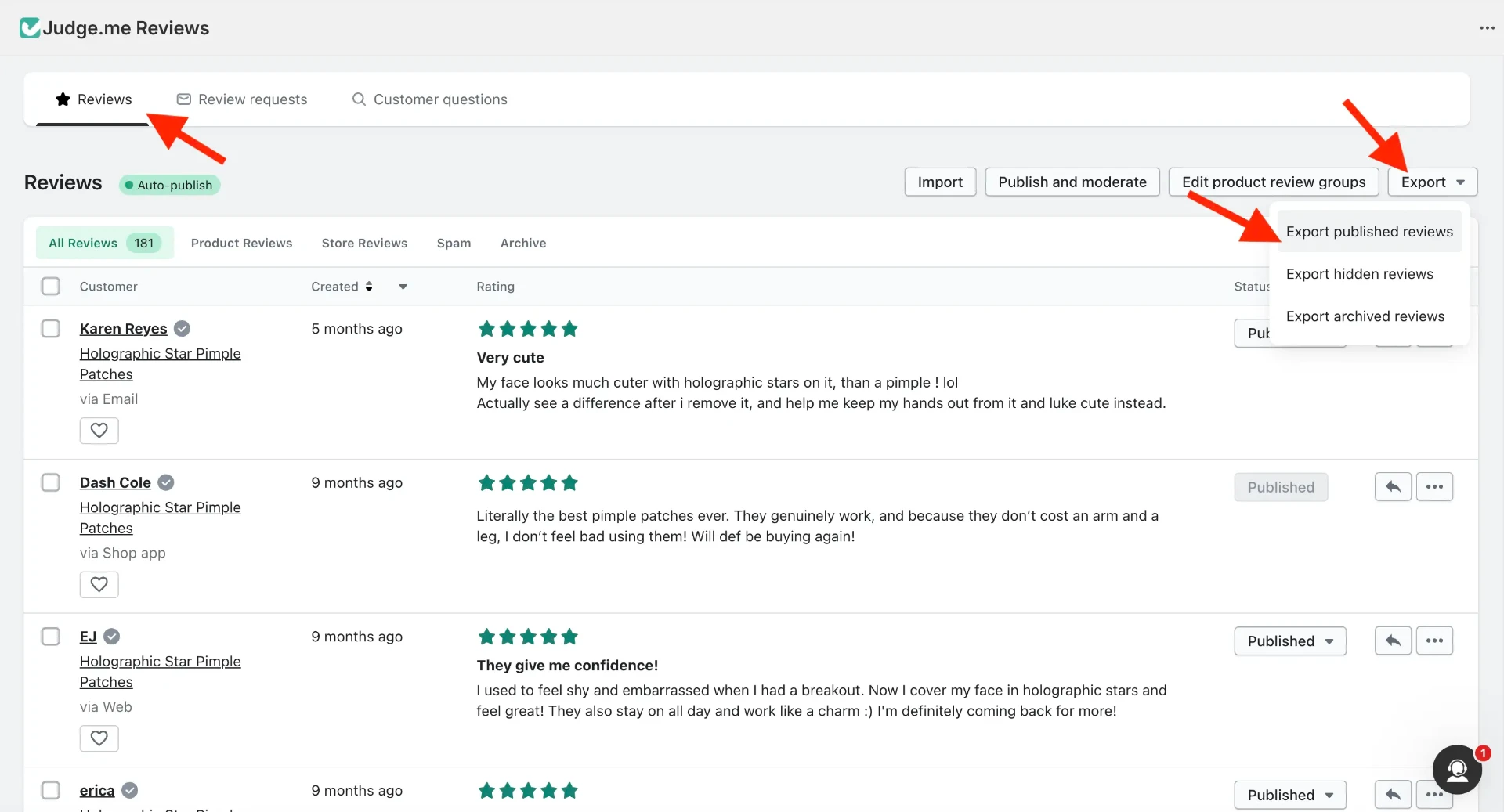
Step 2. Inside Judge.me, go to Reviews > Export > Export published reviews.
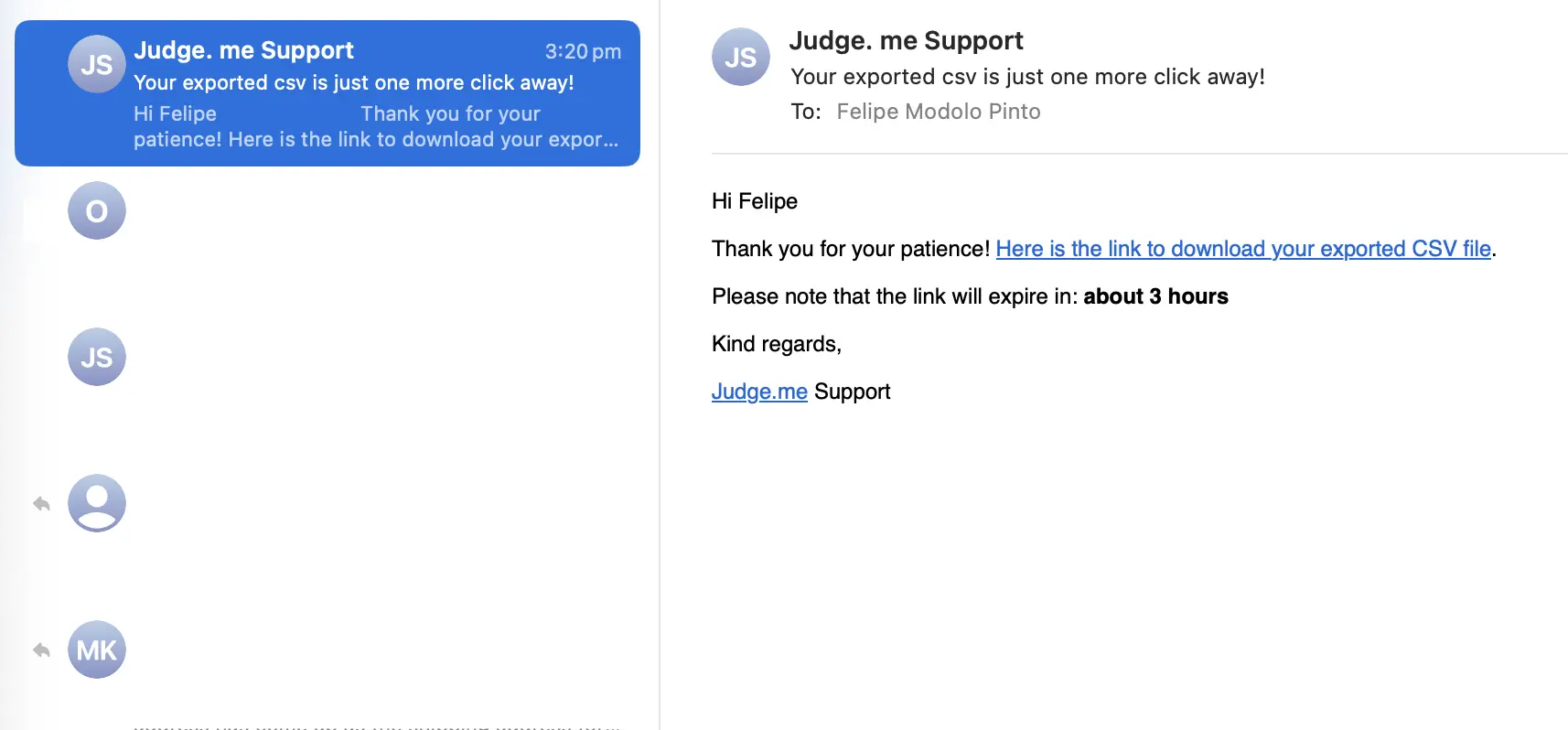
Step 3. Judge.me emails you a CSV file. Check your inbox. It usually arrives within a few minutes.
Tip: select "Published reviews only" to avoid exporting unverified or pending reviews.
Exporting Reviews From Loox
Step 1. From your Shopify Admin, click Apps in the left sidebar and open Loox.
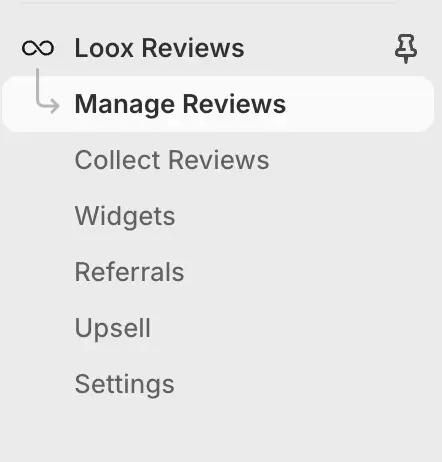
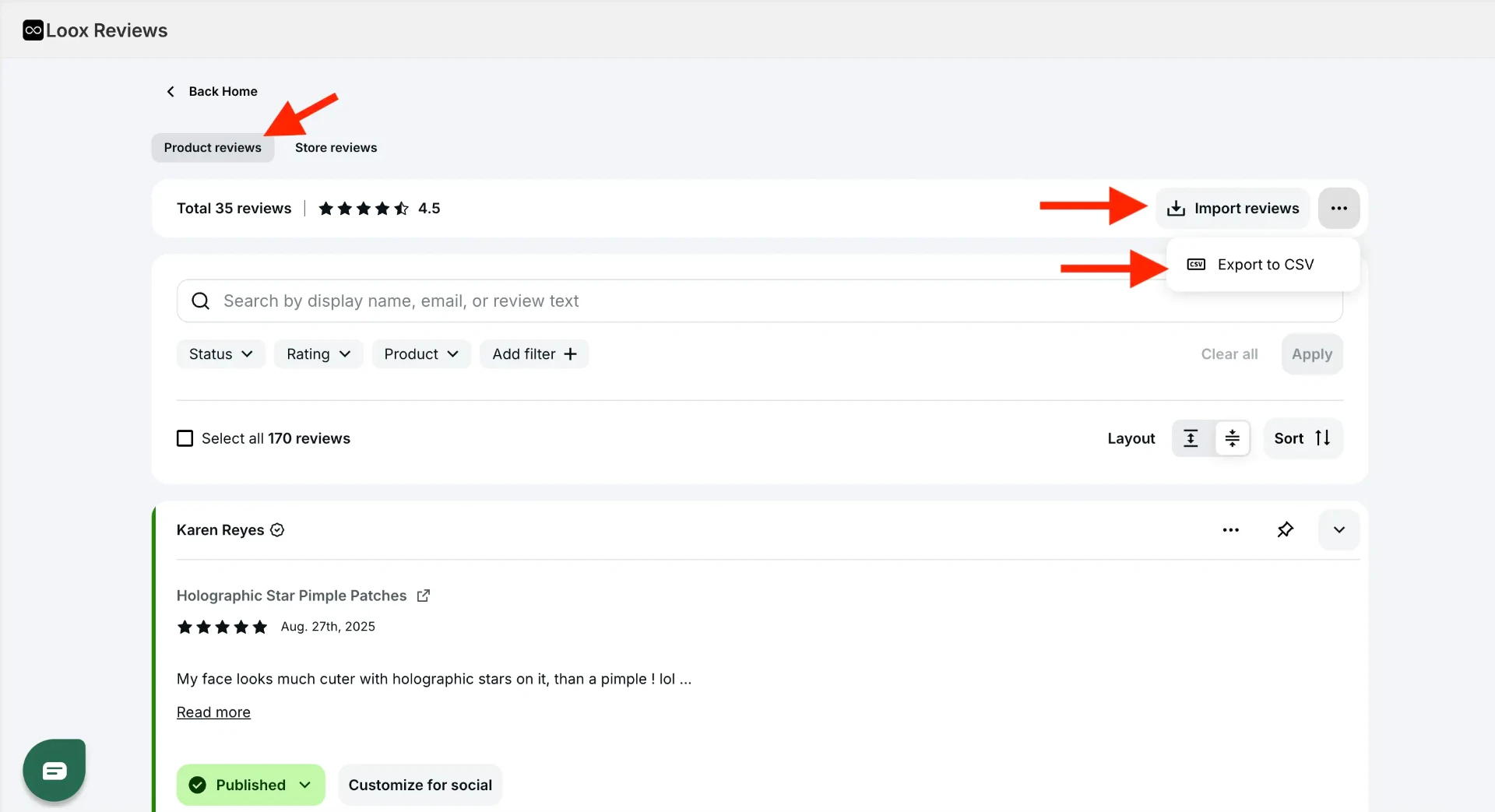
Step 2. Go to Manage Reviews > Product reviews > Export to CSV. Loox gives you an immediate download. No email needed.
Exporting Reviews From Yotpo
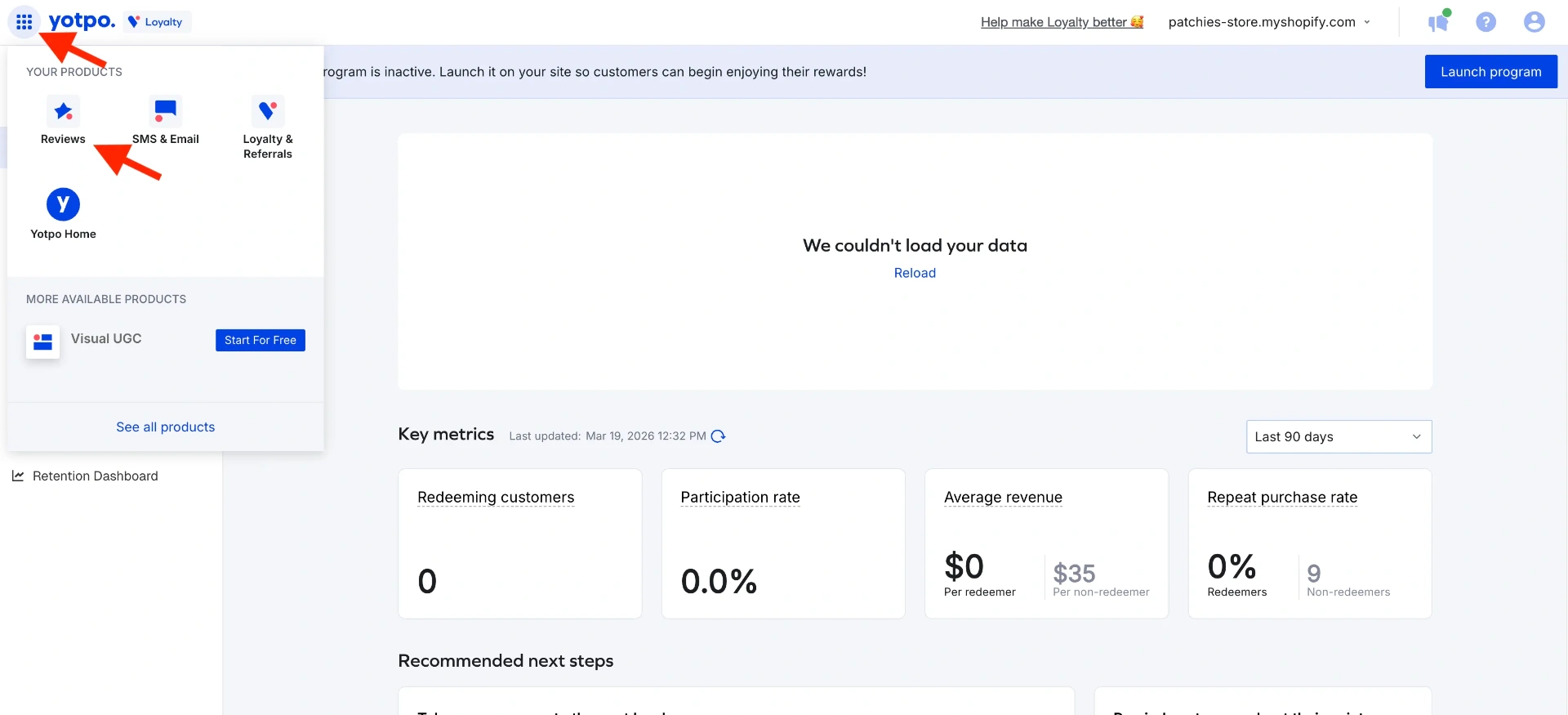
Step 1. Log in to reviews.yotpo.com. If you land on the Loyalty app, use the app switcher to navigate to the Reviews app.
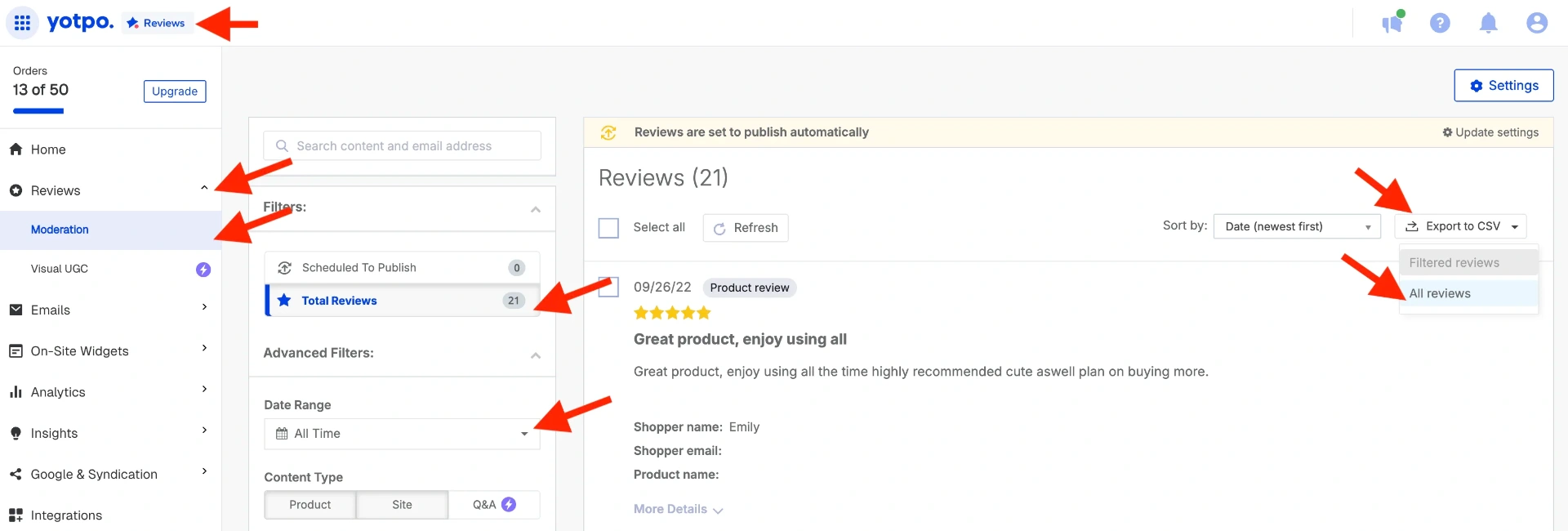
Step 2. Go to Reviews > Moderation. Set Date Range to All Time, then click Export to CSV.
Step 3. Yotpo emails the CSV to your registered account email.
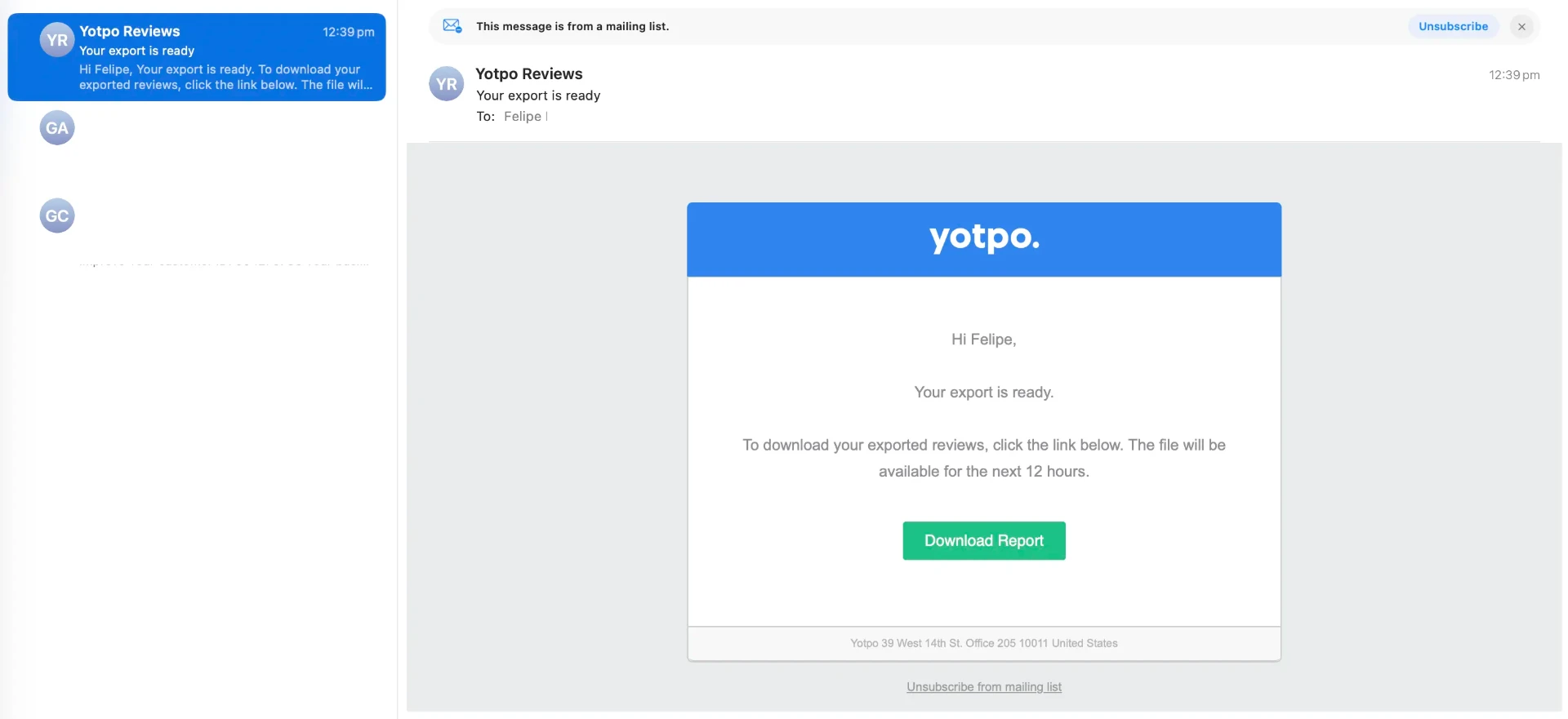
Note: Yotpo sends to the email on your account, not necessarily your Shopify login email.
Exporting Reviews From Okendo
Step 1. From your Shopify Admin, click Apps in the left sidebar and open Okendo.
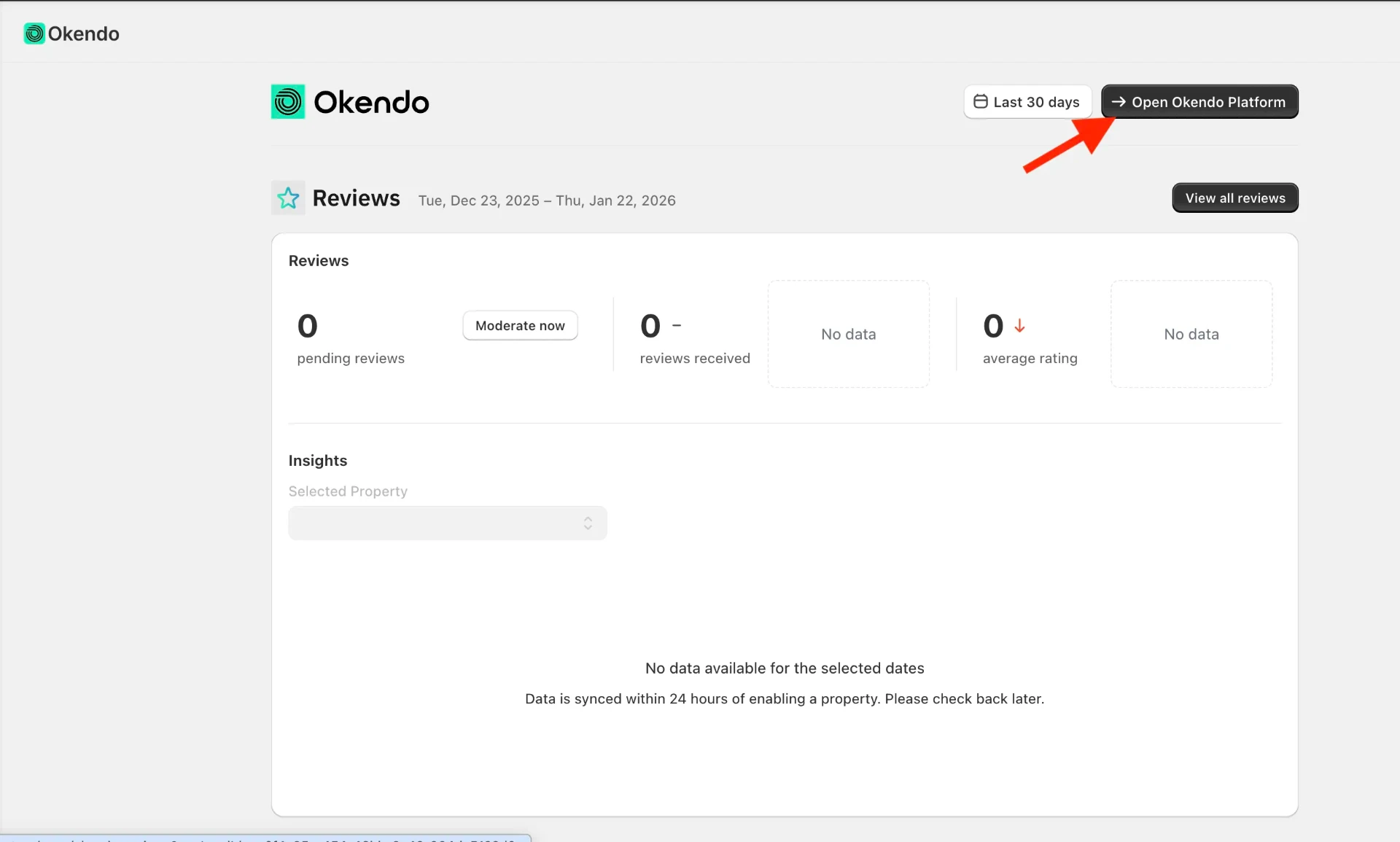
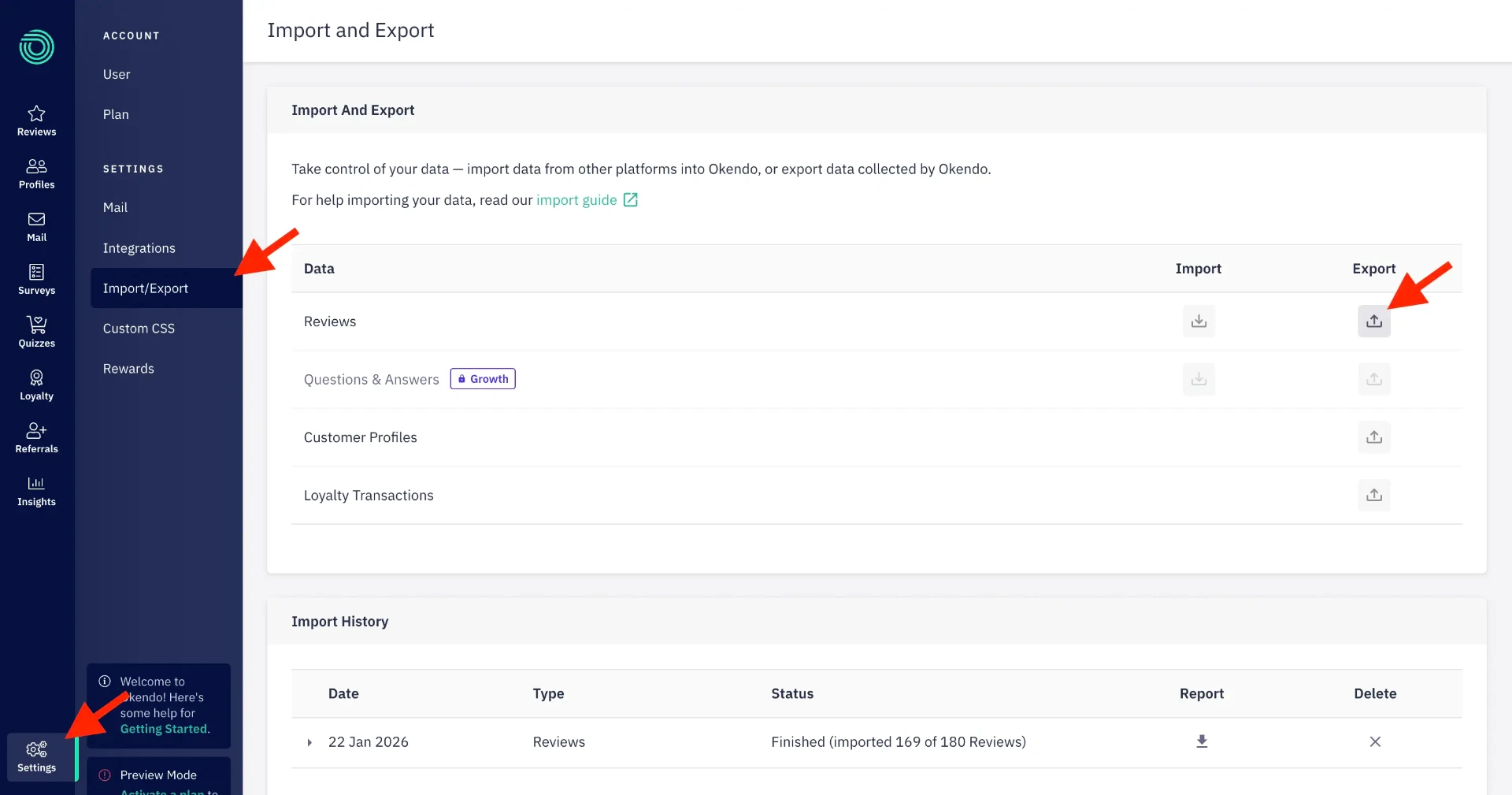
Step 2. Inside the Okendo platform, navigate to Settings > Import/Export.
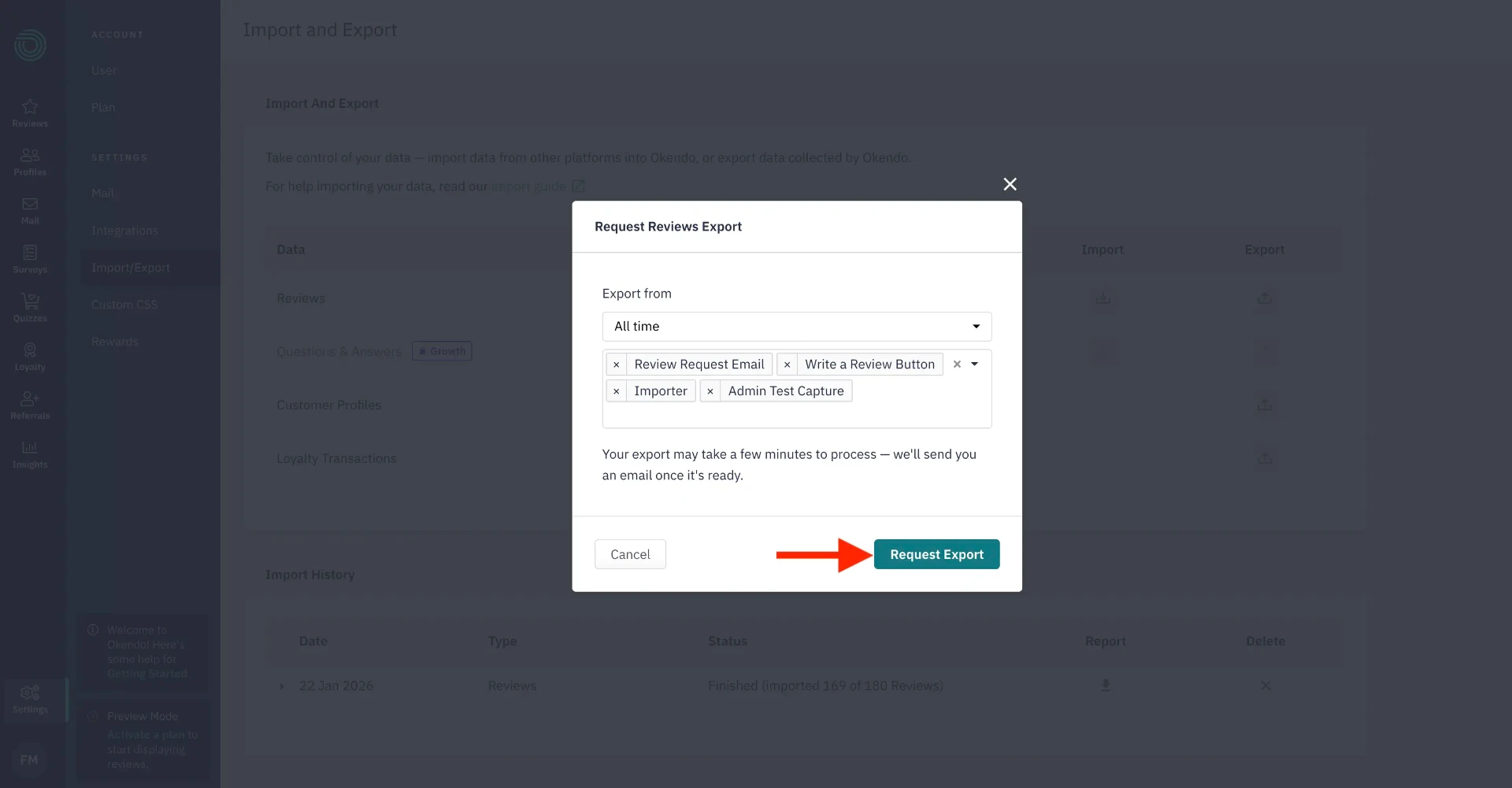
Step 3. Select Reviews > Export > All Time, then click Request Export.
Step 4. Confirm in the popup that appears.
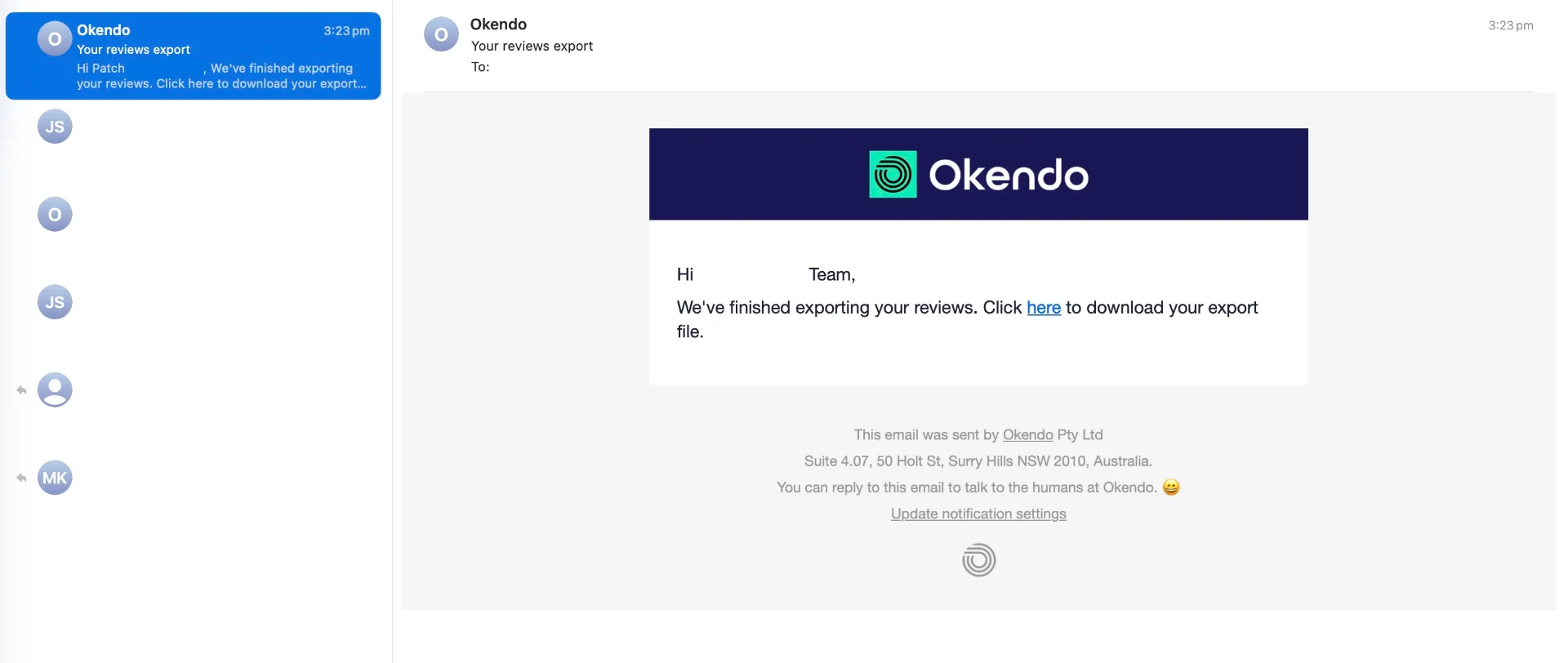
Step 5. Okendo emails the CSV. Check your inbox.
Exporting Reviews From Stamped
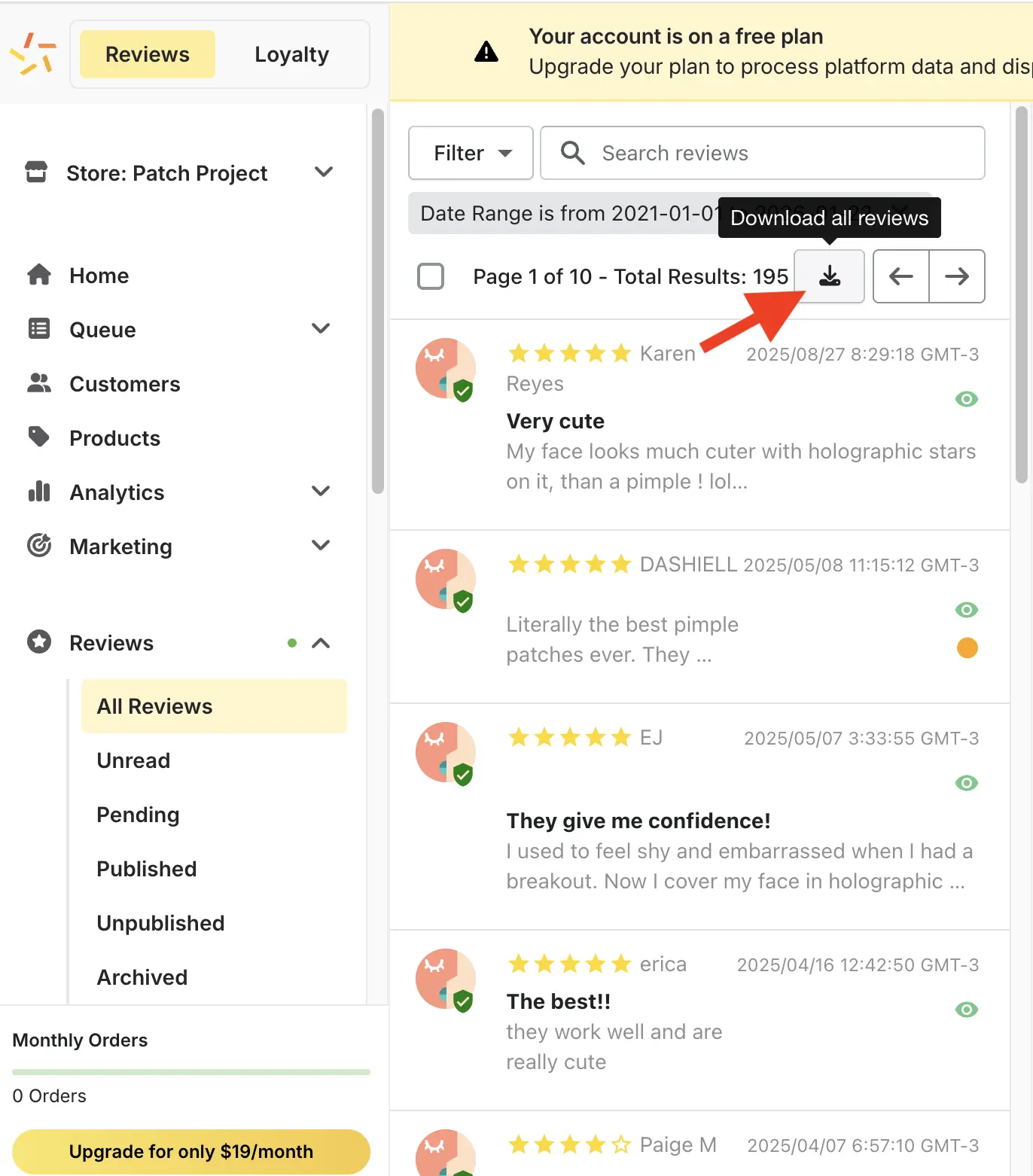
Step 1. Log in to your Stamped dashboard at stampedhq.com.
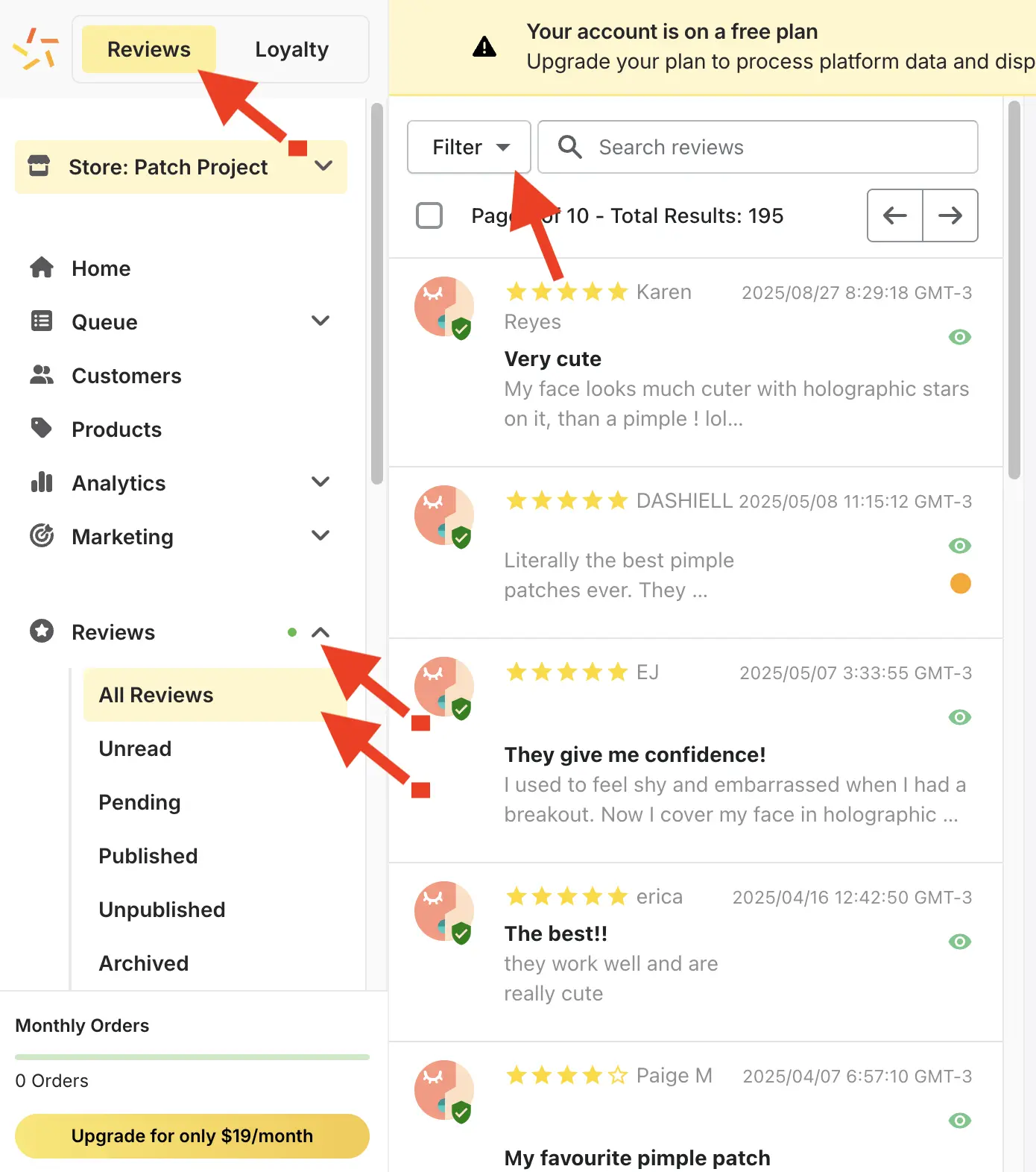
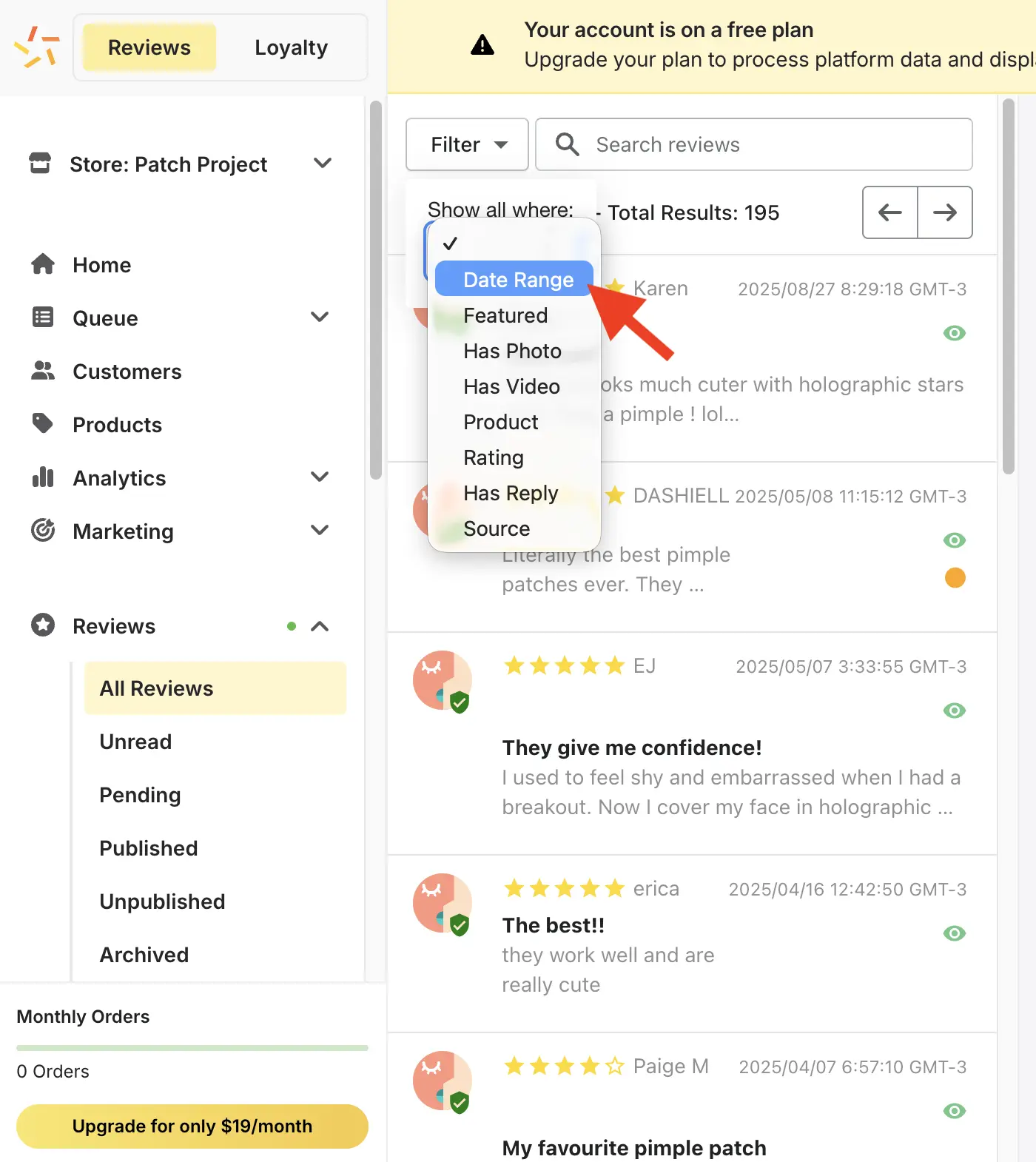
Step 2. Go to Reviews > All Reviews > Filter > Date Range > Add Filter.
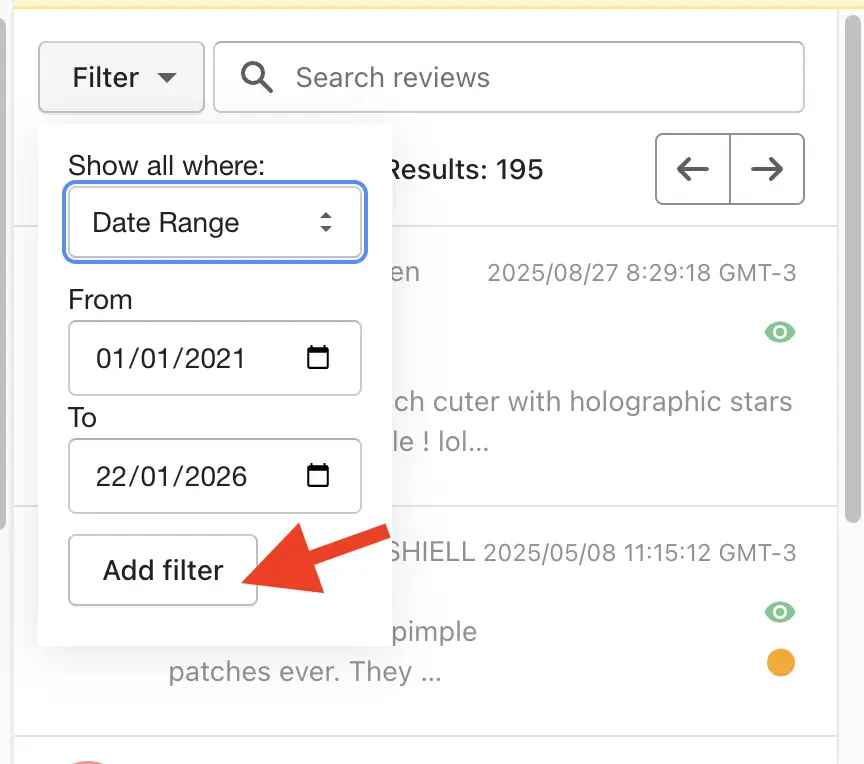
Step 3. Set the date range to cover all of your reviews.
Step 4. Click Download All Reviews. Stamped downloads the CSV immediately.
Exporting Reviews From Junip
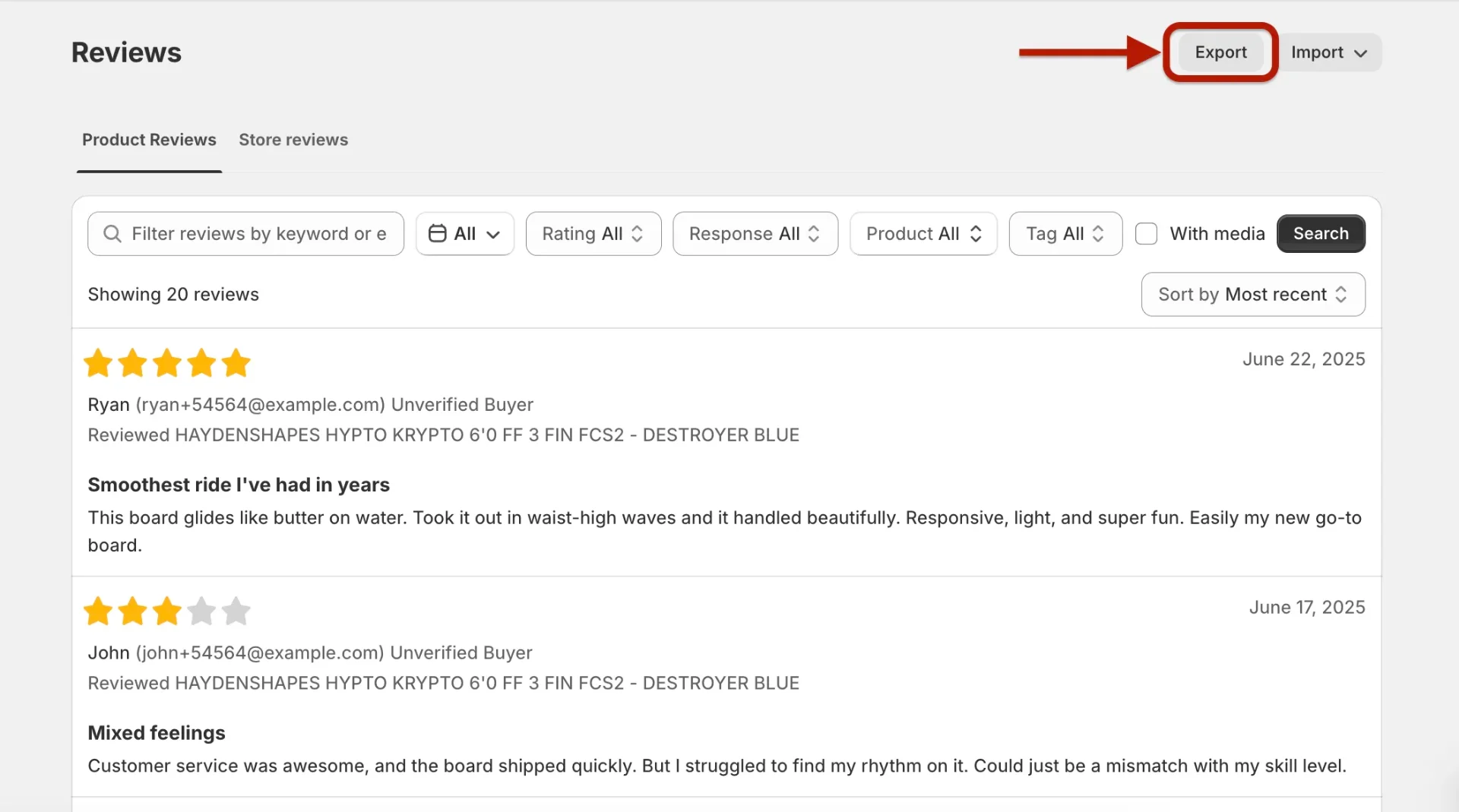
Step 1. Open the Junip app and navigate to Reviews > Product Reviews.
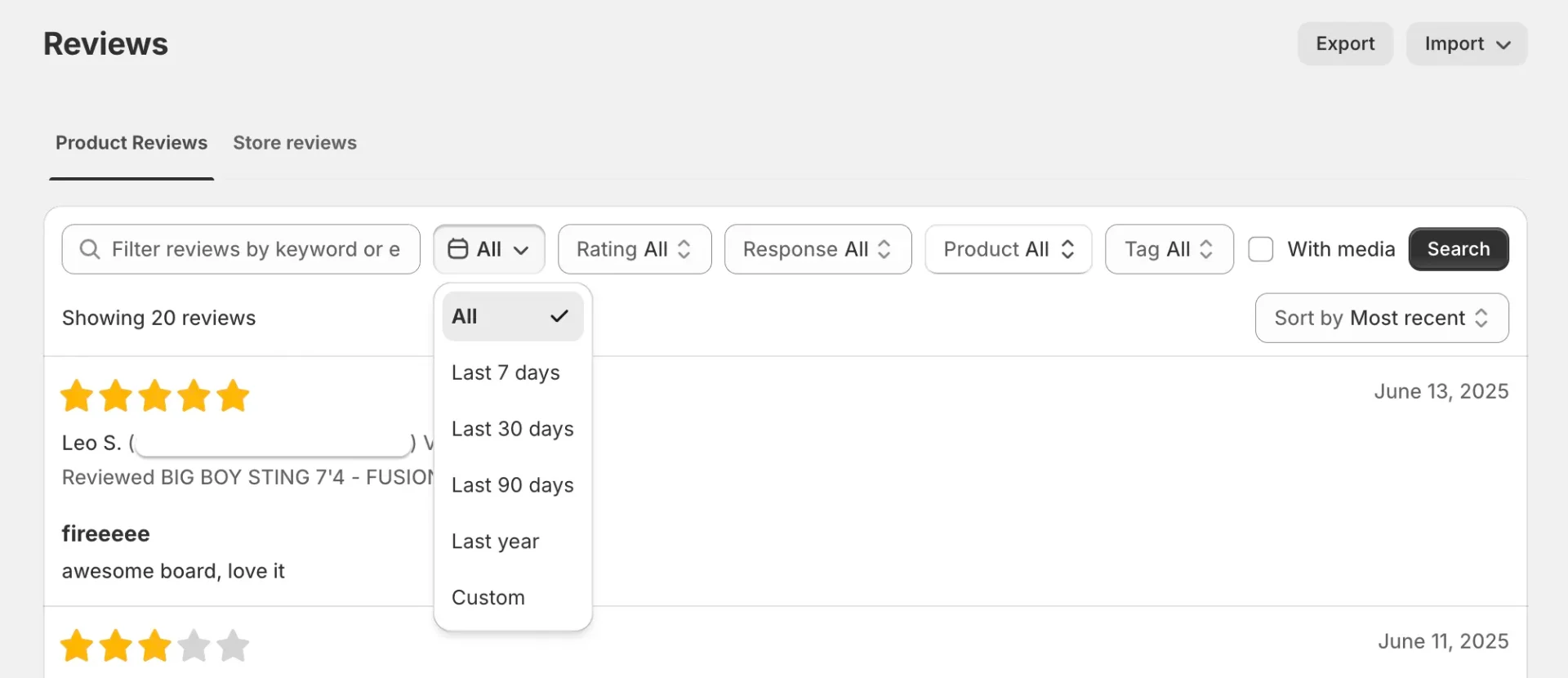
Step 2. Click Export.
Step 3. Select Export all reviews and check Include review tags, then confirm.
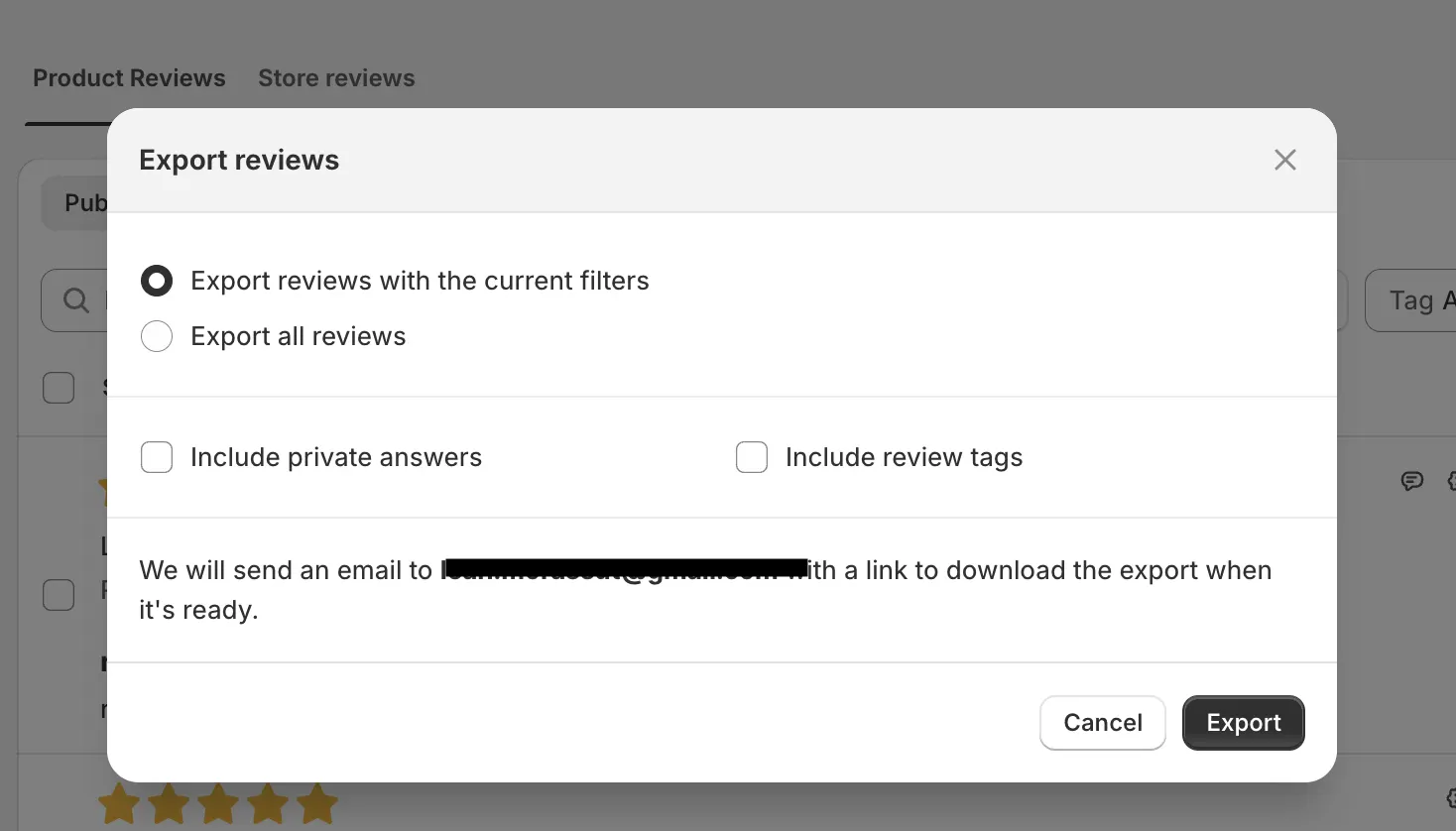
Step 4. Junip emails you the CSV.
Exporting Reviews From Reviews.io
Reviews.io requires a Start Up plan or above to export.
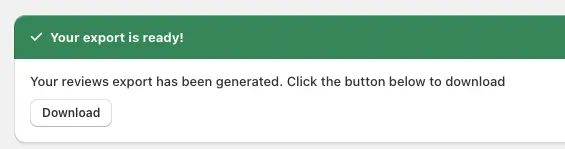
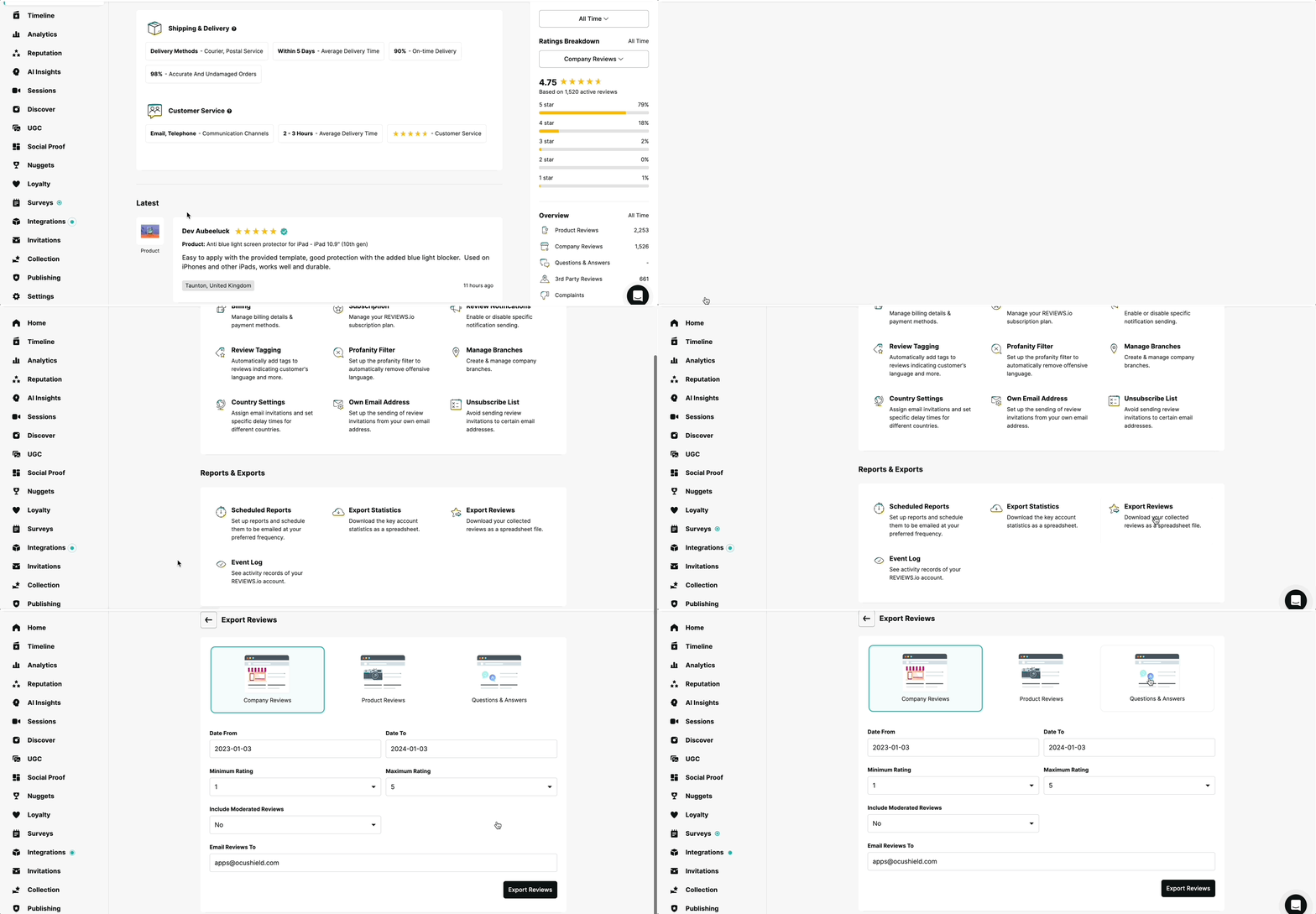
Go to Settings > Export Reviews > Product Reviews > CSV > Export. Your CSV downloads immediately.
Exporting Reviews From Trustpilot (Premium)
Trustpilot product review export requires a Premium plan.
Go to Manage reviews > Product reviews > Inbox > Export. Trustpilot sends the file to your registered email address.
Note: Trustpilot works best for stores selling branded products with GTINs, as Google uses product identifiers to match reviews to listings.
CSV Export Comparison Table
| Platform | Export method | Delivery | Plan required | One-click auto-sync? |
|---|---|---|---|---|
| Judge.me | In-app > Export | Free | Yes | |
| Loox | In-app > Export to CSV | Immediate download | Any | CSV / Sheets |
| Yotpo | reviews.yotpo.com > Moderation | Any | Yes | |
| Okendo | Settings > Import/Export | Any | CSV / Sheets | |
| Stamped | All Reviews > Download | Immediate download | Any | CSV / Sheets |
| Junip | Reviews > Export all | Any | CSV / Sheets | |
| Reviews.io | Settings > Export | Immediate download | Start Up+ | CSV / Sheets |
| Trustpilot | Manage reviews > Inbox | Premium | CSV / Sheets |
What Your Reviews Can Do For You on Google Shopping
You've got your reviews out of your app. Most people stop here. But those reviews are the first step to something bigger: every one can become a star rating on your Google Shopping listings. Products with star ratings get up to 24% more clicks than listings without stars, on both paid ads and free listings. That's more traffic without spending more on ads.
Here's how it works: Google needs your reviews in a specific format called a Product Ratings feed. Review2XML builds it, connects it to Google Merchant Center in one click, and your stars start appearing within a few weeks. Your first 50 reviews are free.
After Exporting: Turn Your CSV into a Google Product Ratings Feed
Upload your CSV to Review2XML (or skip the export entirely and auto-sync Judge.me or Yotpo directly). It validates your data, auto-detects your columns, and builds a Google-ready feed for you. Preview your product cards with their star ratings, then your first 50 reviews go live free. Through Google's official Merchant API, Review2XML connects the feed to Merchant Center in one click, or gives you a hosted feed URL to paste yourself.
See our step-by-step guide for how to get your reviews onto Google Merchant Center once your feed is ready.
Frequently Asked Questions
Which Shopify review apps can I export from?
All major platforms support CSV export: Judge.me, Loox, Yotpo, Okendo, Stamped, Junip, Reviews.io (Start Up plan+), and Trustpilot (Premium). Judge.me and Yotpo can also auto-sync directly, no export needed. Review2XML supports all of them.
Can I export from multiple review apps and combine them?
Yes. Export from each app separately, combine the CSV files (make sure column names match), and add the merged file to Review2XML. This is useful if you switched apps and want to keep historical reviews.
Do I need all reviews or just recent ones?
Use all of them. Google uses your full review history to calculate ratings. More reviews means more accurate star ratings and higher eligibility for the Product Ratings program.
What if my review app is not listed here?
If your app exports a CSV with columns for reviewer name, rating, review text, and product identifier (SKU, GTIN, or MPN), it works with Review2XML. You can also connect a published Google Sheet instead of a file.
How often should I re-export and update my feed?
You don't need to. If you auto-sync Judge.me or Yotpo, new reviews flow to Google automatically every day. If you used a CSV, upload a fresh one from your dashboard and your hosted feed updates in place, so there are no monthly manual re-uploads.
Found this helpful? See more of our guides on Google.
Add as preferred source on Google