
How to Get Okendo Reviews on Google Shopping
Okendo collects product reviews on your Shopify store, but it doesn't automatically send them to Google Shopping. Review2XML bridges that gap: bring your Okendo reviews in (a CSV export or a Google Sheets link) and it builds a Google-compliant Product Ratings feed and, through Google's official Merchant API, connects it to Google Merchant Center in one click. Your first 50 reviews are free. This guide walks through every step.
Why Google Shopping stars matter
When star ratings appear on your Google Shopping ads and free listings, shoppers see your review score before they click. That visibility typically increases click-through rates and helps your products stand out from competitors without ratings. Google sources those stars from a Product Ratings feed in a specific XML format, and that feed has to come from you.
What you need before you start
- An active Okendo subscription on your Shopify store
- At least 50 reviews across your products (Google's minimum to display stars)
- A Google Merchant Center account linked to your store
- A free Review2XML account (your first 50 reviews are free)
How to export your reviews from Okendo
Okendo's CSV export lives inside the Settings area, not the Reviews tab. Here's exactly where to find it.
Step 1: Open Okendo in your Shopify Admin
Go to your Shopify Admin, click Apps, then open Okendo.
Step 2: Click Open Okendo Platform
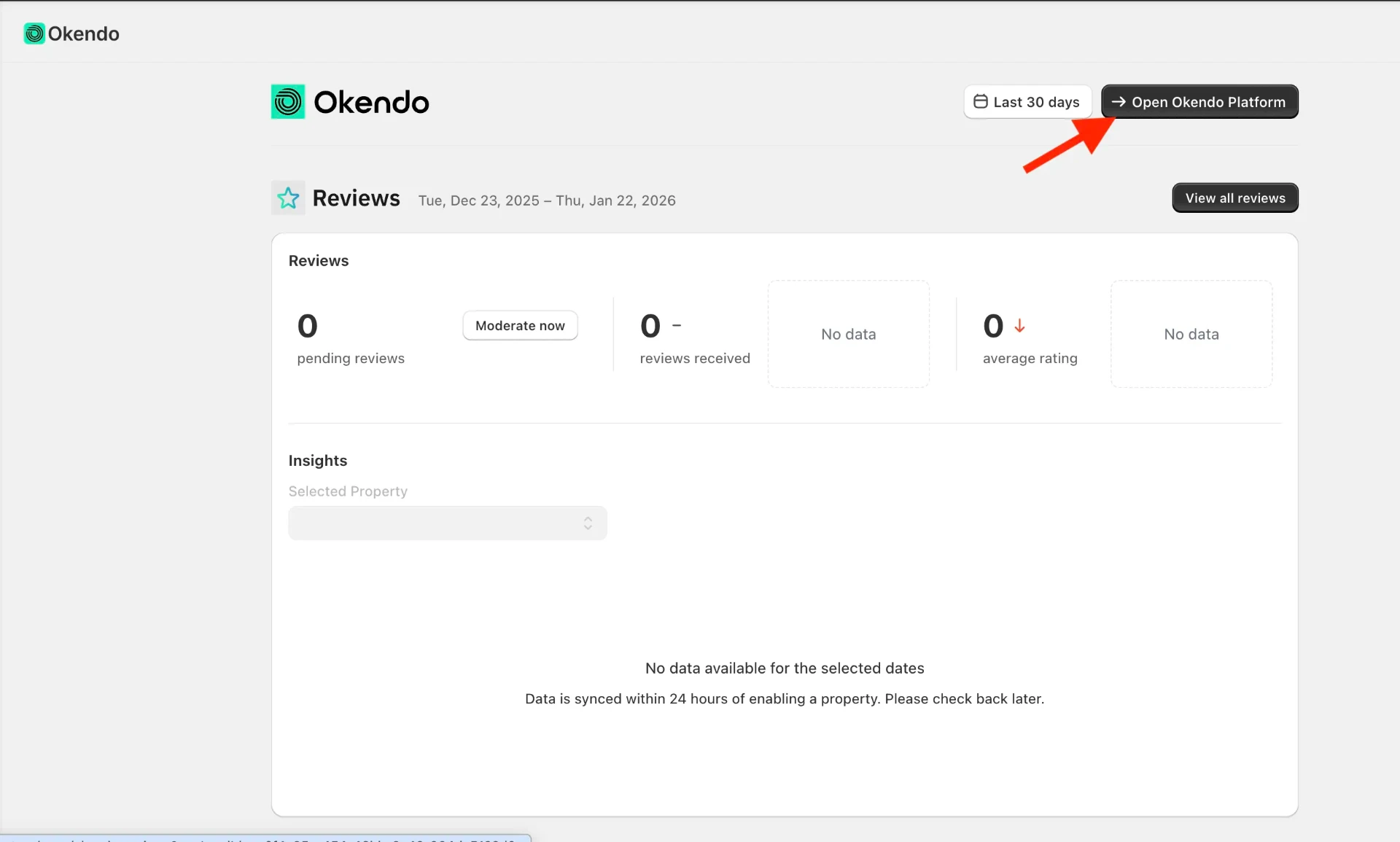
Inside the Shopify app page, click the Open Okendo Platform button to open the full Okendo dashboard.
Step 3: Go to Settings, then Import/Export, then Export Reviews
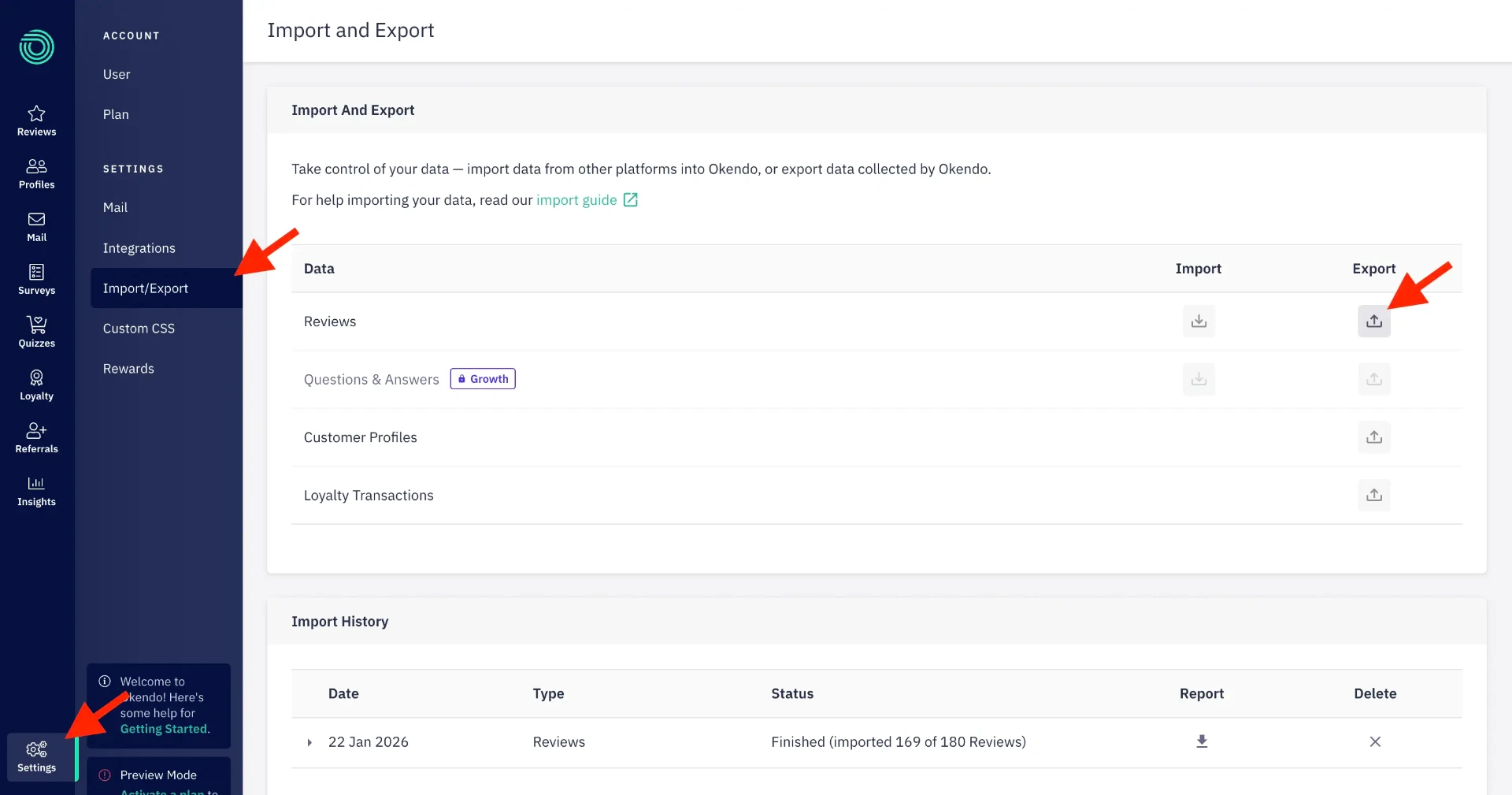
In the left sidebar, click Settings at the bottom of the menu. Then click Import/Export. Find the Reviews row and click Export.
Step 4: Set All Time and request the export
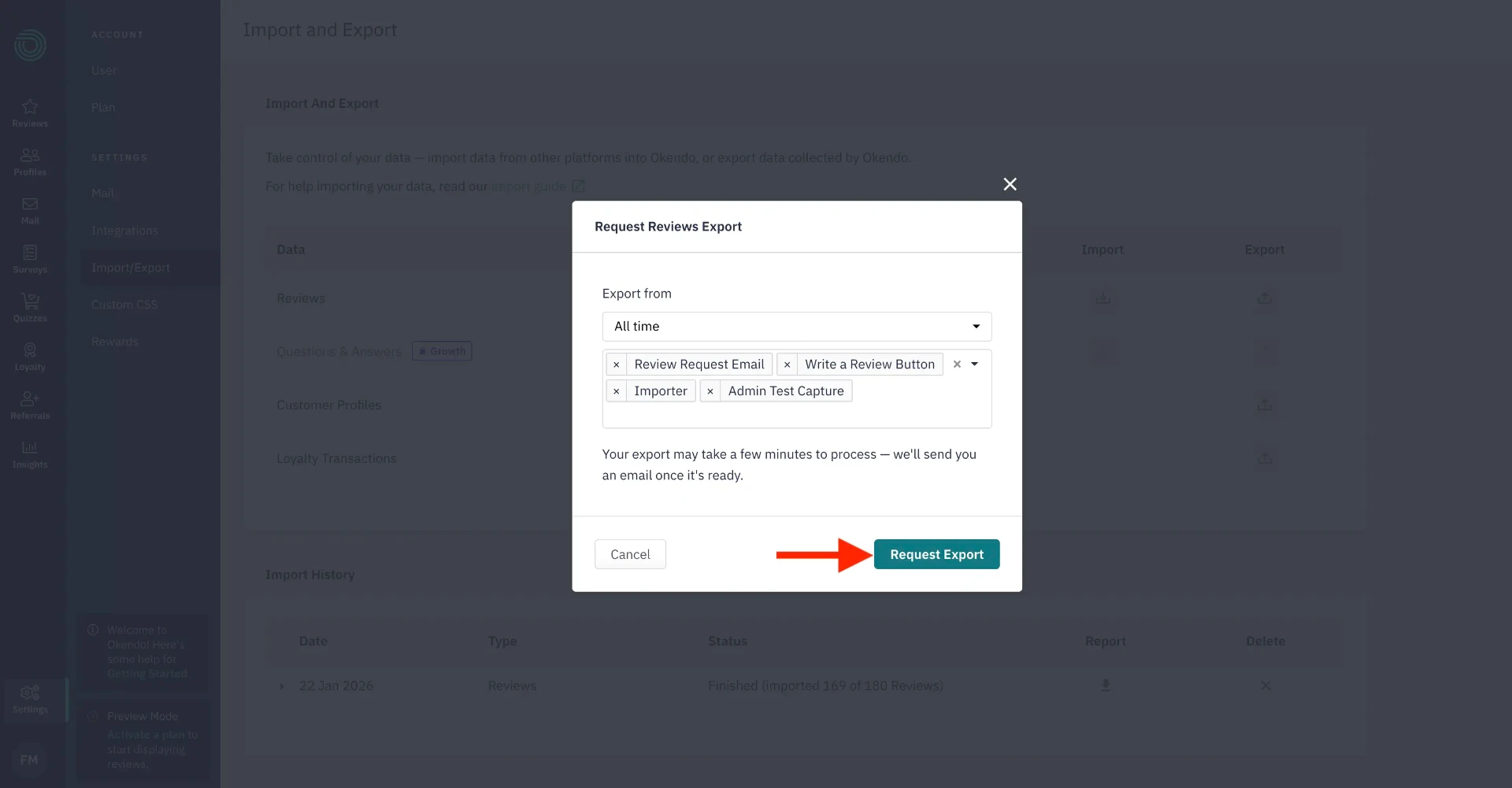
A popup will appear. Make sure the date range is set to All Time so you export every review, then click Request Export.
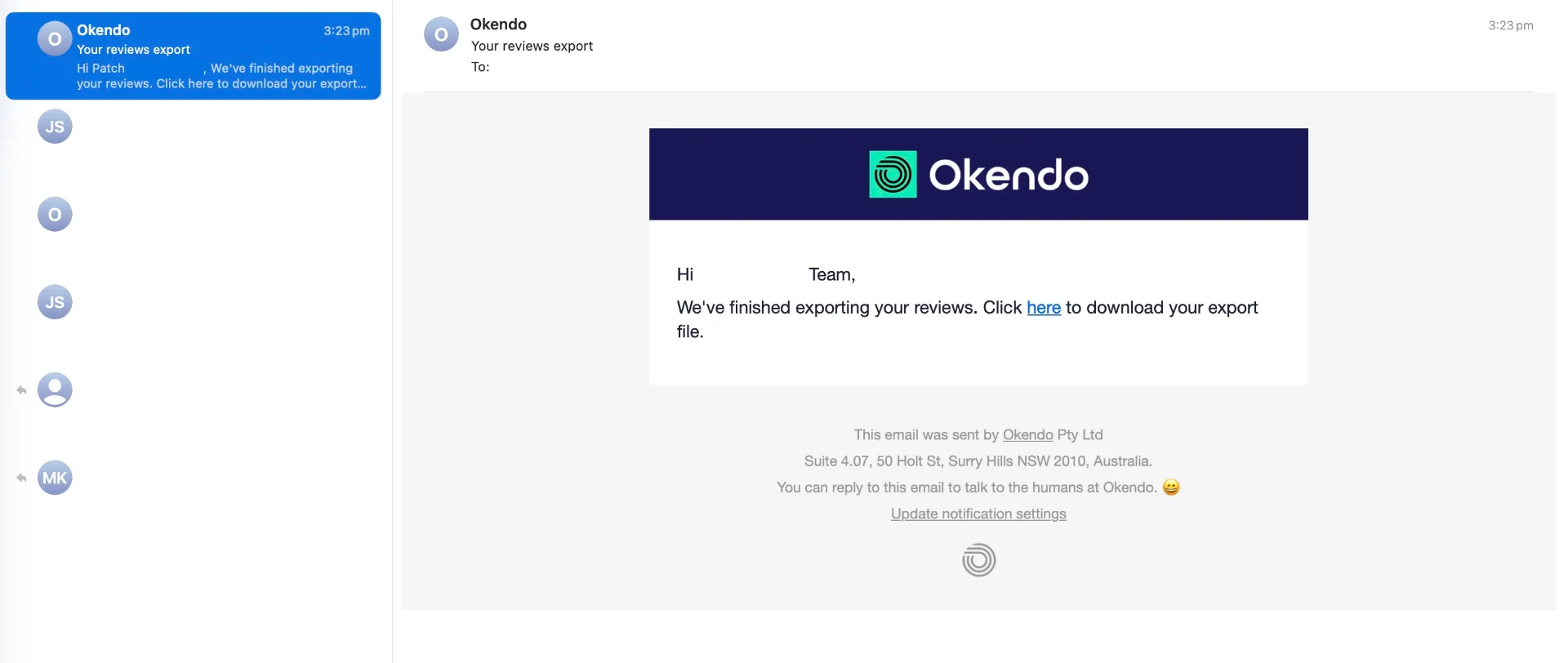
Step 5: Download the CSV from your email
Okendo emails you the export link. Open the email and click the download link to save your CSV file.
Turn your Okendo reviews into a Google Product Ratings feed
Google Merchant Center requires reviews in a specific XML format called the Product Ratings feed, and Review2XML builds it for you. Go to review2xml.com, enter your store URL, and add your reviews by uploading your Okendo CSV or pasting a Google Sheets link. Review2XML reads the columns automatically (product identifier, rating, review text, reviewer name, review date) and maps them to Google's schema, so there's no manual mapping. Preview your product cards with their star ratings, then your first 50 reviews go live free. (One-click Okendo auto-sync via the Okendo API is on the way; for now the CSV or Sheets route takes about a minute.)
Add your feed to Google Merchant Center
Through Google's official Merchant API, Review2XML can push your feed straight into Merchant Center in one click. To add it yourself instead:
Step 1: Open Google Merchant Center
Log in at merchants.google.com.
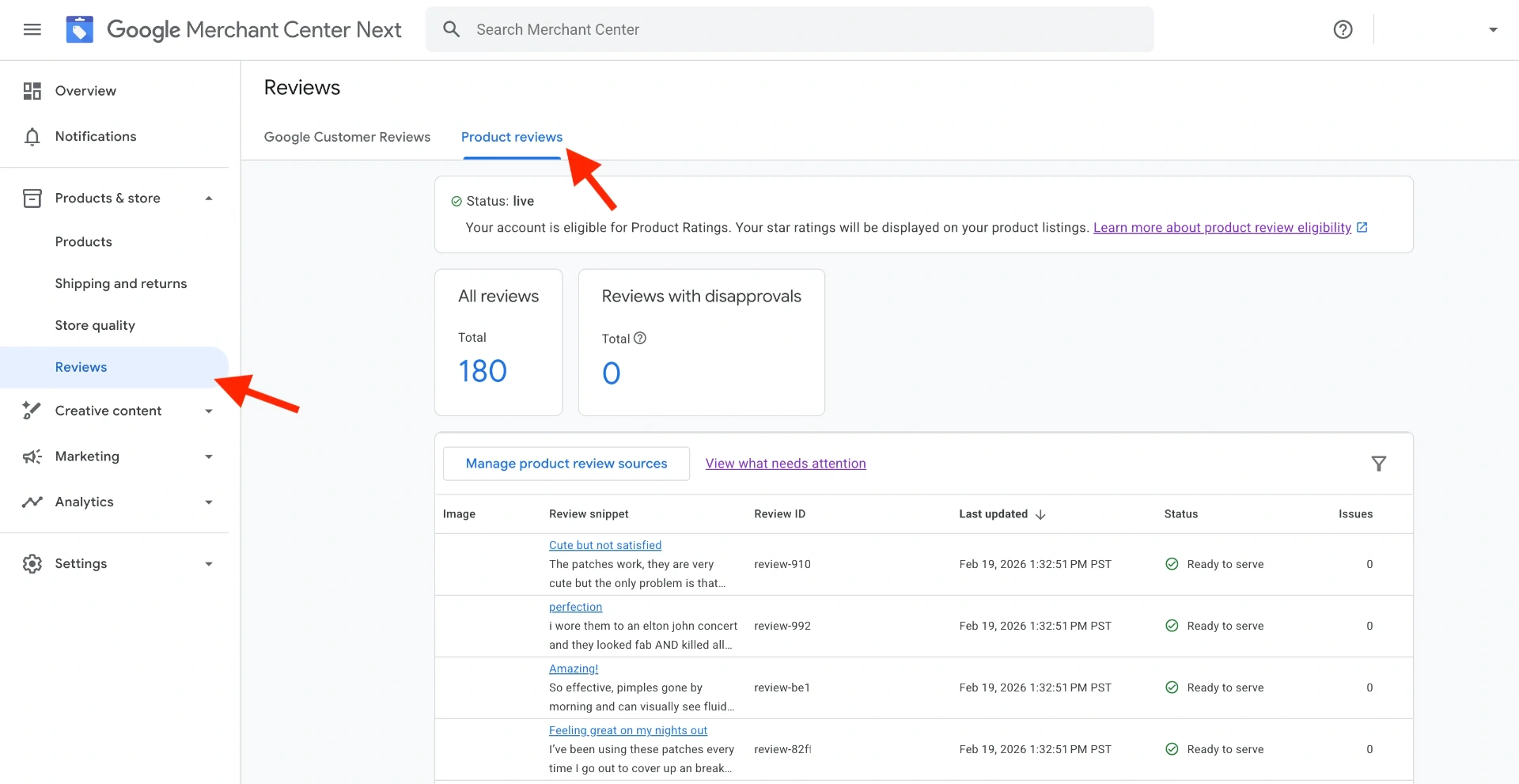
Step 2: Go to Product Reviews
In the left sidebar, navigate to Products & store > Reviews > Product reviews.
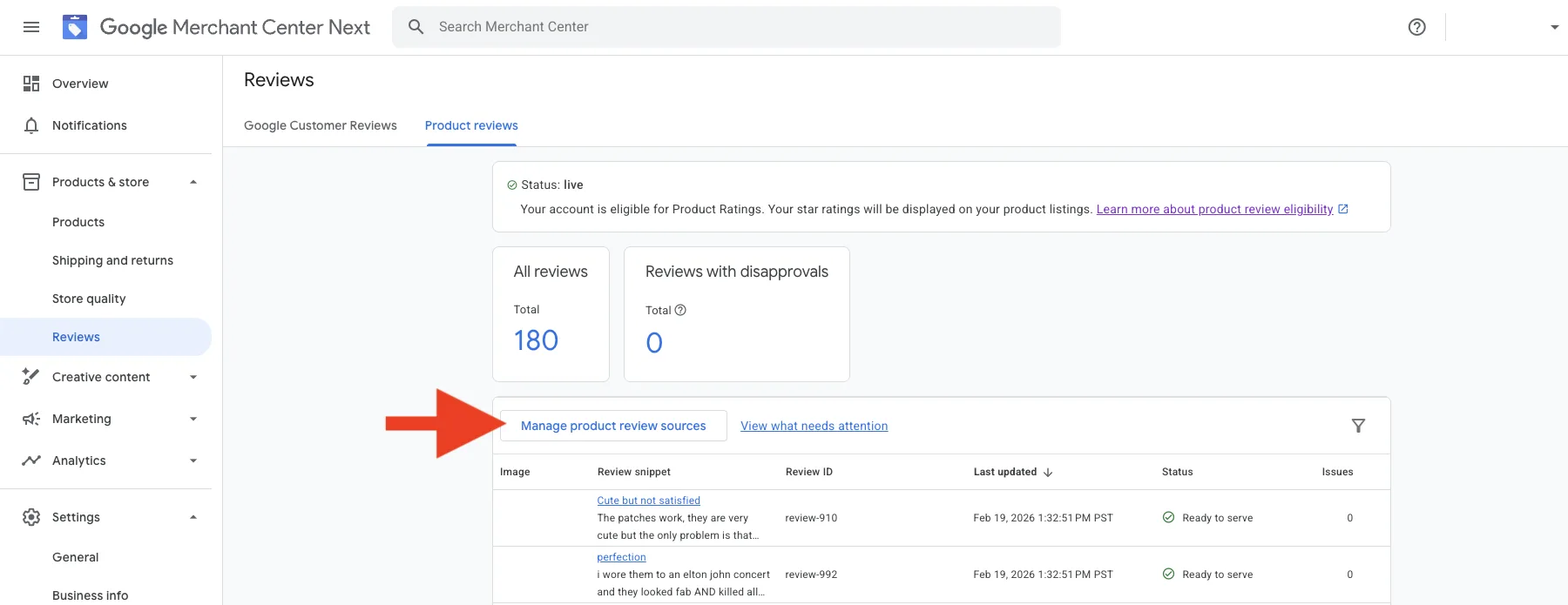
Step 3: Open Manage Product Review Sources
Click Manage product review sources, then Add product review source.
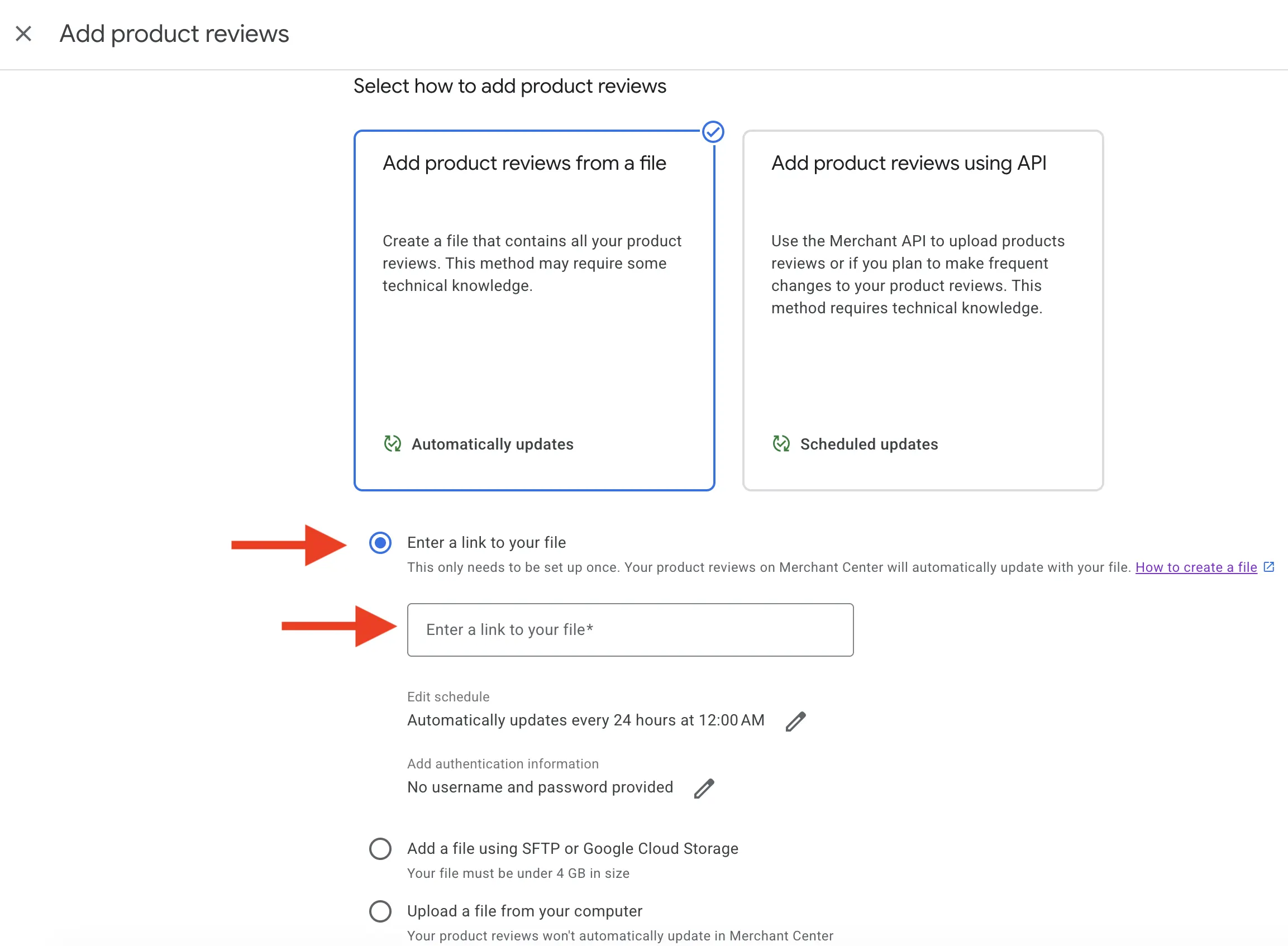
Step 4: Add your feed
Choose Enter a link to your file and paste your Review2XML feed URL. Because it's a hosted URL, Google re-fetches it automatically, so you never have to re-upload.
Step 5: Wait for Google to process the feed
Your feed shows as Inactive while Google reviews it. This typically takes a few days.
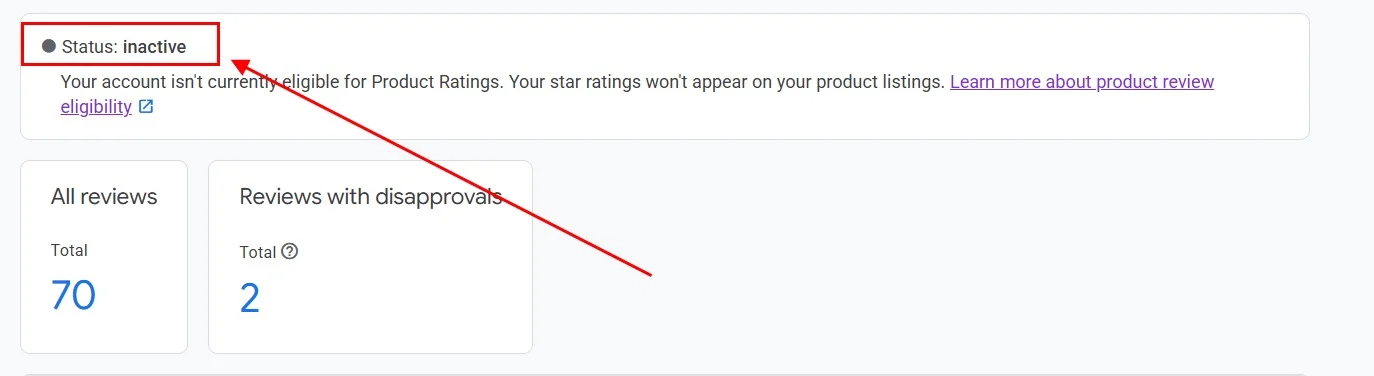
Once approved, the status changes to Live and star ratings start appearing on your eligible listings.

FAQ
Does Okendo automatically send reviews to Google Merchant Center? No. Okendo doesn't have a native integration that pushes product reviews to Google in the Product Ratings XML format. You bring your Okendo reviews into Review2XML (a CSV export or a Google Sheets link), and it builds the feed and, through Google's official Merchant API, connects it to Merchant Center for you.
Where is the export option in Okendo? It's in Settings, not the Reviews tab. Open the full Okendo platform, go to Settings in the left sidebar, click Import/Export, find the Reviews row, and click Export. The export is emailed to you as a CSV.
How many reviews do I need before Google shows stars on my listings? Google requires a minimum of 50 reviews across your products before it displays Product Ratings. Once your feed is approved and you have enough reviews, stars start appearing automatically. Your first 50 reviews on Review2XML are free.
How often do I need to update the feed? You don't need to re-upload every month. Your Review2XML feed is a hosted URL that Google fetches on a regular schedule, so when you collect new reviews you upload the latest export from your dashboard and the live feed updates in place.
Found this helpful? See more of our guides on Google.
Add as preferred source on Google