
How to Get Klaviyo Reviews on Google Shopping
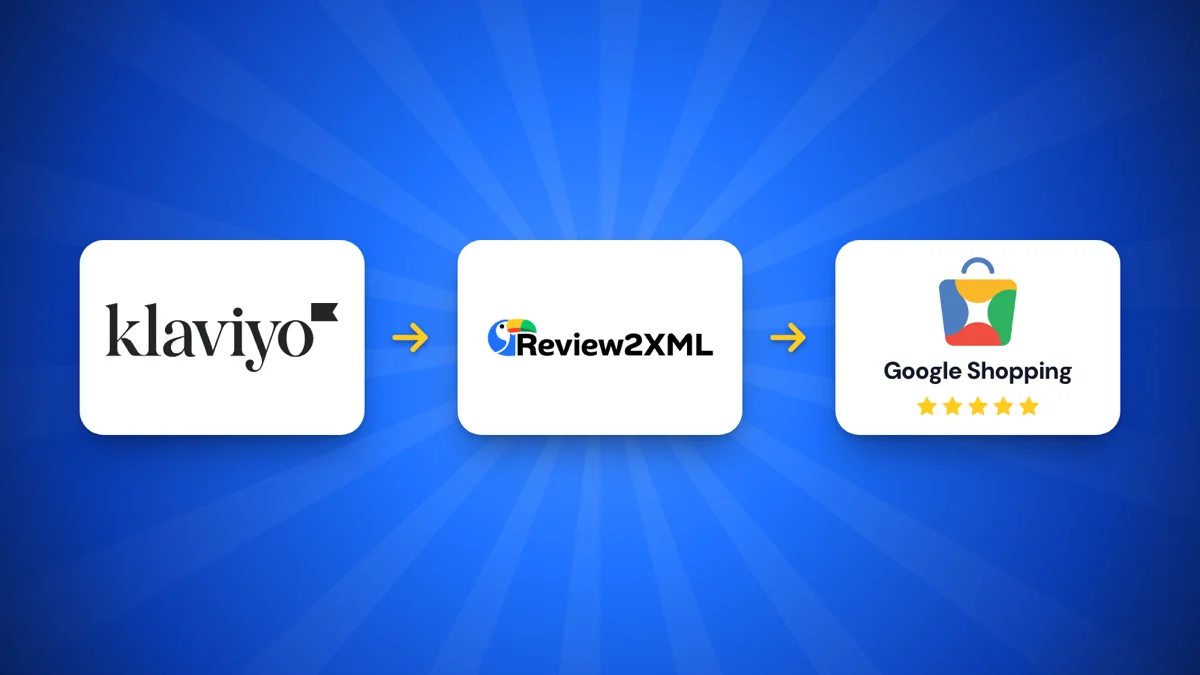
Klaviyo Reviews collects product reviews on your Shopify store, and Review2XML turns them into star ratings on Google Shopping. Pick Klaviyo Reviews in the setup and your reviews sync in one click (no API key, no export, no upload). Review2XML then builds a Google-compliant Product Ratings feed and connects it to Google Merchant Center in one click through Google's official Merchant API. Your first 50 reviews are free. This guide takes you through every step.
Why showing stars on Google Shopping is worth the effort
A product listing with a star rating tells shoppers something important before they ever visit your store. They see your review score and review count right in the search results, which builds trust before the click. Google takes these ratings from a Product Ratings feed submitted to Merchant Center. Your Klaviyo reviews already hold exactly the data Google needs, once they're in the required XML format.
What you need before you start
- Klaviyo Reviews collecting product reviews on your Shopify store
- At least 50 product reviews in total across your store (Google's minimum). One review is enough for a product's stars on Shopping listings; Shopping ads need 3 on a product.
- A Google Merchant Center account linked to your Shopify store
- A free Review2XML account (your first 50 reviews are free)
The fast way: one-click Klaviyo Reviews sync (no API key)
You don't need to export anything. Review2XML syncs your Klaviyo reviews in one click:
Step 1: Enter your store URL
Go to review2xml.com and type your store's web address (your normal domain works). Review2XML auto-detects your business name, logo and country, so you just confirm it's your store.
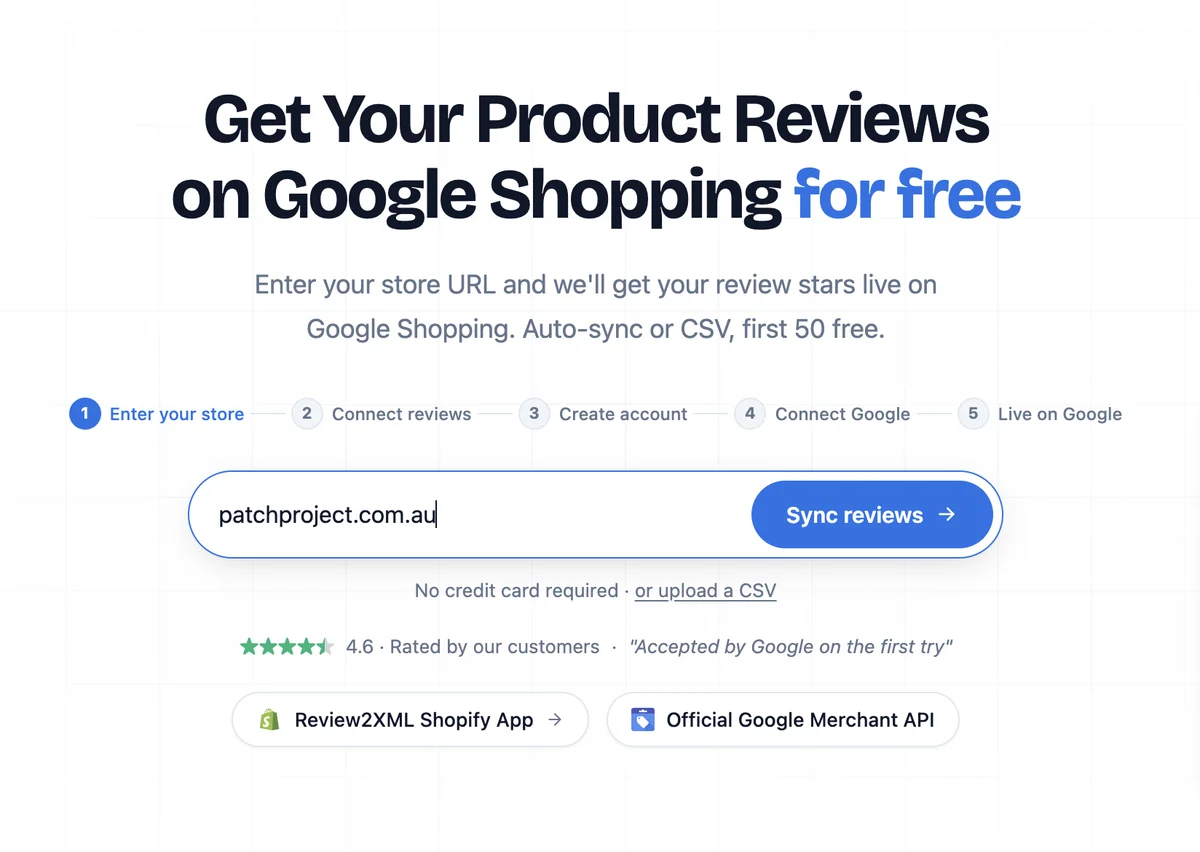 Enter your store URL on review2xml.com.
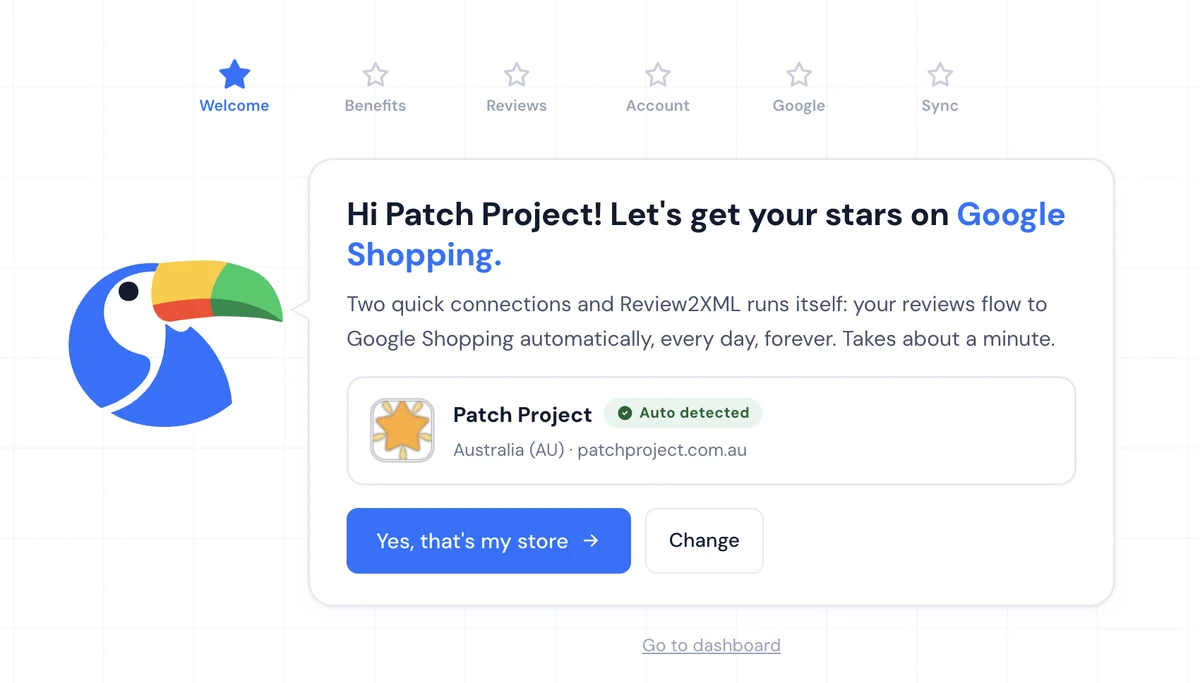 Review2XML detects your store automatically.
Step 2: Pick Klaviyo Reviews
Choose Klaviyo Reviews from the list of review apps. That's it: no API key, no export, no upload.
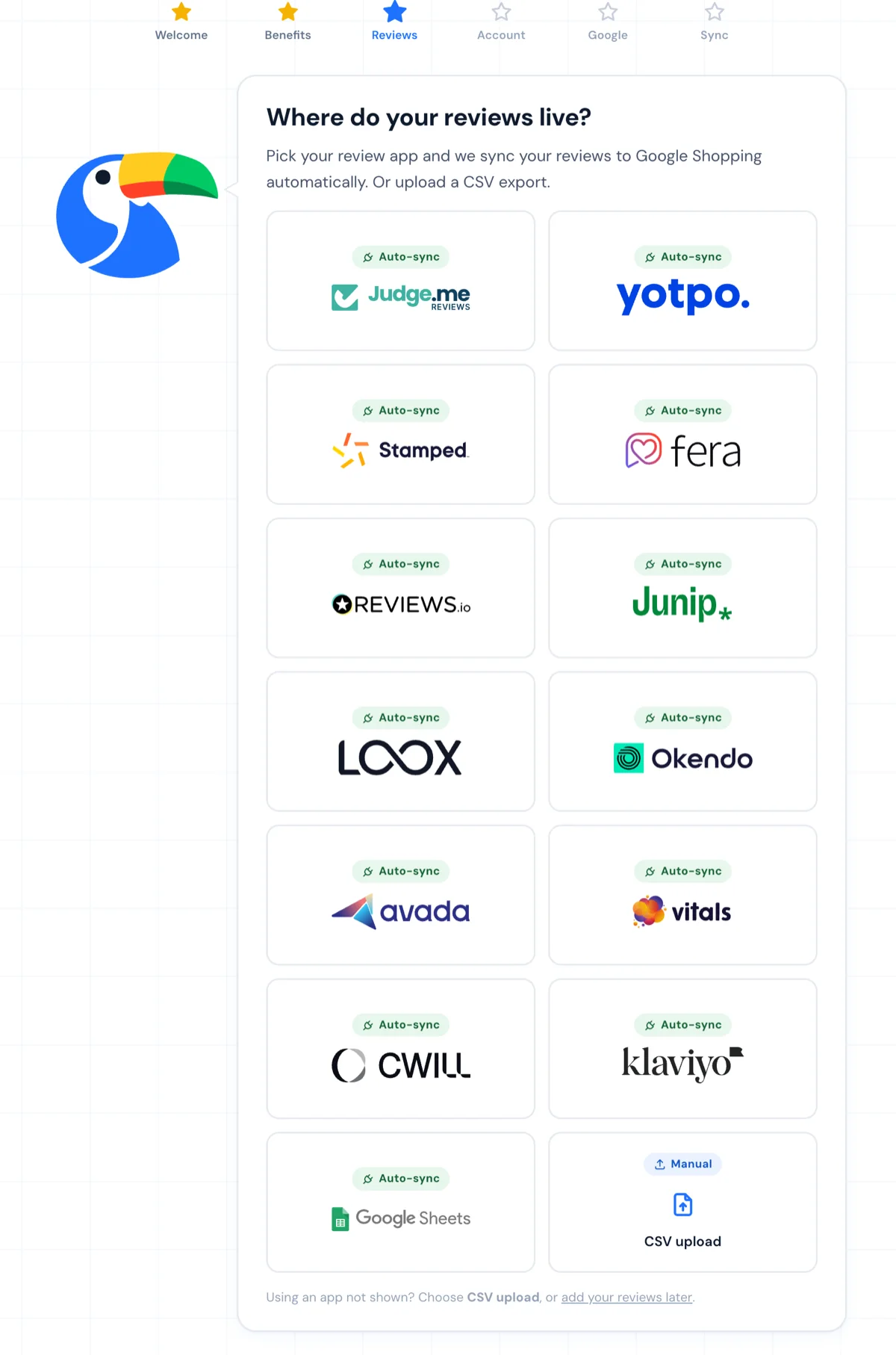 Pick Klaviyo Reviews from the list of review apps.
Step 3: Your Klaviyo reviews sync
Your published and featured Klaviyo reviews come in, are matched to your products and are mapped to Google's Product Ratings schema automatically. Big stores can take a few minutes, and you'll see the count go up as reviews come in.
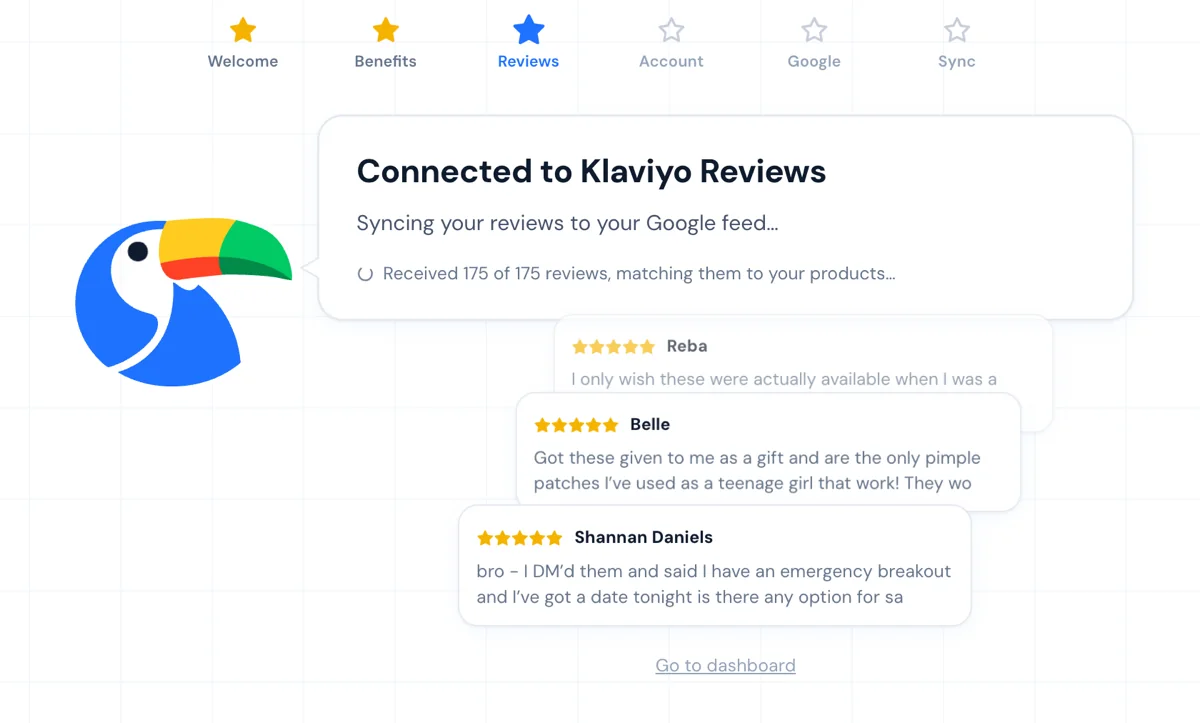 Review2XML syncs your Klaviyo reviews, no API key needed.
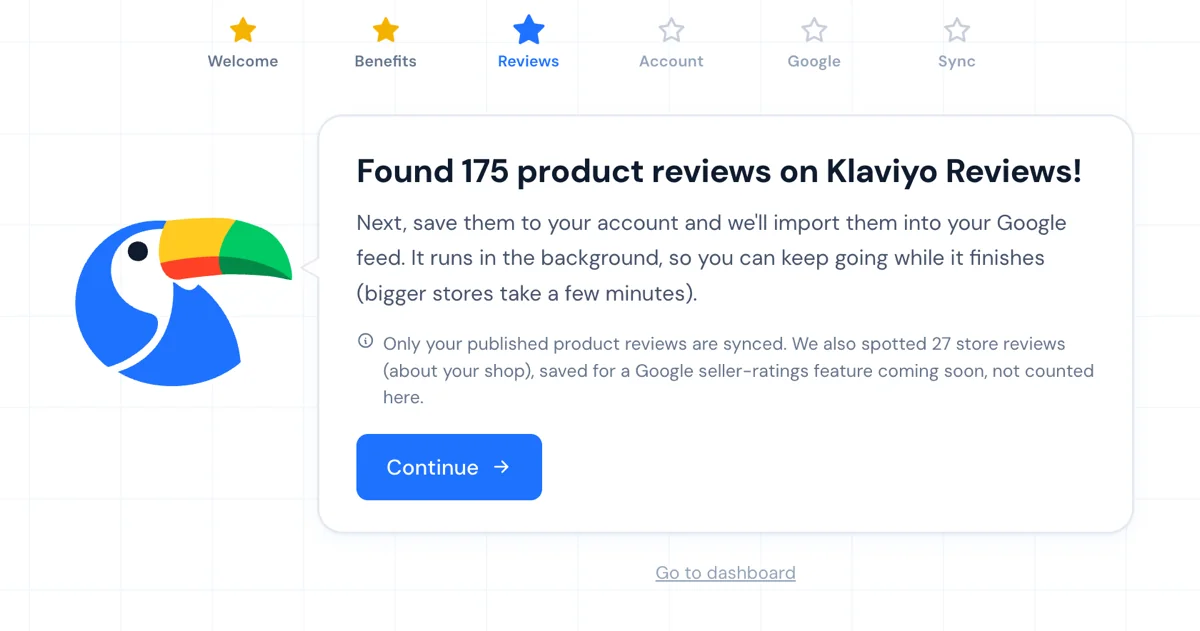 See how many Klaviyo reviews were found, then click Continue.
Step 4: Create your free account
Save your store with your email or Google sign-in.
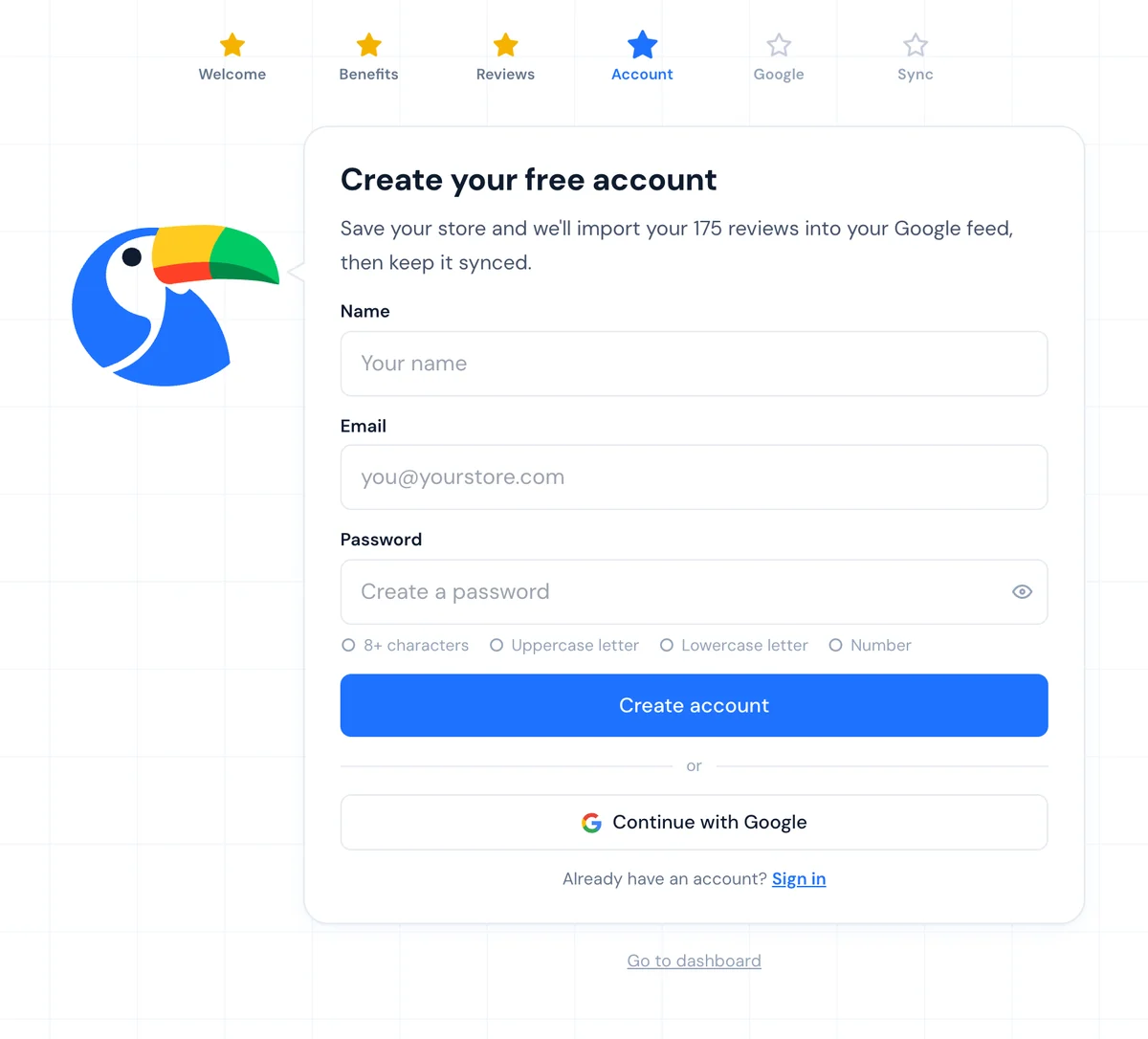 Create your free account to save your store.
Step 5: Connect Google Merchant Center
Click Connect Google Merchant Center and Review2XML sends your feed straight to Google through Google's official Merchant API. (You also get a hosted feed URL if you'd rather paste a link.) New Klaviyo reviews then sync automatically every day.
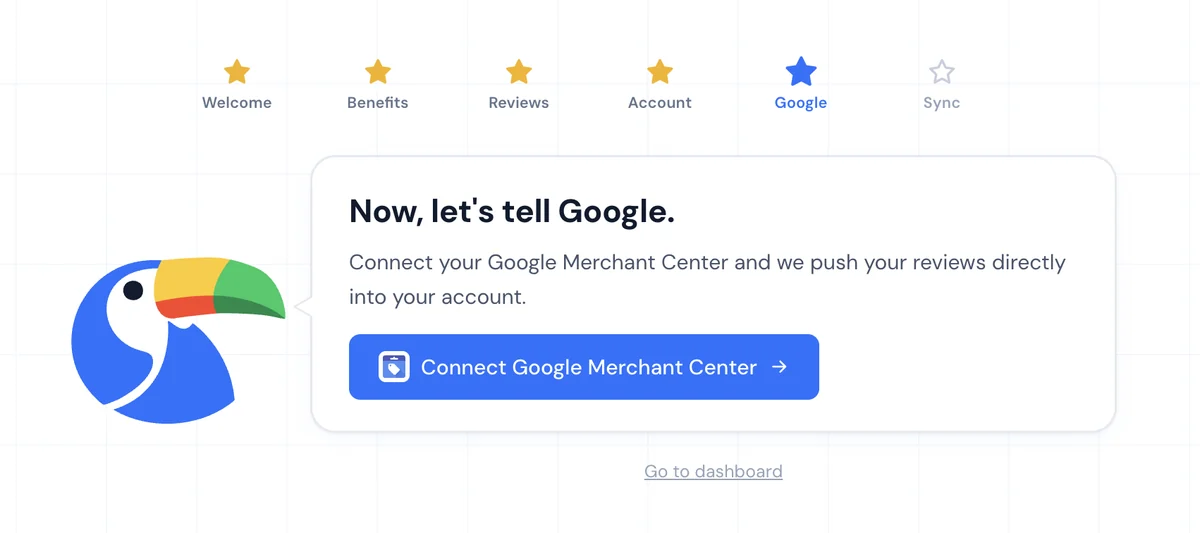 Connect Google Merchant Center in one click.
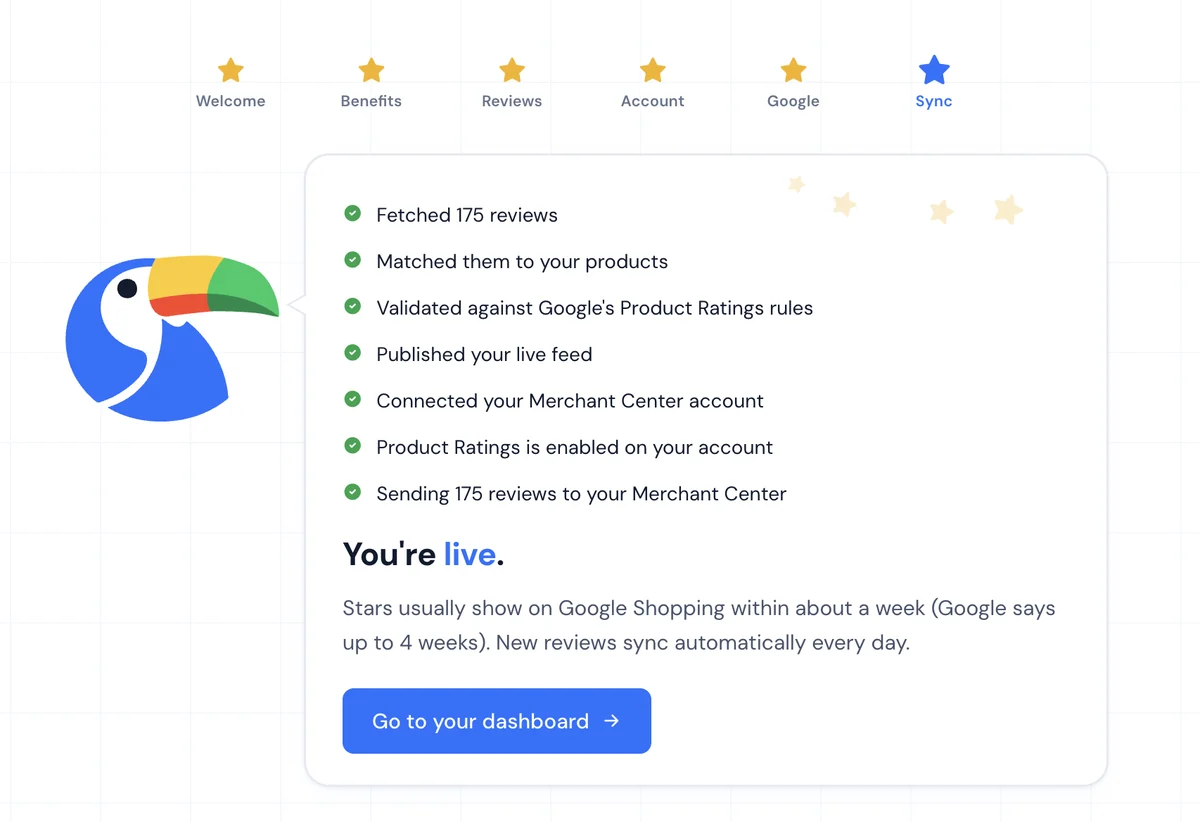 Reviews validated and sent to your Merchant Center.
Your first 50 reviews are sent to Google free, no credit card, so you can check that Google accepts your reviews before you pay. Google asks for all your product reviews, so once your store has more than 50, a paid plan sends every one.
Prefer a CSV? How to export your reviews from Klaviyo
In Klaviyo, go to Website > Reviews > All reviews, open the Options menu and click Export reviews. Pick product reviews, set any filters, then click Export. Klaviyo emails the CSV to the address you sign in with (Klaviyo's export guide). You need permission to manage reviews to see the option.
Then go to review2xml.com, enter your store URL, choose Upload CSV and add the file (a Google Sheets link works too). Review2XML reads the columns automatically (product handle, rating, title, body, author, date) and maps them to Google's schema, so there's no manual mapping. The one-click sync above saves you doing this again every time new reviews come in.
Add your feed to Google Merchant Center yourself
Through Google's official Merchant API, Review2XML can send your feed to Merchant Center in one click. To add it by hand instead:
Step 1: Go to merchants.google.com and log in.
Step 2: In the left sidebar, go to Products & store > Reviews > Product reviews.
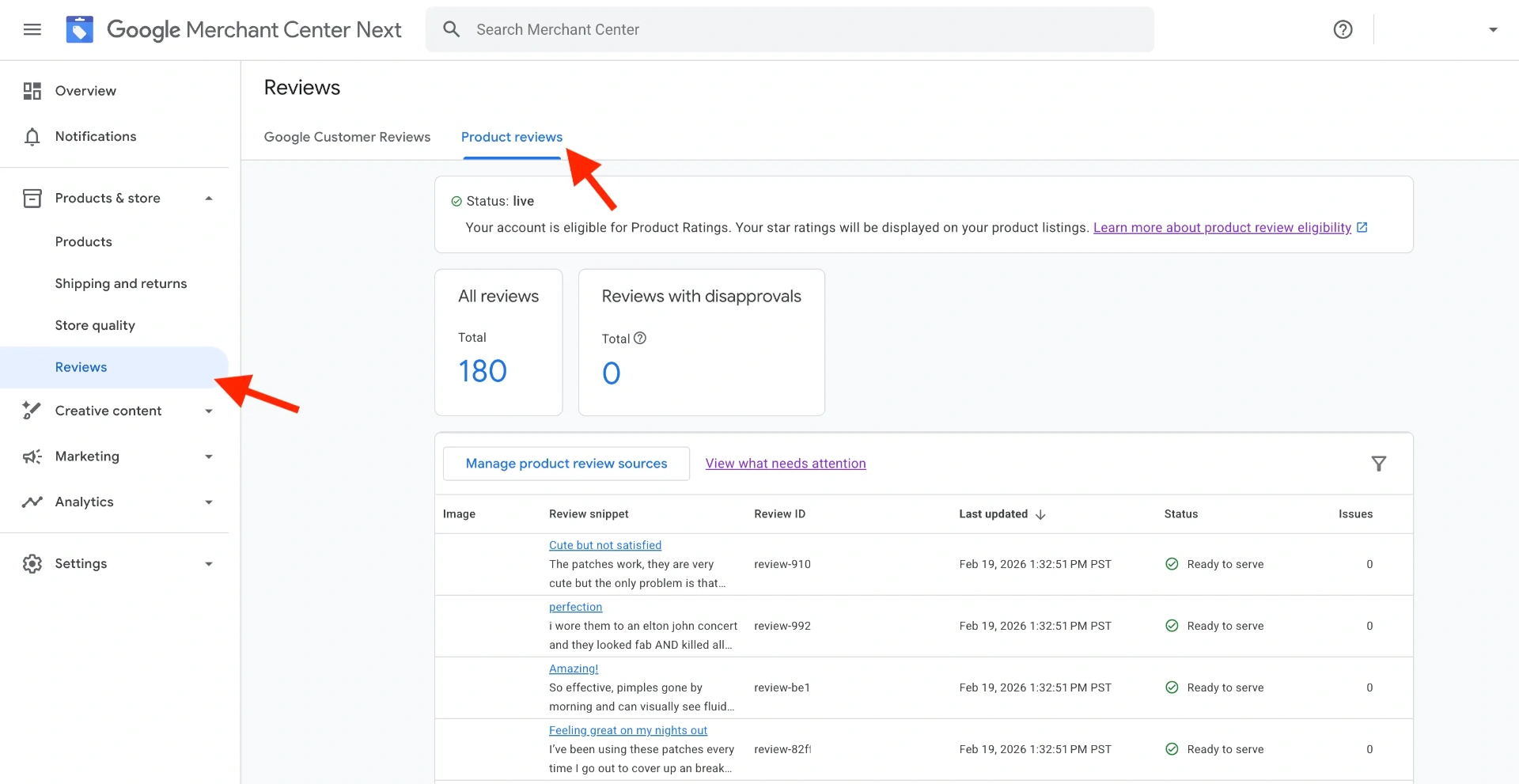
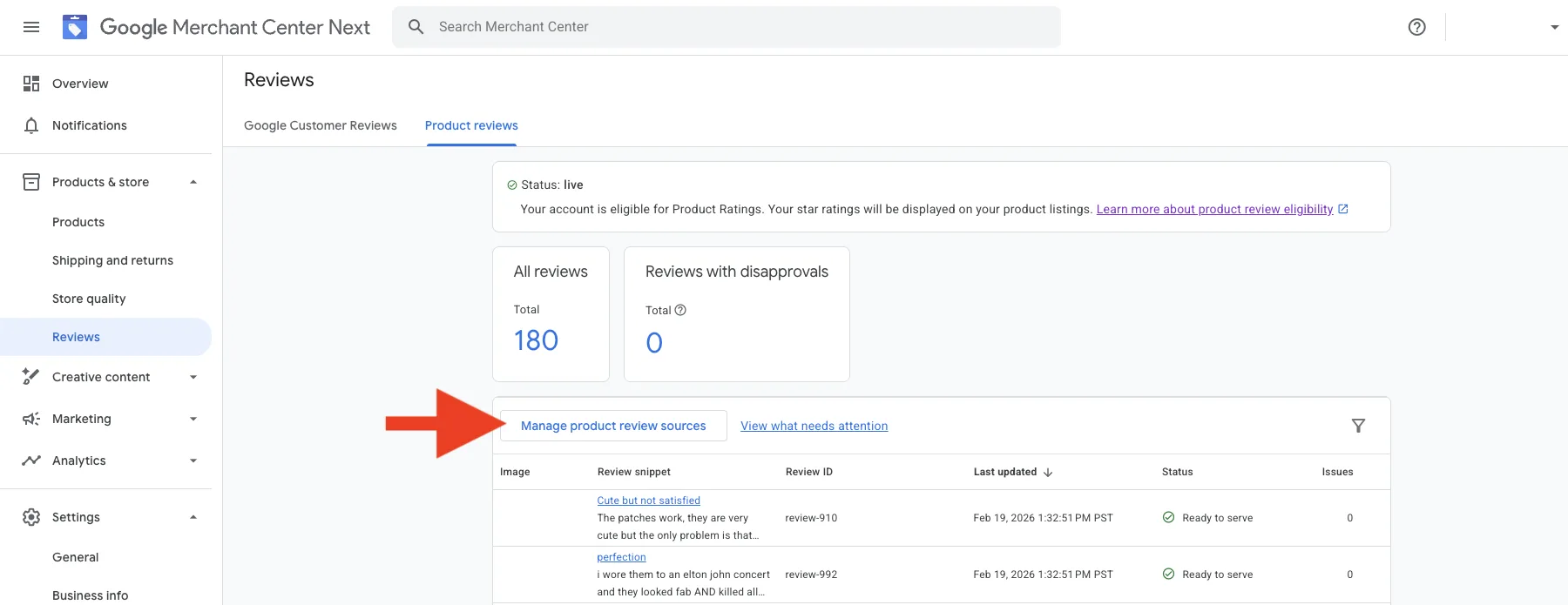
Step 3: Click Manage product review sources, then Add product review source.
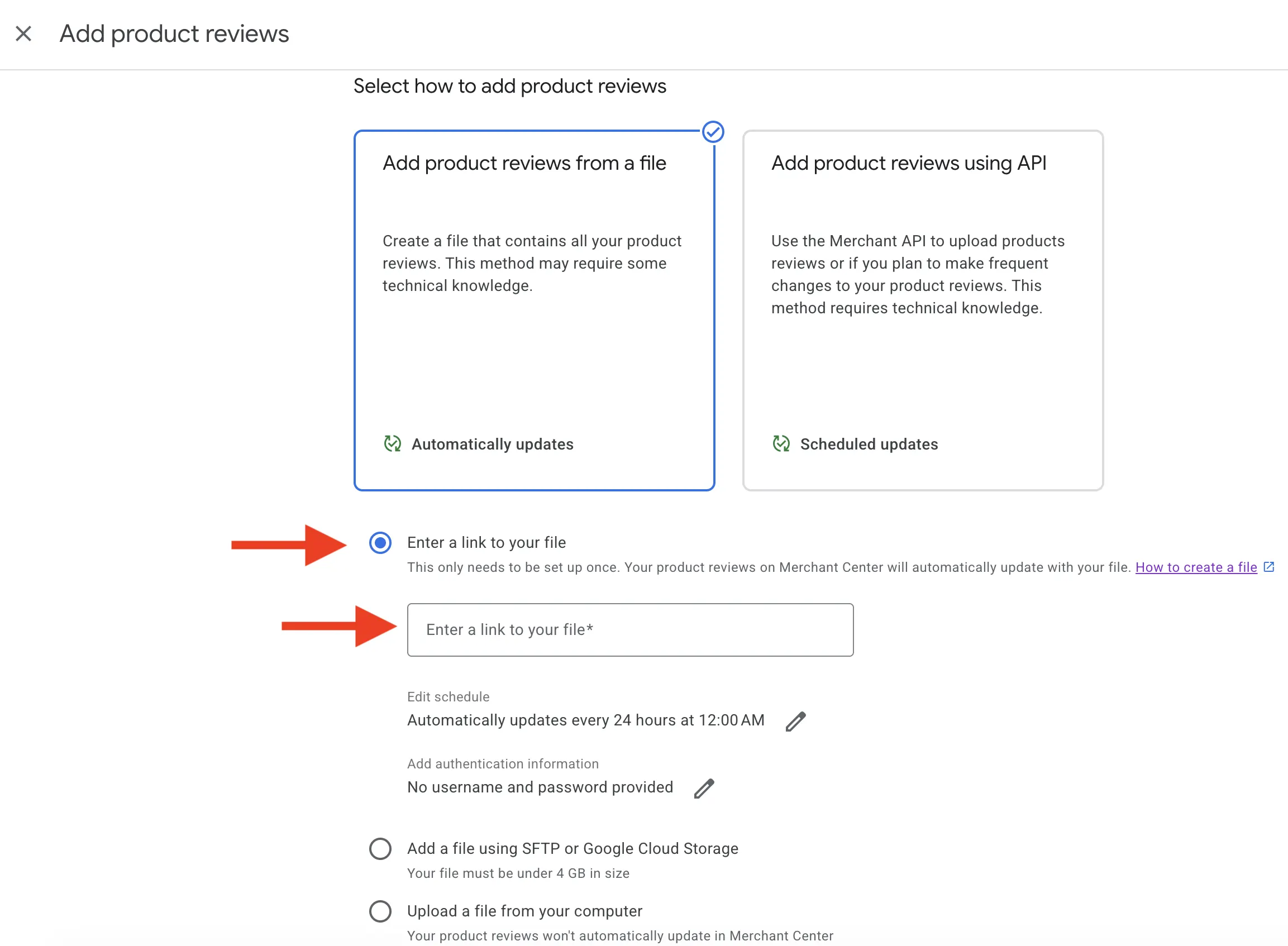
Step 4: Choose Enter a link to your file and paste your Review2XML feed URL. Google re-fetches it automatically, so you never re-upload.
Step 5: The feed shows Inactive while Google checks it. That's normal. Once it goes Live, stars start appearing on your eligible listings. Google says a first submission usually takes 2 to 4 weeks.

See how one-click review sync works and what connecting Merchant Center does on the Review2XML features page.
FAQ
Does Klaviyo Reviews send reviews to Google Shopping on its own? Klaviyo has its own Google Shopping sync for Klaviyo Reviews, and its help center says Google needs at least 50 reviews in the feed and the first sync can take around 2 weeks (Klaviyo help). Review2XML is an alternative if you want a feed that's checked against Google's Product Ratings rules before it's sent, per-product analytics for your Google clicks and impressions, or one dashboard for several stores. Your first 50 reviews are free.
Which Klaviyo reviews are included? Published and featured product reviews. Store reviews are counted separately, since Google's Product Ratings feed is for product reviews. Reviews that arrive as star ratings with no written text are handled the way Google expects.
How long does it take for stars to appear on Google Shopping? Google says onboarding usually takes 2 to 4 weeks for a first submission. Review2XML's part takes minutes. After that, new reviews usually show within 7 to 10 days.
Do I need to re-export from Klaviyo every time I get new reviews? No. With one-click sync, new Klaviyo reviews come in automatically every day and your hosted feed updates in place.
Found this helpful? See more of our guides on Google.
Add as preferred source on Google