
How to Get Junip Reviews on Google Shopping
Junip collects product reviews on your Shopify store, but it doesn't automatically send them to Google Shopping in the format Google requires. Review2XML bridges that gap: bring your Junip reviews in (a CSV export or a Google Sheets link) and it builds a Google-compliant Product Ratings feed and, through Google's official Merchant API, connects it to Google Merchant Center in one click. Your first 50 reviews are free. This guide takes you through every step.
Why showing stars on Google Shopping is worth the effort
A product listing with a star rating tells shoppers something important before they ever visit your store. They see your review score and review count directly in the search results, which builds trust before any click happens. Google sources these ratings from a Product Ratings feed submitted to Merchant Center. Your Junip reviews contain exactly the data Google needs, once they're in the required XML format.
What you need before you start
- An active Junip account collecting reviews on your Shopify store
- At least 50 product reviews (Google's minimum to display star ratings)
- A Google Merchant Center account linked to your Shopify store
- A free Review2XML account (your first 50 reviews are free)
How to export your reviews from Junip
Junip lets you export your reviews as a CSV directly from the Junip admin dashboard. Here is exactly where to find it.
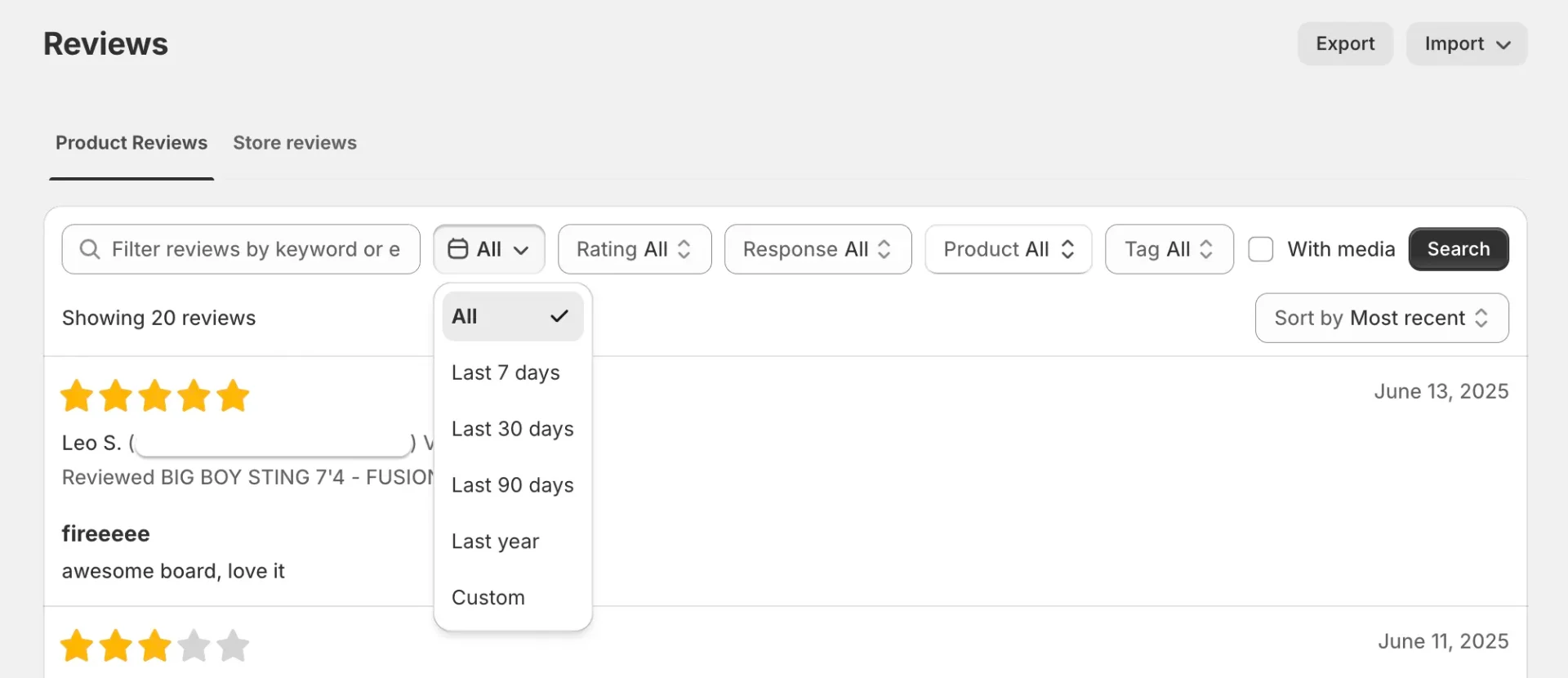
Steps 1 and 2: Go to Reviews in your Junip admin, select Product Reviews, and set the date filter to All
Log in to your Junip admin dashboard and navigate to the Reviews page. Make sure the Product Reviews tab is selected, not Store reviews. Click the date filter (it defaults to a recent range) and select All to include every review in your export.
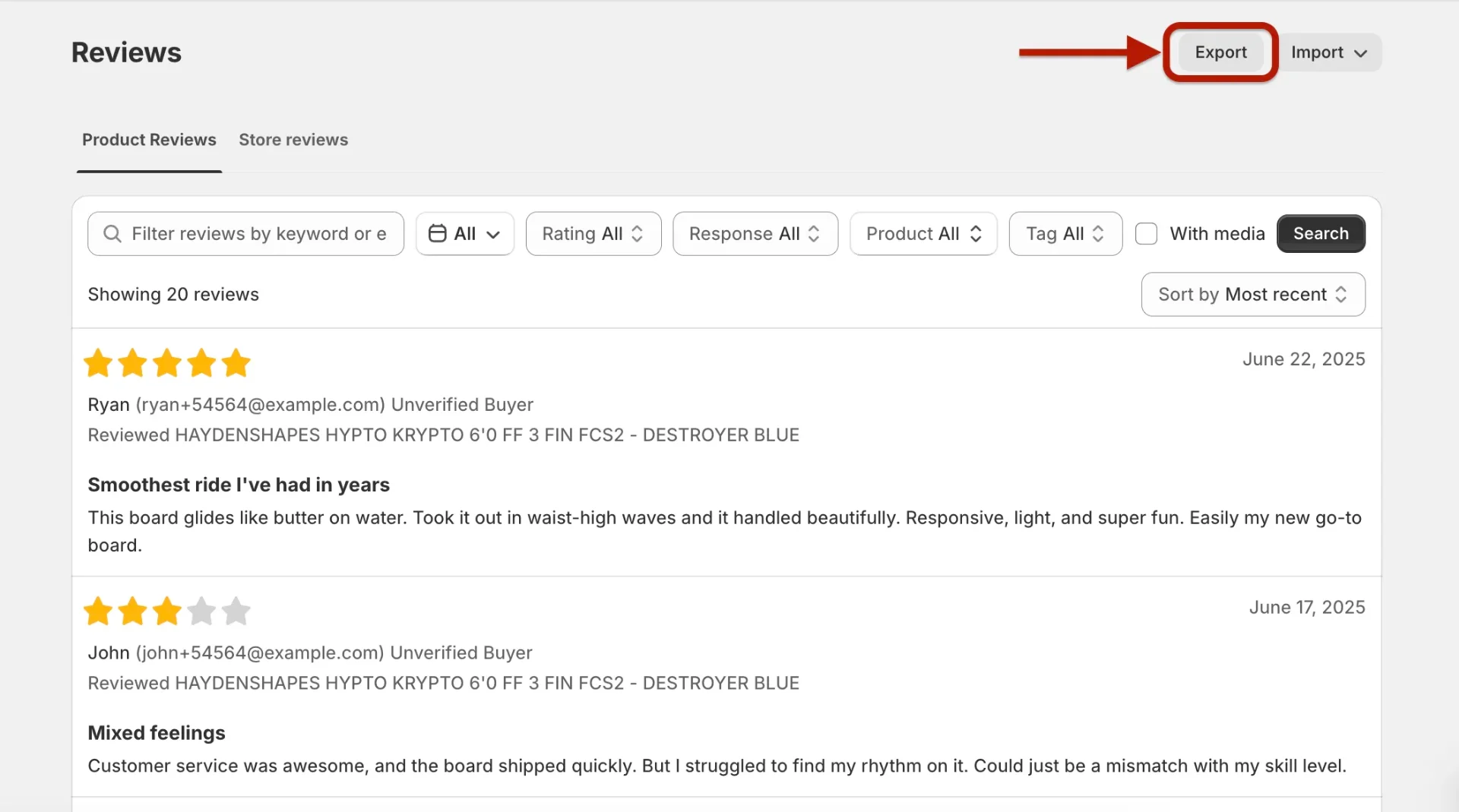
Step 3: Click Export
Click the Export button in the top right-hand corner of the Reviews page.
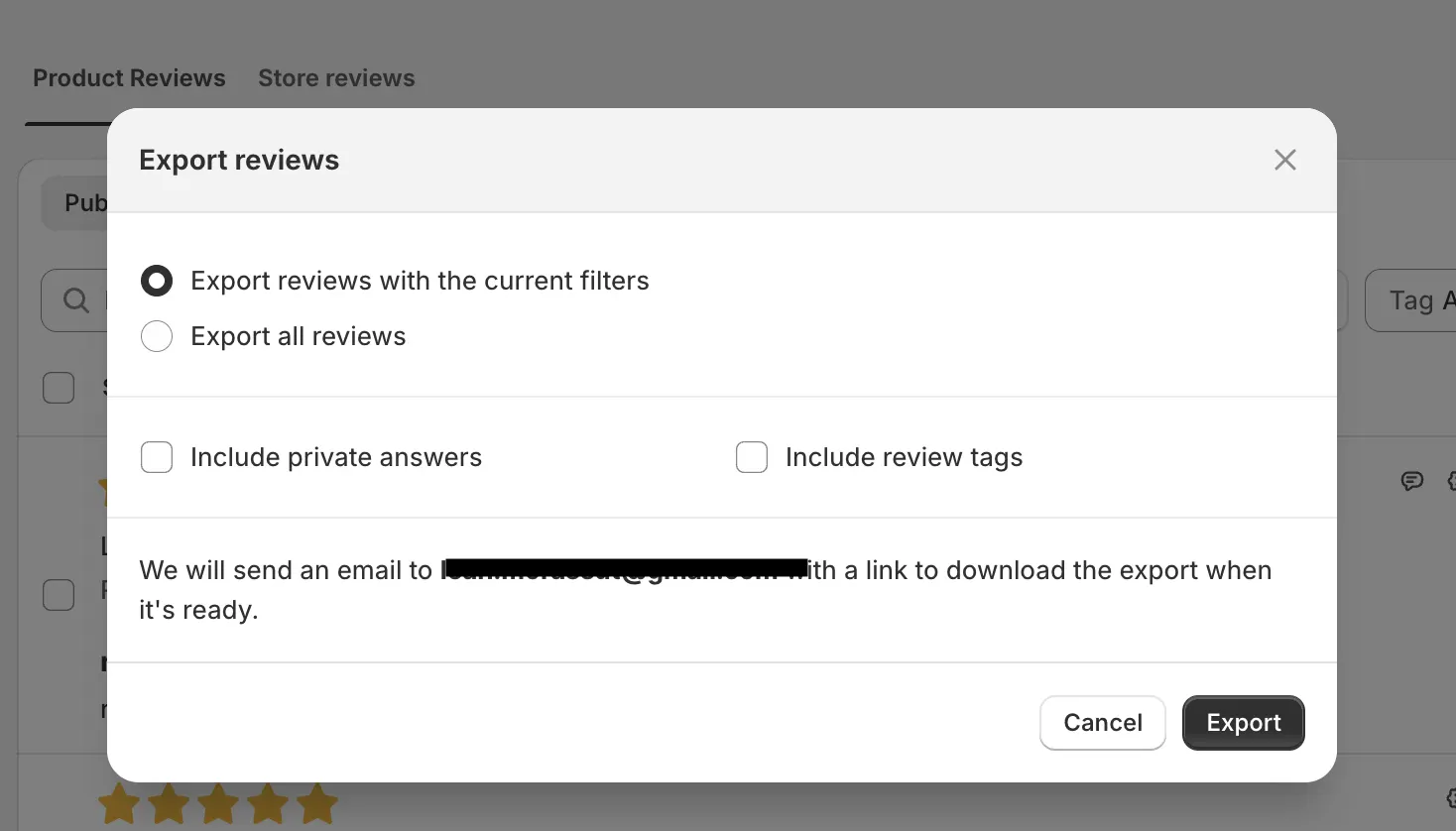
Step 4: Select Export all reviews and include review tags
In the popup that appears, select Export all reviews. Check the Include review tags box: this adds extra data that helps with review mapping in Review2XML. Then click Export. Junip emails you the file when it is ready.
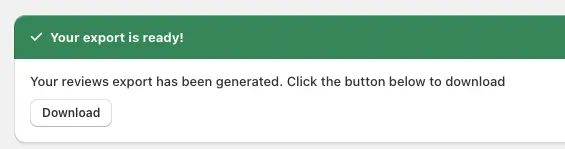
Step 5: Download your CSV
Once the export is ready, a green banner appears at the top of the Reviews page. Click Download to save your CSV.
Turn your Junip reviews into a Google Product Ratings feed
Google Merchant Center requires reviews in a specific XML format called the Product Ratings feed, and Review2XML builds it for you. Go to review2xml.com, enter your store URL, and add your reviews by uploading your Junip CSV or pasting a Google Sheets link. Review2XML reads the columns automatically (product identifier, rating, review body, reviewer name, review date) and maps them to Google's schema, so there's no manual mapping. Preview your product cards with their star ratings, then your first 50 reviews go live free. (One-click Junip auto-sync via the Junip API is on the way; for now the CSV or Sheets route takes about a minute.)
Add your feed to Google Merchant Center
Through Google's official Merchant API, Review2XML can push your feed straight into Merchant Center in one click. To add it yourself instead:
Step 1: Log in to Google Merchant Center
Go to merchants.google.com and log in.
Step 2: Go to Product Reviews
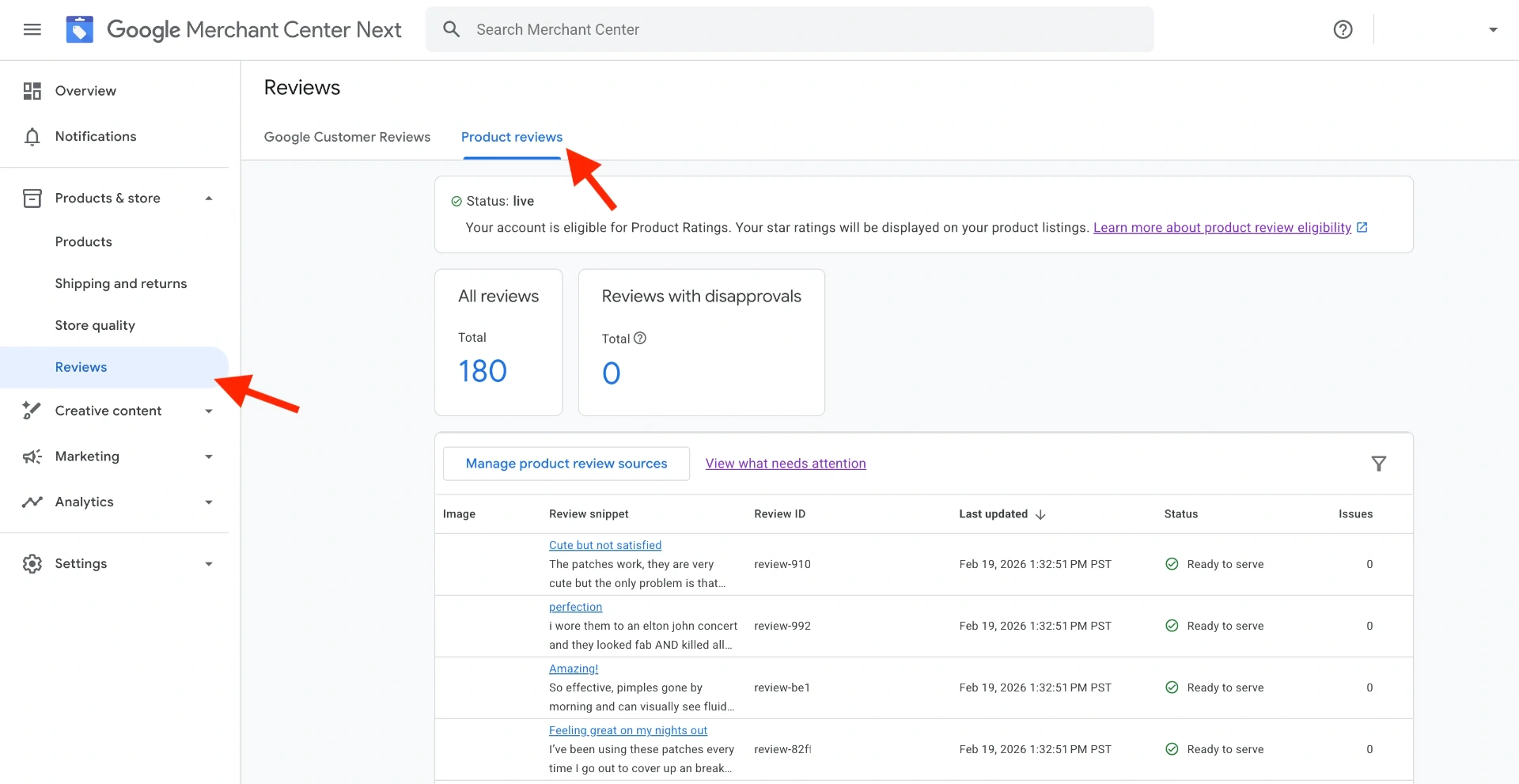
In the left sidebar, navigate to Products & store > Reviews > Product reviews.
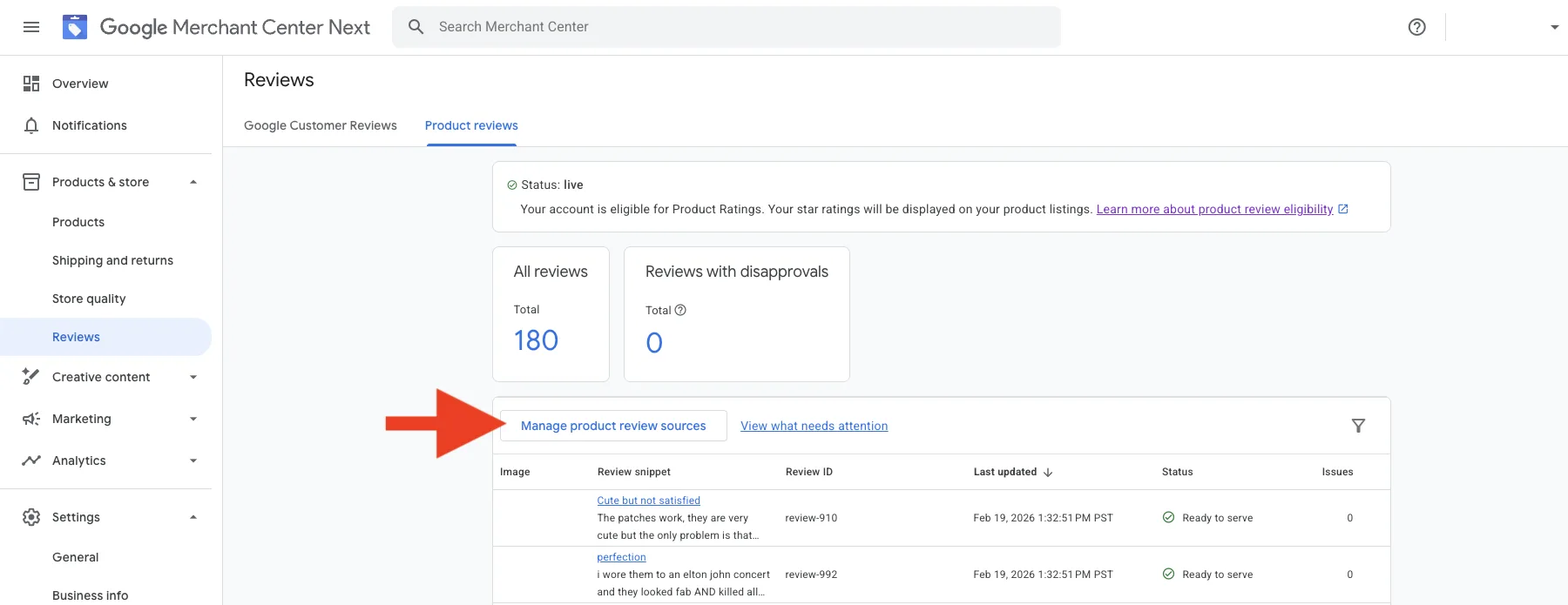
Step 3: Open Manage Product Review Sources
Click Manage product review sources, then Add product review source.
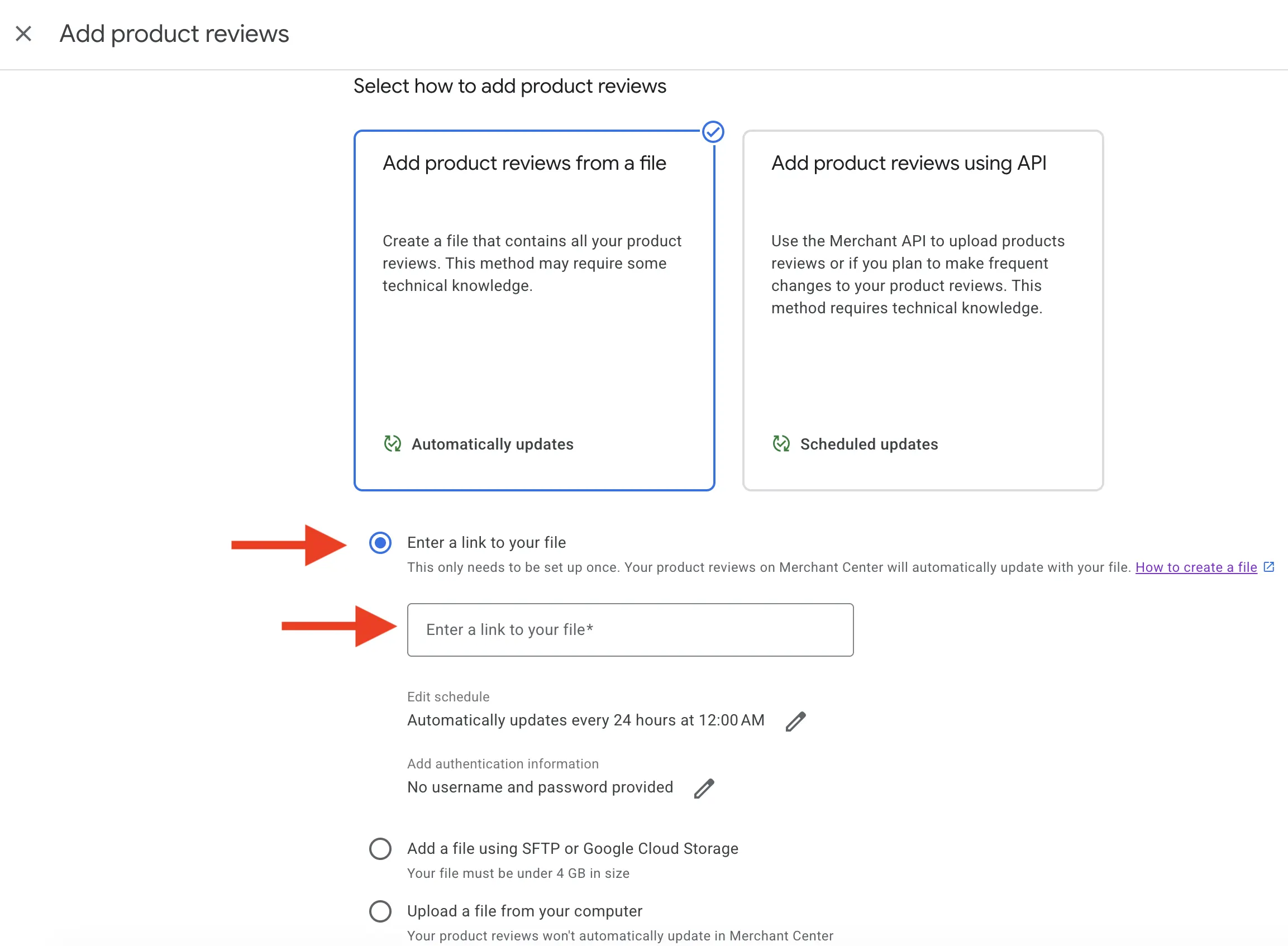
Step 4: Add your feed
Choose Enter a link to your file and paste your Review2XML feed URL. Because it's a hosted URL, Google re-fetches it automatically, so you never have to re-upload.
Step 5: Wait for Google to review your feed
The feed shows an inactive status while Google processes it. This can take up to a few days.
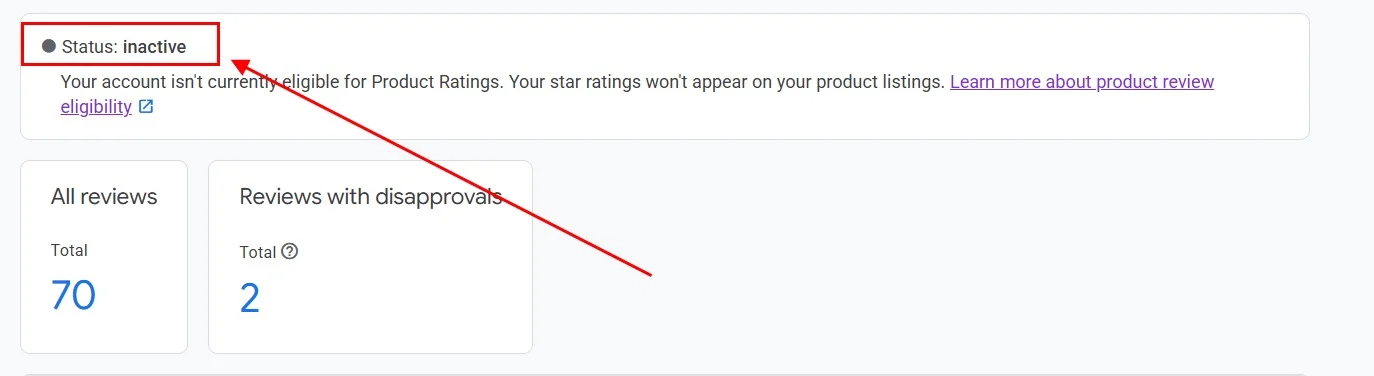
When the review is complete and the feed is approved, the status changes to active, and star ratings begin appearing on your eligible Google Shopping listings.

FAQ
Does Junip automatically send reviews to Google Merchant Center? No. Junip doesn't have a native integration that delivers product reviews to Google in the Product Ratings XML format. You bring your Junip reviews into Review2XML (a CSV export or a Google Sheets link), and it builds the feed and, through Google's official Merchant API, connects it to Merchant Center for you.
Why should I check the Include review tags box when exporting from Junip? Review tags add extra structured data to your export, including product identifiers and other fields that help Review2XML map your reviews to the right products. Checking that box gives you a more complete export and reduces the chance of product matching issues.
How long does it take for stars to appear on Google Shopping after connecting the feed? Processing typically takes a few days. Once Google approves the feed and confirms you have at least 50 reviews, stars begin appearing on your eligible listings.
Do I need to re-export from Junip every time I get new reviews? No. Your Review2XML feed is a hosted URL and Google fetches updated data on a regular schedule, so when you collect new reviews you upload the latest export from your dashboard and the live feed updates in place. There's no ongoing manual re-upload.
Found this helpful? See more of our guides on Google.
Add as preferred source on Google