
How to Increase Your Google Shopping Reviews Using GTINs
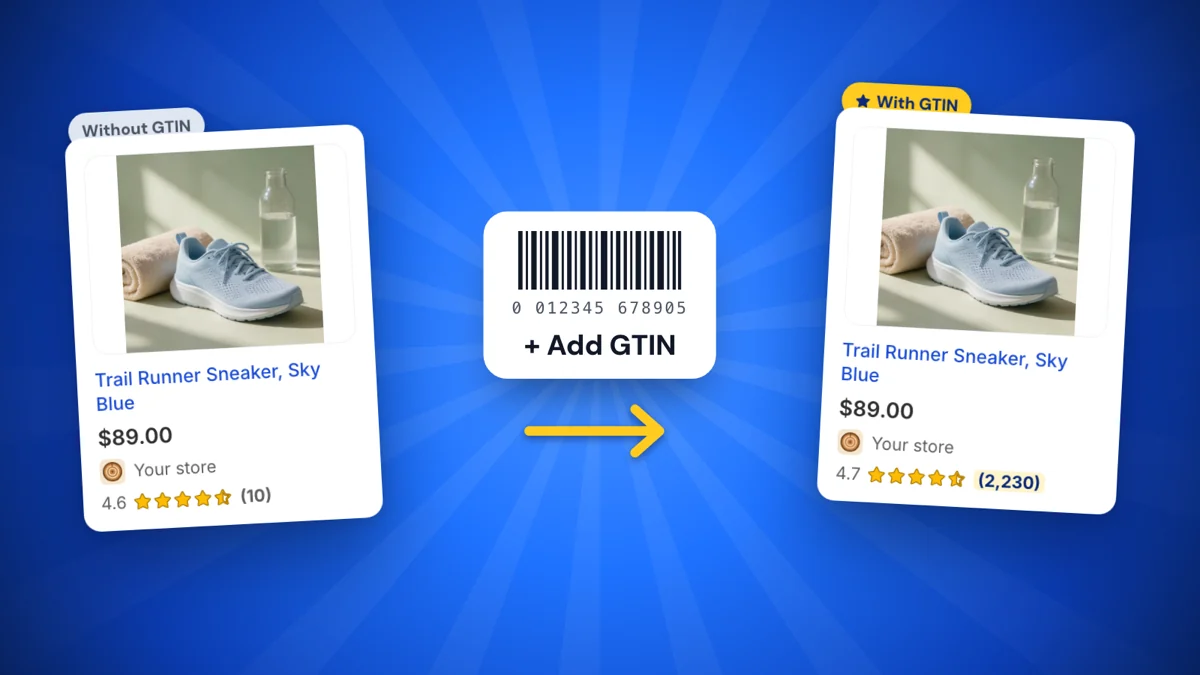
Most Shopify stores have only a handful of reviews on each product, while bigger competitors show hundreds. There is a way to increase your Google Shopping reviews without waiting years to collect them, and it comes down to one field in your feed: the GTIN. This guide explains how Google aggregates reviews by GTIN, why it can multiply the star count on your listings, and how to set it up correctly.
Why Your Products Show So Few Reviews
When you collect reviews with an app like Judge.me, Loox, or Yotpo, every review belongs to your store. A product you launched last month might have three reviews. A best seller might have forty. That is normal, and it is fine for your on-site widgets.
The problem shows up on Google Shopping. Google needs a minimum of 50 reviews across your products before it will show any stars at all, and even once stars appear, a listing with 6 reviews looks thin next to a competitor showing 900. Shoppers use that number as a shortcut for trust, so a low count can cost you the click even when your product is better.
Collecting your way to a high number takes a long time. The faster path is to let Google count reviews that already exist for the exact product you sell.
How Google Aggregates Reviews by Product, Not by Store
Here is the part most merchants never hear. Google Product Ratings are attached to a product, not to your store. The product is identified by its GTIN, which is the global barcode number printed on branded and manufactured goods.
When several sellers offer the same product, Google can pool review data for that product from multiple sources: individual merchants, review platforms, and other retailers selling the identical item. The rating a shopper sees on a listing can reflect reviews gathered by everyone selling that exact product, not only the reviews you collected yourself.
The key that unlocks the shared pool is the GTIN. If your feed tells Google the correct GTIN for a product, your listing can join the aggregated rating for that product. If your feed has no GTIN, or the wrong one, Google treats your product as a separate item and you only get your own small pile of reviews.
A Real Example
I saw this on a store that sold a branded item with only 5 of its own reviews on that product. Because the product shares a GTIN with the same item sold by dozens of other retailers, the Google Shopping listing displayed an aggregated rating built from roughly 4,000 reviews.
The store did not collect 4,000 reviews. It inherited the shared product rating simply by identifying the product correctly with its GTIN. Five became four thousand because Google recognised the barcode and pooled everyone's reviews for that product into one score.
That is the whole idea. You are not faking anything. You are letting Google count the reviews that genuinely exist for the product you are selling.
Who This Works For, and Who It Does Not
This is where honesty matters, because the GTIN trick does not help every store equally.
It works well when you resell branded or manufactured products that other retailers also sell. A phone case, a supplement, a well known kitchen gadget, a name brand toy: these have a shared global GTIN, so there is a large pool of reviews to join.
It does not help when you sell private label or one of a kind products that only your store sells. A custom candle, a print you designed, a unique handmade item: there is no shared GTIN pool, because no other seller lists the same product. In that case your rating reflects only your own reviews, and the way to grow it is to keep collecting.
Most stores are a mix. You might have 30 private label products that only build their own counts and 10 branded products that can tap into thousands of shared reviews. Getting the GTIN right on those 10 is where the fast wins are.
How to Get Your Reviews Matched by GTIN
There are three moving parts, and all three have to agree on the same GTIN.
1. Put the correct GTIN on your products. In Shopify, the GTIN lives in the Barcode field on each product variant. Make sure it holds the real barcode number for branded items. This is what flows into your Google product feed.
2. Include the GTIN in your review feed. Your Product Ratings feed is a separate XML file from your product feed. Each review in it needs to carry the product's GTIN so Google can attach the review to the right product. If your reviews only carry a SKU that Google does not recognise, they will not join the shared pool.
3. Submit and let Google match. Once both feeds use the same GTIN, Google links your listing to the aggregated product rating.
Review2XML handles the review feed side for you. When you upload your review CSV, it maps your GTIN column into the correct XML field, so your reviews arrive at Google already tagged with the barcode Google is matching on. If you want the deeper mechanics of how SKUs, GTINs, and MPNs attach reviews to products, see our guide on how to match product reviews to SKUs, GTINs, and MPNs.
Ready to get your reviews counted by GTIN? Upload your review CSV at review2xml.com and get a Google ready feed in minutes, with your barcodes mapped automatically.
Common Mistakes That Break GTIN Matching
A few small errors quietly stop the aggregation from happening:
- Missing barcodes. If the Shopify Barcode field is empty, there is no GTIN to match on, and the product falls back to your own reviews only.
- Mismatched identifiers. The GTIN in your review feed must match the GTIN in your product feed exactly. One wrong digit and Google sees two different products.
- Relying on SKU for shared products. Your internal SKU is unique to your store, so it can never join another seller's pool. Use the GTIN for branded items.
- Wrong or invented GTINs. Do not paste a barcode from a similar product. An incorrect GTIN can attach your reviews to the wrong product or get the feed rejected.
Fix these and your branded products can start showing the review counts they deserve.
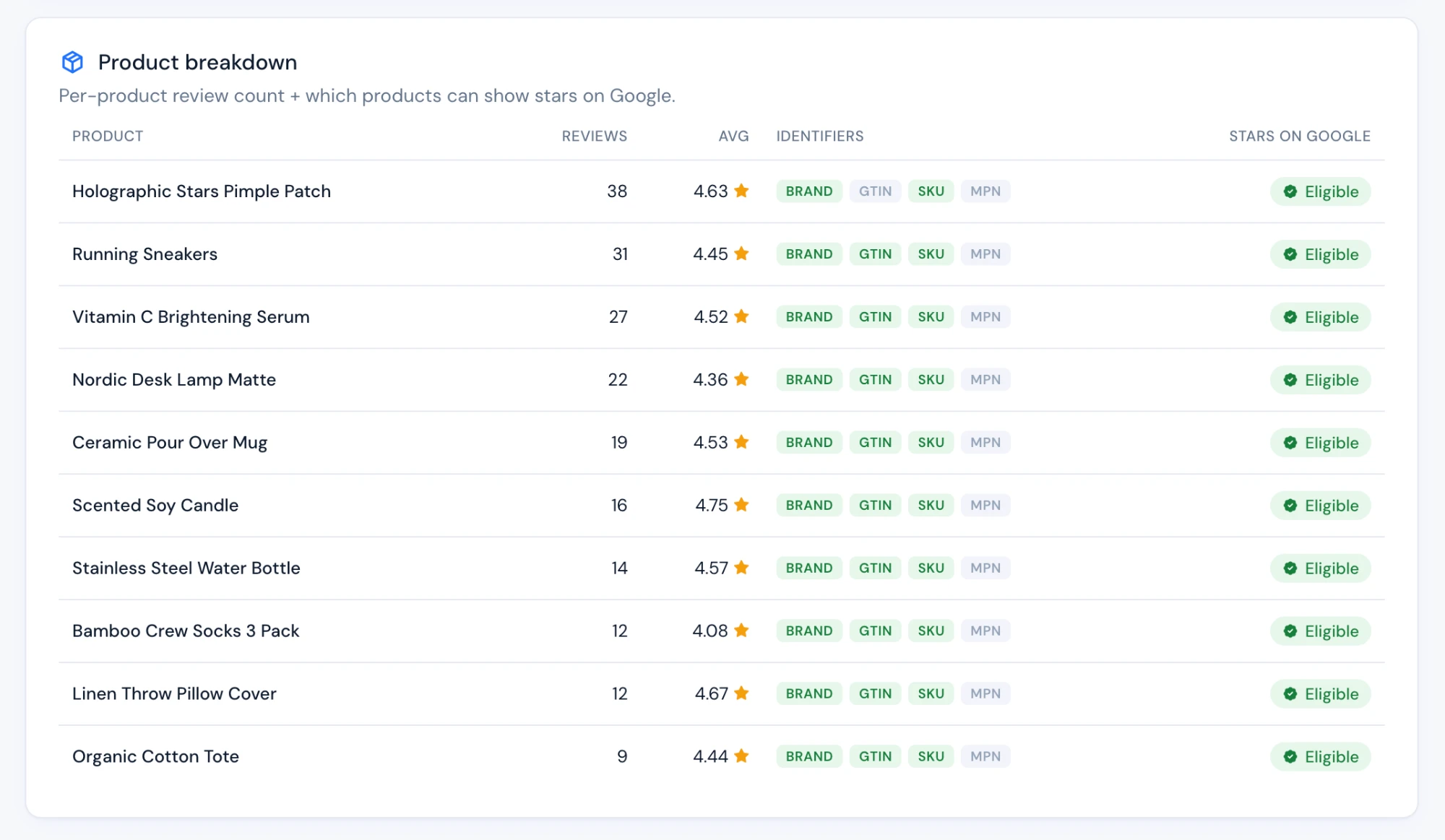
Want to see which of your products Google can't match? Review2XML's Product Breakdown lists every product missing a GTIN, brand, MPN or SKU and links straight to it so you can fix it.
FAQ
Does this mean I am using other stores' reviews? No. You are joining Google's aggregated rating for a product, which Google builds from many sources for that exact item. The reviews belong to the product, identified by its GTIN, and Google is the one pooling them. You are only telling Google which product you are selling.
Will it work for my own private label products? Not in the same way. Private label products that only your store sells have no shared GTIN pool, so their rating comes from your own reviews. The GTIN benefit is strongest for branded items that other retailers also sell.
Where do I find a product's GTIN? It is the barcode number on the packaging, and in Shopify it goes in the Barcode field on each product variant. For branded goods the manufacturer assigns it, so it is the same number every retailer uses.
Do I still need 50 reviews to show stars? Google still applies its minimum before showing ratings, but joining an aggregated product pool by GTIN is often the fastest way to clear that bar on branded products, because the shared count is already well above the minimum.
How does Review2XML help with this? Review2XML converts your review CSV into the Google Product Ratings XML format and maps your GTIN column into the correct field, so your reviews reach Google already tagged with the barcode Google matches on. That is the piece that lets your listing join the shared rating.
Found this helpful? See more of our guides on Google.
Add as preferred source on Google